
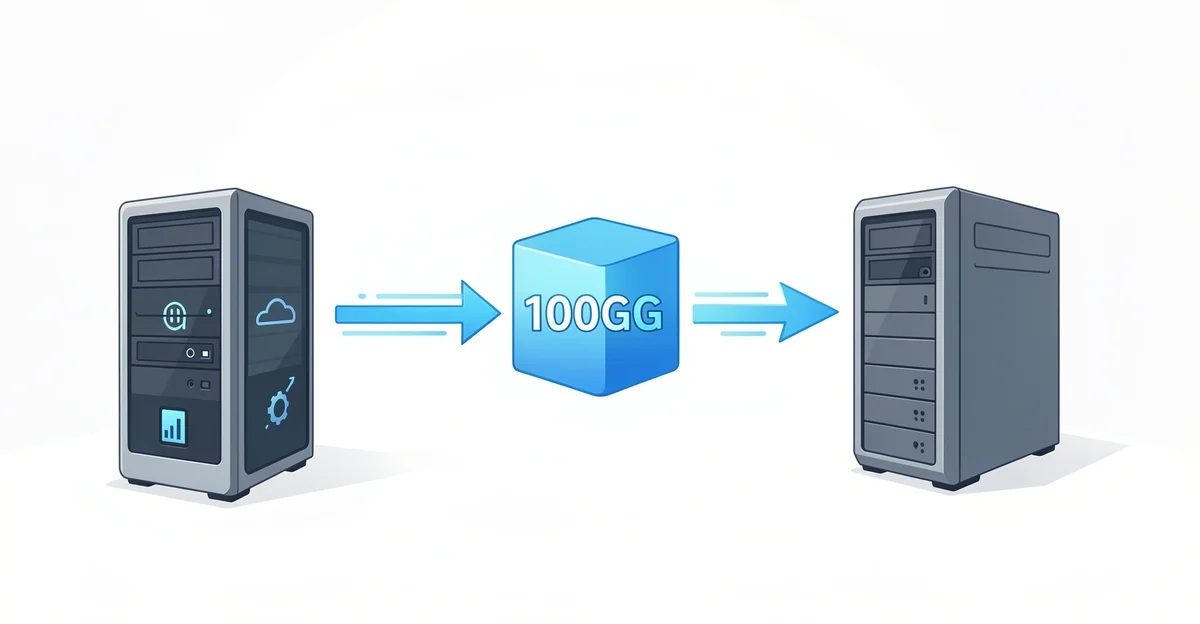
Transferring large files between two PCs can often feel like a daunting task, especially when dealing with hefty sizes like 100GB. Whether you’re moving important work documents, high-resolution videos, or extensive software packages, the challenge becomes even more significant when you lack a reliable internet connection. Fortunately, there are several effective methods to transfer 100GB files between two PCs without internet, ensuring your data moves swiftly and securely.
In this article, we will explore various techniques that allow you to transfer large files efficiently. From utilizing external storage devices to leveraging local network options, our guide will provide you with clear, actionable steps to accomplish this task with ease. Say goodbye to the frustration of slow uploads and downloads, and discover how to streamline your file transfer process without the need for an internet connection.
Introduction
Transferring large files, such as 100GB, between two PCs without the use of the internet can seem daunting. However, with the right methods and tools, it can be accomplished efficiently and effectively. This article explores how to transfer 100GB files between two PCs without internet with clear, practical guidance. Understanding the fundamentals of this process helps you make informed decisions and ensures that you can execute file transfers smoothly.
Key Concepts
Before diving into the various methods of transferring large files, it’s essential to understand a few key concepts that will aid in the process:
- File Transfer Protocols: Familiarize yourself with different protocols like FTP, SFTP, and SMB, which can facilitate file transfers.
- Data Transfer Speed: The speed of your transfer will depend on the method used and the hardware capabilities of your PCs.
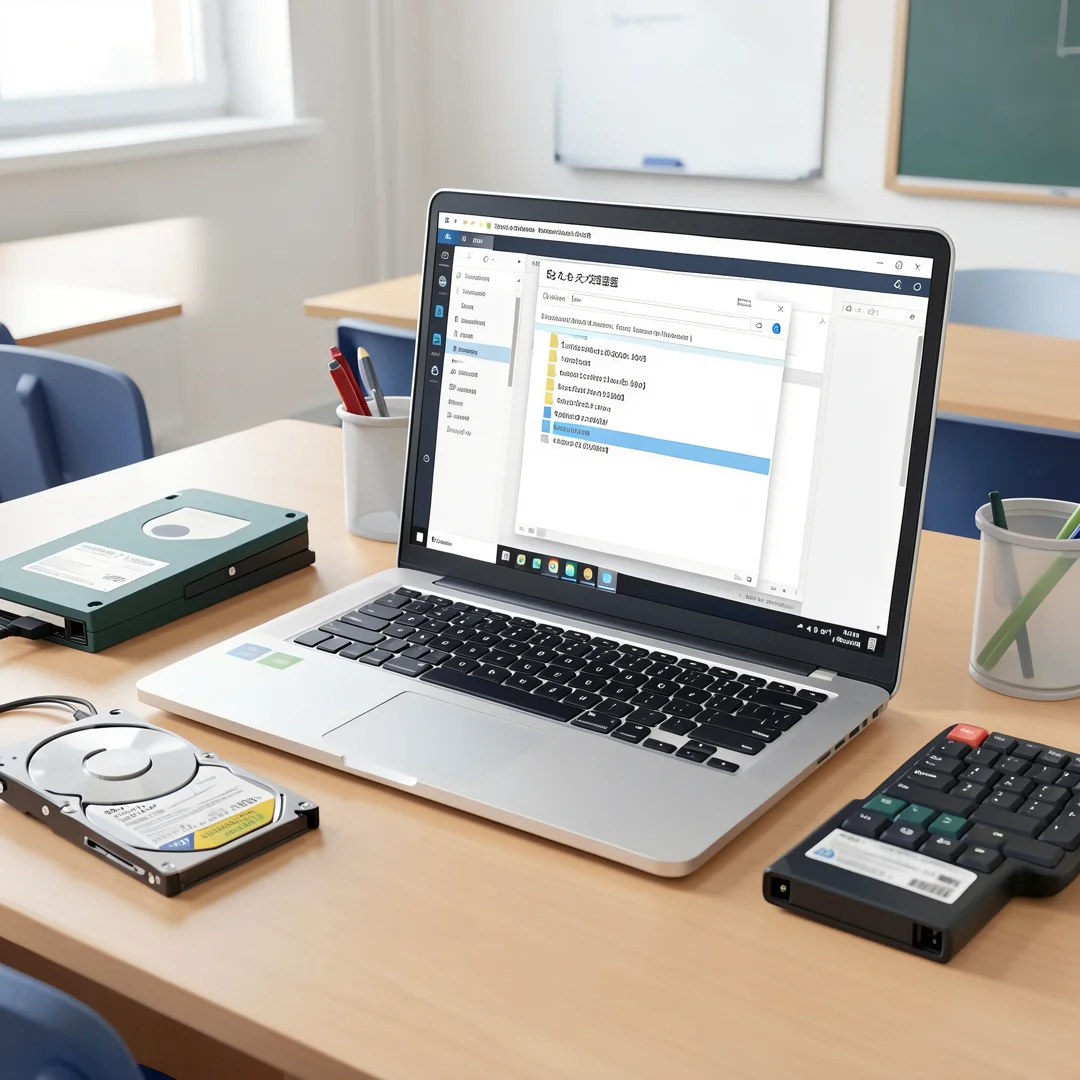
- Storage Devices: External hard drives, USB flash drives, and network-attached storage (NAS) can be used to move large files effectively.
Deep Dive
Now that we have established the foundational concepts, let’s explore the various methods to transfer 100GB files between two PCs without an internet connection.
1. Using External Hard Drives
One of the simplest and most effective ways to transfer large files is by using an external hard drive. Here’s how to do it:
- Step 1: Connect the external hard drive to the first PC.
- Step 2: Copy the 100GB file onto the external hard drive.
- Step 3: Safely eject the hard drive and connect it to the second PC.
- Step 4: Copy the file from the external hard drive to the second PC.
This method is straightforward and allows for high-speed transfers, especially if you are using a USB 3.0 or higher external drive.
2. USB Flash Drives
If you don’t have an external hard drive, a high-capacity USB flash drive can also do the trick. Here’s how:
- Step 1: Insert the USB flash drive into the first PC.
- Step 2: Transfer the 100GB file to the USB drive.
- Step 3: Remove the USB drive and plug it into the second PC.
- Step 4: Copy the file from the USB drive to the second PC.
Ensure that the USB flash drive has enough capacity to hold the file and supports fast transfer speeds.
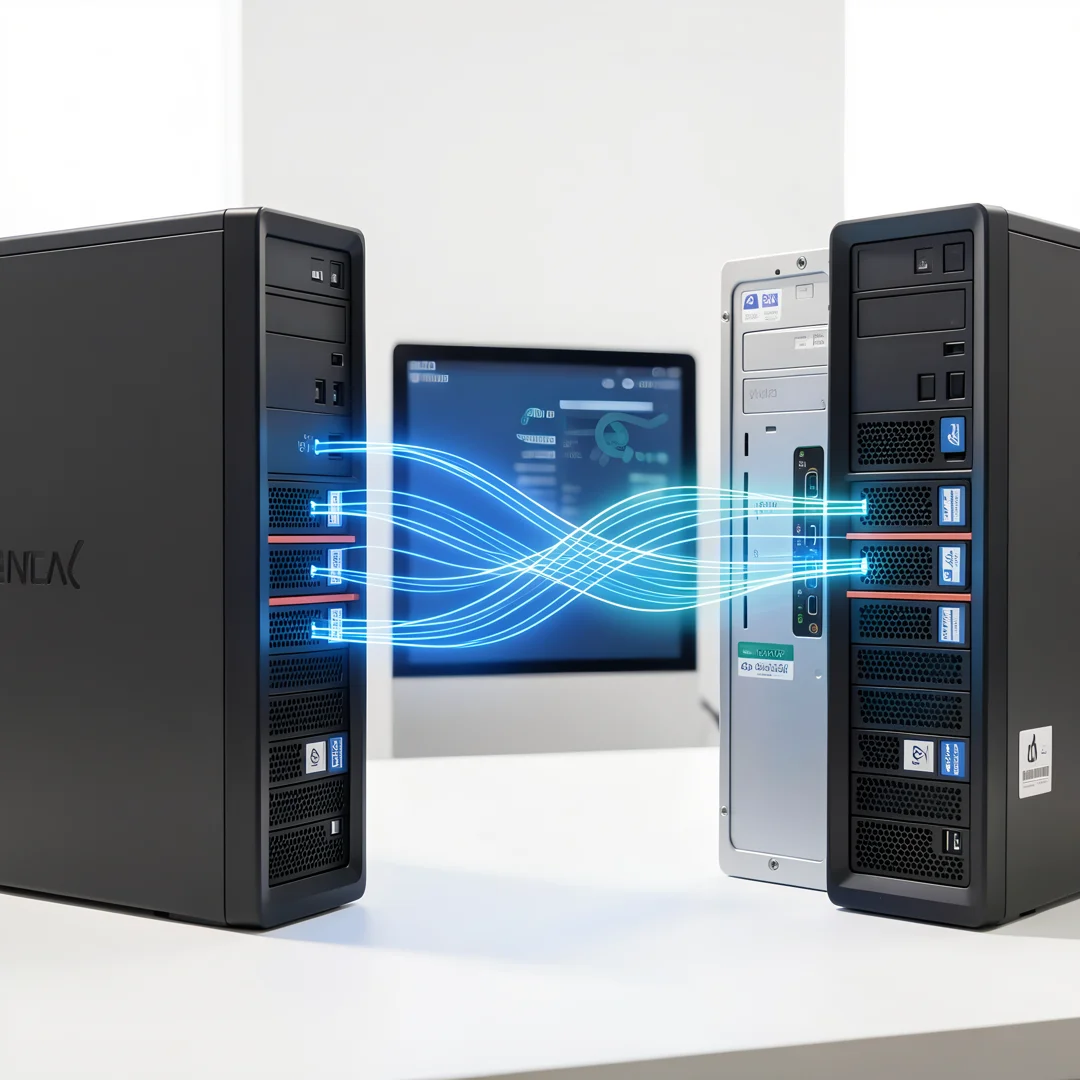
3. Direct Cable Connection
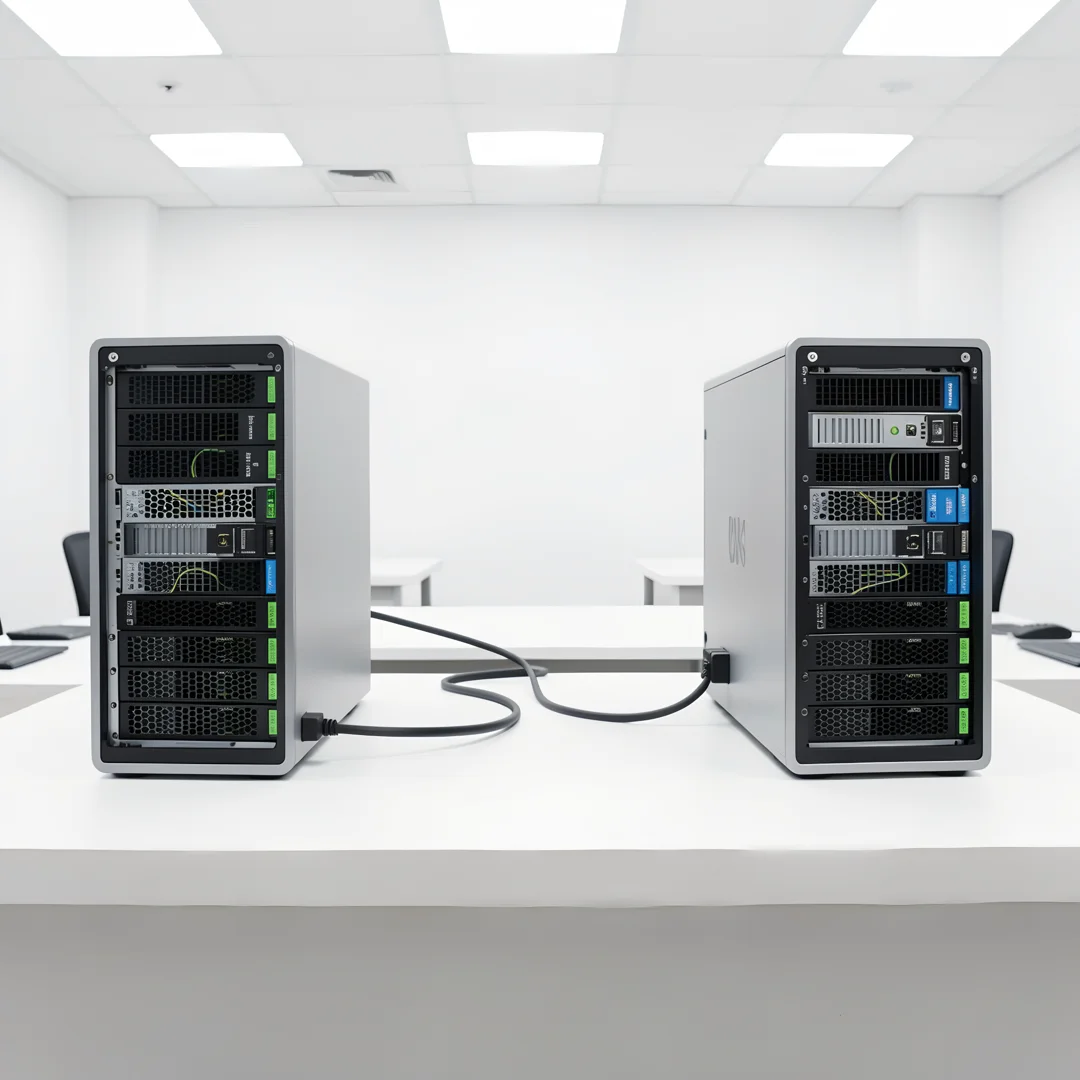
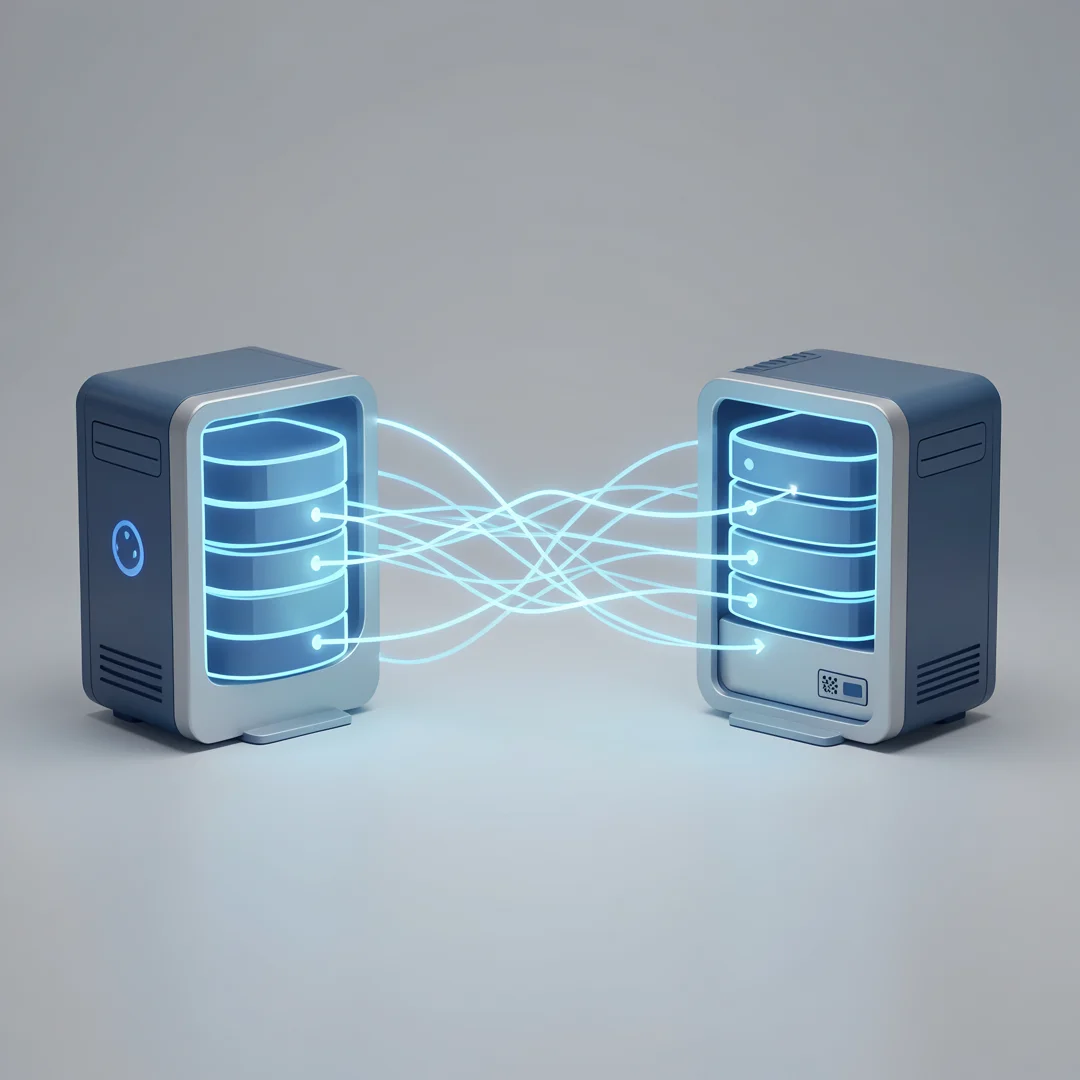
A direct cable connection can also be an efficient way to transfer large files. You can use an Ethernet crossover cable or a USB transfer cable. Here’s how to do it with an Ethernet cable:
- Step 1: Connect both PCs using the Ethernet crossover cable.
- Step 2: Configure the network settings on both PCs to be on the same subnet.
- Step 3: Share the folder containing the 100GB file on the first PC.
- Step 4: Access the shared folder from the second PC and copy the file.
This method can provide fast transfer speeds, especially if both PCs have Gigabit Ethernet ports.
4. Using Local Network (LAN)
If both PCs are on the same local network, you can transfer files without needing the internet. Here’s how:
- Step 1: Ensure both PCs are connected to the same router or switch.
- Step 2: Share the folder containing the 100GB file on the first PC.
- Step 3: Access the shared folder from the second PC and copy the file.
This method is particularly useful if you have a wired connection, as it can provide faster transfer speeds compared to wireless connections.
Best Practices
To ensure a smooth and efficient file transfer process, consider the following best practices:
- Check Compatibility: Ensure that the storage devices you are using are compatible with both PCs.
- Use High-Speed Devices: Opt for USB 3.0 or higher devices for faster transfer speeds.
- Backup Your Data: Always keep a backup of important files before transferring them.
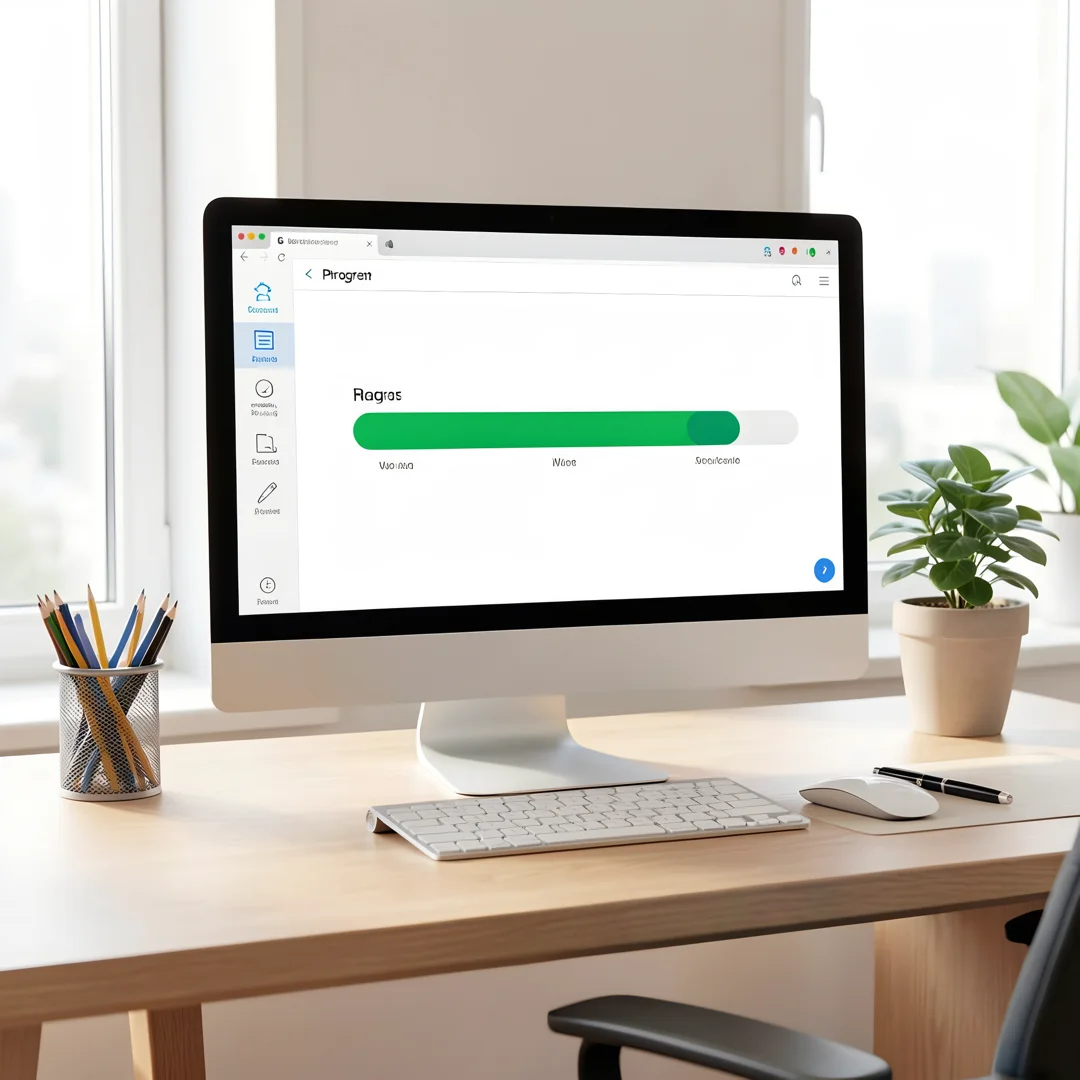
- Monitor Transfer Progress: Keep an eye on the transfer progress to ensure it completes successfully.
Reliable information and consistent habits lead to better long-term outcomes when it comes to file transfers.
FAQ
What should I know about How to Transfer 100GB Files Between Two PCs Without Internet?
When transferring large files without internet, it’s crucial to understand the various methods available, such as using external hard drives, USB flash drives, direct cable connections, or local networks. Each method has its advantages and potential limitations, so choose the one that best fits your needs and equipment.
Who is this guide for?
This guide is designed for anyone looking to transfer large files between two PCs without relying on internet connectivity. Whether you are a professional needing to move large datasets, a student sharing projects, or simply someone looking to transfer personal files, this guide provides actionable steps to achieve your goal.
Conclusion
Transferring 100GB files between two PCs without internet is entirely feasible with the right tools and methods. By understanding the key concepts and following the outlined steps, you can execute file transfers efficiently. Remember to adopt best practices to enhance your experience and ensure data integrity. With this knowledge, you are now equipped to handle large file transfers with confidence.
Step-by-Step Guide
Follow these 8 steps in order. Each step includes detailed instructions and an image to guide you through How to Transfer 100GB Files Between Two PCs Without Internet.
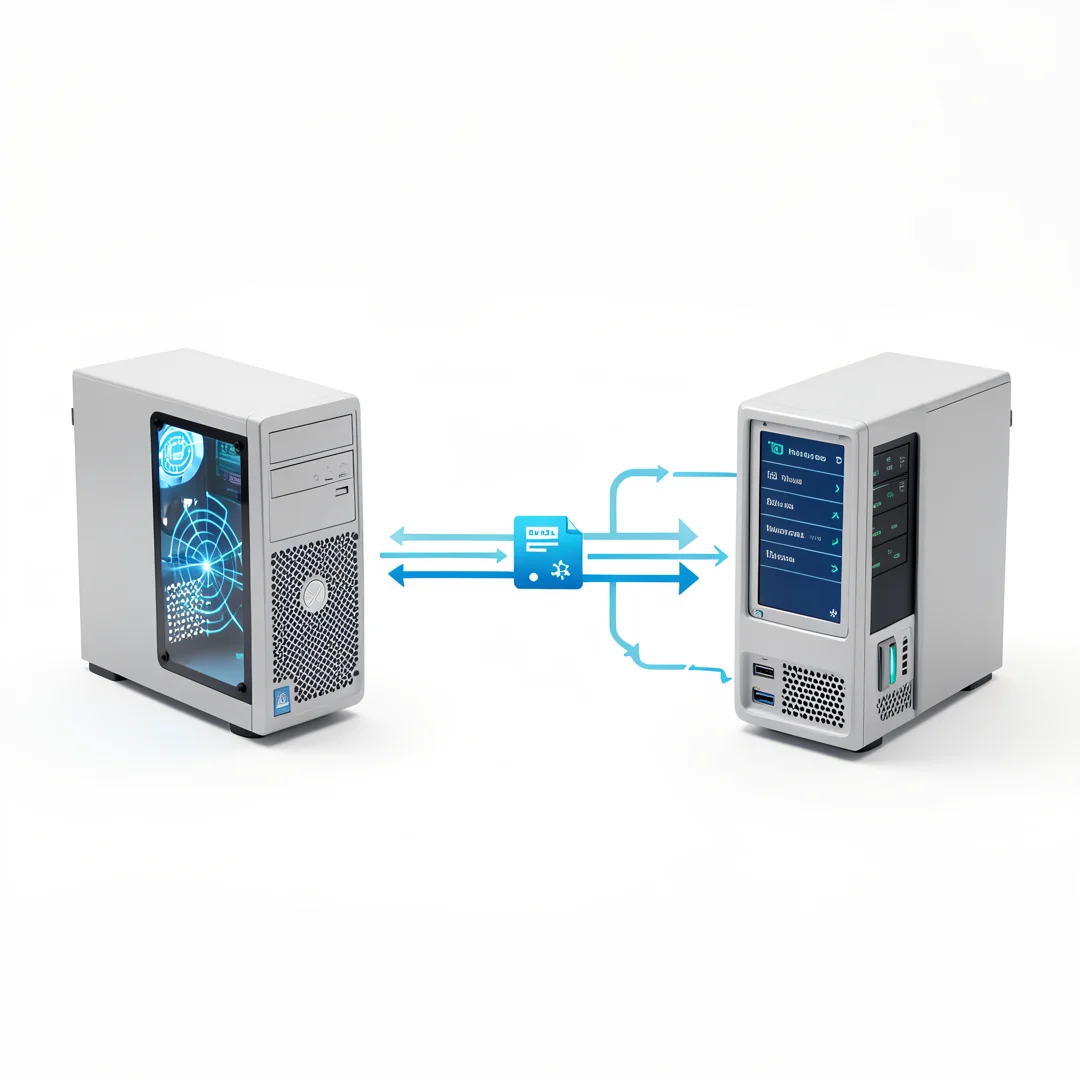
Step 1: Understand the fundamentals
Learn the core concepts behind How to Transfer 100GB Files Between Two PCs Without Internet before taking action.
Take time to research How to Transfer 100GB Files Between Two PCs Without Internet from reliable sources and note questions that need clarification.
Many people benefit from breaking this stage into smaller tasks and completing one before moving to the next.
Document what works and what does not so you can refine your approach to How to Transfer 100GB Files Between Two PCs Without Internet over time.
Work through understand the fundamentals at a comfortable pace and confirm you understand each part before continuing.
Keep notes on anything specific to your device or situation so you can reference them later.
If something is unclear, pause and re-read the instructions rather than rushing ahead.
Many people find it helpful to complete this stage in one sitting to avoid losing context.
Expected result: You complete understand the fundamentals with a clear record of outcomes.
Tip: Review this step's results before proceeding to the next stage.
Step 2: Assess your starting point
Evaluate where you currently stand regarding How to Transfer 100GB Files Between Two PCs Without Internet.
Take time to research How to Transfer 100GB Files Between Two PCs Without Internet from reliable sources and note questions that need clarification.
Many people benefit from breaking this stage into smaller tasks and completing one before moving to the next.
Document what works and what does not so you can refine your approach to How to Transfer 100GB Files Between Two PCs Without Internet over time.
Work through assess your starting point at a comfortable pace and confirm you understand each part before continuing.
Keep notes on anything specific to your device or situation so you can reference them later.
If something is unclear, pause and re-read the instructions rather than rushing ahead.
Many people find it helpful to complete this stage in one sitting to avoid losing context.
Expected result: You complete assess your starting point with a clear record of outcomes.
Tip: Review this step's results before proceeding to the next stage.
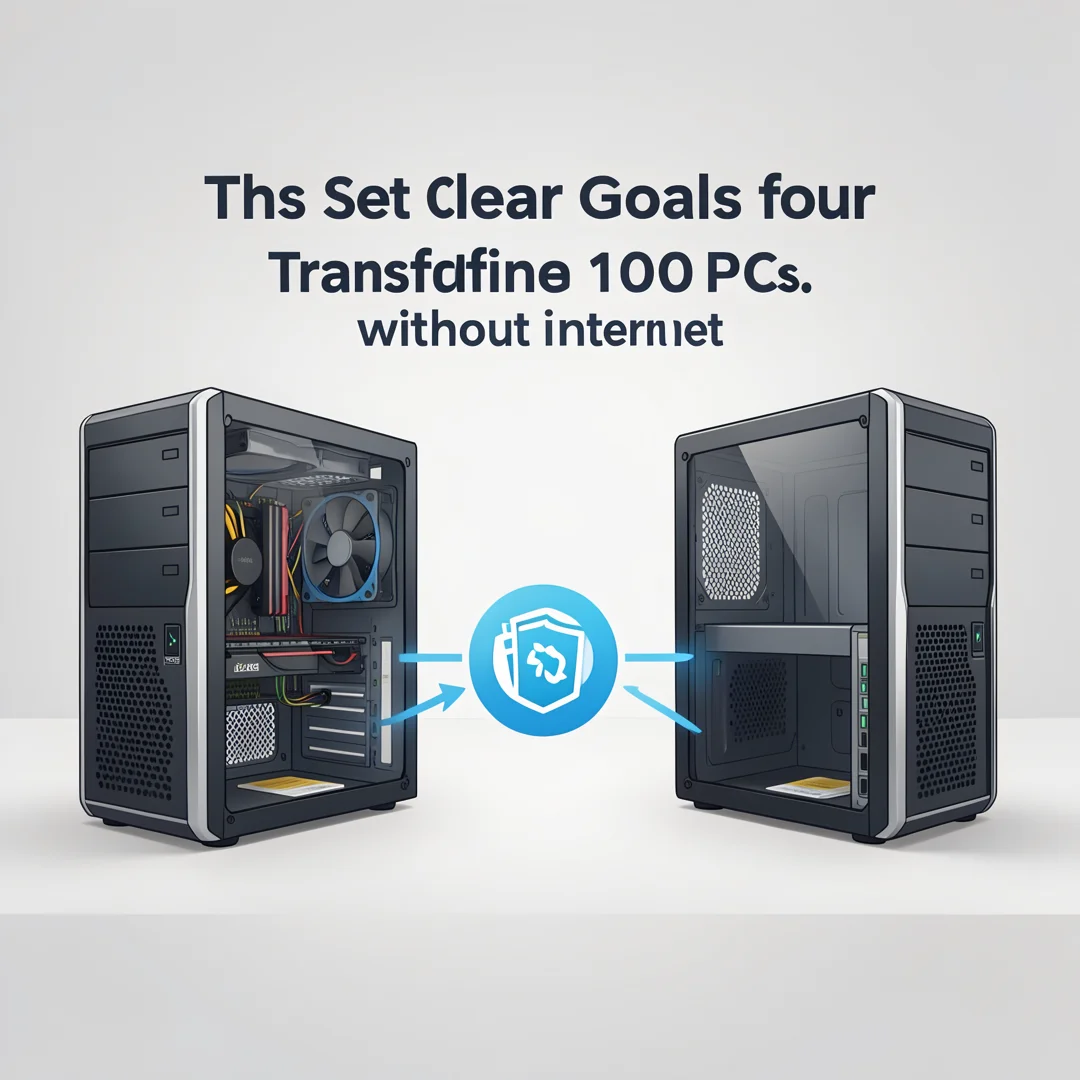
Step 3: Set clear goals
Define specific, measurable outcomes you want from How to Transfer 100GB Files Between Two PCs Without Internet.
Take time to research How to Transfer 100GB Files Between Two PCs Without Internet from reliable sources and note questions that need clarification.
Many people benefit from breaking this stage into smaller tasks and completing one before moving to the next.
Document what works and what does not so you can refine your approach to How to Transfer 100GB Files Between Two PCs Without Internet over time.
Work through set clear goals at a comfortable pace and confirm you understand each part before continuing.
Keep notes on anything specific to your device or situation so you can reference them later.
If something is unclear, pause and re-read the instructions rather than rushing ahead.
Many people find it helpful to complete this stage in one sitting to avoid losing context.
Expected result: You complete set clear goals with a clear record of outcomes.
Tip: Review this step's results before proceeding to the next stage.
Step 4: Gather necessary resources
Collect tools, information, and support needed for How to Transfer 100GB Files Between Two PCs Without Internet.
Take time to research How to Transfer 100GB Files Between Two PCs Without Internet from reliable sources and note questions that need clarification.
Many people benefit from breaking this stage into smaller tasks and completing one before moving to the next.
Document what works and what does not so you can refine your approach to How to Transfer 100GB Files Between Two PCs Without Internet over time.
Work through gather necessary resources at a comfortable pace and confirm you understand each part before continuing.
Keep notes on anything specific to your device or situation so you can reference them later.
If something is unclear, pause and re-read the instructions rather than rushing ahead.
Many people find it helpful to complete this stage in one sitting to avoid losing context.
Expected result: You complete gather necessary resources with a clear record of outcomes.
Tip: Review this step's results before proceeding to the next stage.
Step 5: Apply the core methods
Put the primary techniques for How to Transfer 100GB Files Between Two PCs Without Internet into practice systematically.
Take time to research How to Transfer 100GB Files Between Two PCs Without Internet from reliable sources and note questions that need clarification.
Many people benefit from breaking this stage into smaller tasks and completing one before moving to the next.
Document what works and what does not so you can refine your approach to How to Transfer 100GB Files Between Two PCs Without Internet over time.
Work through apply the core methods at a comfortable pace and confirm you understand each part before continuing.
Keep notes on anything specific to your device or situation so you can reference them later.
If something is unclear, pause and re-read the instructions rather than rushing ahead.
Many people find it helpful to complete this stage in one sitting to avoid losing context.
Expected result: You complete apply the core methods with a clear record of outcomes.
Tip: Review this step's results before proceeding to the next stage.
Step 6: Monitor your progress
Track results and adjust your approach to How to Transfer 100GB Files Between Two PCs Without Internet as needed.
Take time to research How to Transfer 100GB Files Between Two PCs Without Internet from reliable sources and note questions that need clarification.
Many people benefit from breaking this stage into smaller tasks and completing one before moving to the next.
Document what works and what does not so you can refine your approach to How to Transfer 100GB Files Between Two PCs Without Internet over time.
Work through monitor your progress at a comfortable pace and confirm you understand each part before continuing.
Keep notes on anything specific to your device or situation so you can reference them later.
If something is unclear, pause and re-read the instructions rather than rushing ahead.
Many people find it helpful to complete this stage in one sitting to avoid losing context.
Expected result: You complete monitor your progress with a clear record of outcomes.
Tip: Review this step's results before proceeding to the next stage.
Step 7: Address common challenges
Identify obstacles related to How to Transfer 100GB Files Between Two PCs Without Internet and plan solutions.
Take time to research How to Transfer 100GB Files Between Two PCs Without Internet from reliable sources and note questions that need clarification.
Many people benefit from breaking this stage into smaller tasks and completing one before moving to the next.
Document what works and what does not so you can refine your approach to How to Transfer 100GB Files Between Two PCs Without Internet over time.
Work through address common challenges at a comfortable pace and confirm you understand each part before continuing.
Keep notes on anything specific to your device or situation so you can reference them later.
If something is unclear, pause and re-read the instructions rather than rushing ahead.
Many people find it helpful to complete this stage in one sitting to avoid losing context.
Expected result: You complete address common challenges with a clear record of outcomes.
Tip: Review this step's results before proceeding to the next stage.
Step 8: Maintain long-term success
Build sustainable habits around How to Transfer 100GB Files Between Two PCs Without Internet for lasting results.
Take time to research How to Transfer 100GB Files Between Two PCs Without Internet from reliable sources and note questions that need clarification.
Many people benefit from breaking this stage into smaller tasks and completing one before moving to the next.
Document what works and what does not so you can refine your approach to How to Transfer 100GB Files Between Two PCs Without Internet over time.
Work through maintain long-term success at a comfortable pace and confirm you understand each part before continuing.
Keep notes on anything specific to your device or situation so you can reference them later.
If something is unclear, pause and re-read the instructions rather than rushing ahead.
Many people find it helpful to complete this stage in one sitting to avoid losing context.
Expected result: You complete maintain long-term success with a clear record of outcomes.
Tip: Review this step's results before proceeding to the next stage.
Best Practices
- Start with clear goals and track progress over time.
- Use trusted sources and verify important claims.
- Adjust recommendations to your personal situation and consult experts when needed.
Expert Insights
Readers searching for 'How to Transfer 100GB Files Between Two PCs Without Internet' want actionable advice without unnecessary jargon.
Structured sections with summaries improve readability and engagement.
Current Trends
- Increased demand for clear, trustworthy online guides
- Mobile-first reading habits
Key Statistics
- Consistent habits — Small daily improvements compound into meaningful results over time.
Frequently Asked Questions
What should I know about How to Transfer 100GB Files Between Two PCs Without Internet?
This guide covers the essentials of How to Transfer 100GB Files Between Two PCs Without Internet with practical steps you can apply right away.
Who is this guide for?
Anyone looking for a clear, structured overview without unnecessary complexity.
You now have a solid foundation for How to Transfer 100GB Files Between Two PCs Without Internet. Apply the best practices above and revisit this guide as your needs evolve.
