
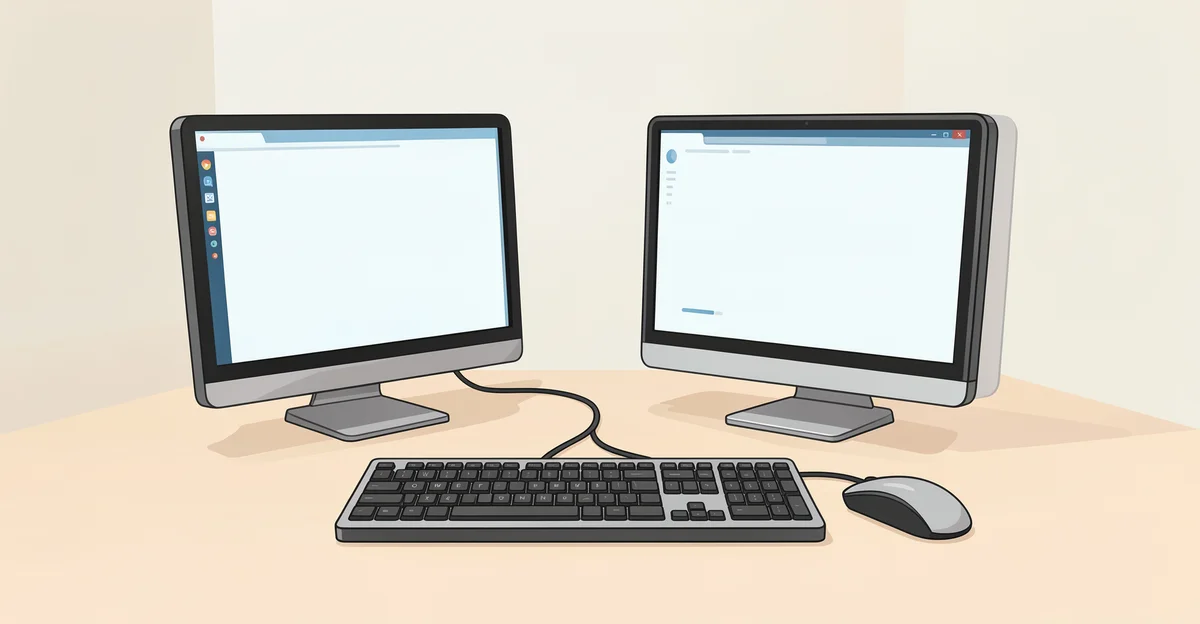
In today’s fast-paced digital world, many users find themselves juggling multiple computers for work or personal use. Whether you’re a remote worker, a gamer, or simply someone who enjoys the flexibility of using two machines, the challenge of managing multiple keyboards and mice can be cumbersome. Fortunately, there are effective solutions to streamline your setup. In this article, we will explore how to share one keyboard and mouse between two computers, allowing you to enhance your productivity and simplify your workspace.
Sharing a keyboard and mouse not only saves space but also reduces clutter, making your environment more organized and efficient. With various methods available, from hardware solutions to software applications, you can easily control both computers with a single set of peripherals. Join us as we delve into the best practices and tools that will help you seamlessly switch between devices, ensuring a smooth and hassle-free experience.
Introduction
In today’s fast-paced digital world, many individuals and professionals find themselves juggling multiple computers. Whether you’re a remote worker, a gamer, or a tech enthusiast, the ability to share one keyboard and mouse between two computers can significantly enhance your productivity and streamline your workspace. This article explores how to share one keyboard and mouse between two computers with clear, practical guidance.
Key Concepts
Before diving into the methods of sharing a keyboard and mouse, it’s essential to understand some key concepts that will help you make informed decisions.
- Input Devices: Keyboards and mice are input devices that allow users to interact with their computers. Sharing these devices can save space and reduce clutter.
- Connection Types: There are various ways to connect your keyboard and mouse to multiple computers, including wired connections, wireless technology, and software solutions.
- Switching Mechanisms: Understanding how to switch between computers seamlessly is crucial for an efficient workflow.
Deep Dive
Now that we have established the foundational concepts, let’s explore the different methods to share one keyboard and mouse between two computers.
1. Hardware KVM Switch
A KVM (Keyboard, Video, Mouse) switch is a hardware device that allows you to control multiple computers using a single keyboard and mouse setup. Here’s how to set it up:
- Choose the Right KVM Switch: Select a KVM switch that supports the number of computers you want to connect and is compatible with your keyboard and mouse.
- Connect Your Devices: Plug your keyboard and mouse into the KVM switch, and then connect the switch to each computer using the provided cables.
- Switching Between Computers: Use the button on the KVM switch or keyboard shortcuts to switch control between the connected computers.
2. Software Solutions
If you prefer a software-based approach, several applications can help you share your keyboard and mouse between computers over a network.
- Synergy: This popular software allows you to share a keyboard and mouse across multiple computers, regardless of the operating system. Simply install Synergy on both computers, configure the settings, and you’re ready to go.
- Barrier: An open-source alternative to Synergy, Barrier offers similar functionality without the cost. It’s user-friendly and works well for both Windows and macOS.
- Mouse Without Borders: Developed by Microsoft, this free tool allows you to control up to four Windows computers with a single keyboard and mouse. It’s easy to set up and perfect for Windows users.
3. Remote Desktop Solutions
Another option is to use remote desktop software, which allows you to access one computer from another. This method is particularly useful for accessing a work computer from home.
- TeamViewer: A widely used remote access tool that allows you to control another computer as if you were sitting in front of it. It’s easy to set up and works across different platforms.
- Chrome Remote Desktop: A free service that enables you to access your computer from another device using the Google Chrome browser. It’s straightforward and effective for quick access.
Best Practices
To ensure a smooth experience while sharing your keyboard and mouse between two computers, consider the following best practices:
- Keep Software Updated: Regularly update your KVM switch firmware or software applications to ensure compatibility and security.
- Organize Your Workspace: Arrange your computers and peripherals in a way that minimizes clutter and makes switching between devices easy.
- Test Your Setup: Before relying on your shared setup for important tasks, test it thoroughly to ensure everything functions as expected.
- Backup Your Data: Always maintain backups of important files on each computer to prevent data loss in case of technical issues.
FAQ
What should I know about How to Share One Keyboard and Mouse Between Two Computers?
Sharing one keyboard and mouse between two computers can enhance your productivity and reduce clutter. It’s essential to choose the right method based on your specific needs, whether that’s a hardware KVM switch, software solutions, or remote desktop applications. Understanding the connection types and switching mechanisms will help you make informed decisions.
Who is this guide for?
This guide is designed for anyone looking to streamline their workspace by sharing a keyboard and mouse between two computers. It is particularly useful for remote workers, gamers, and tech enthusiasts who frequently switch between devices and want to improve their efficiency.
Conclusion
Sharing one keyboard and mouse between two computers is a practical solution that can lead to a more organized and efficient workspace. By understanding the fundamentals and exploring various methods, you can choose the best approach that suits your needs. Reliable information and consistent habits lead to better long-term outcomes, so take the time to set up your shared workspace effectively. With the right tools and practices in place, you’ll be able to navigate between your computers seamlessly, enhancing your productivity and overall experience.
Step-by-Step Guide
Follow these 8 steps in order. Each step includes detailed instructions and an image to guide you through How to Share One Keyboard and Mouse Between Two Computers.
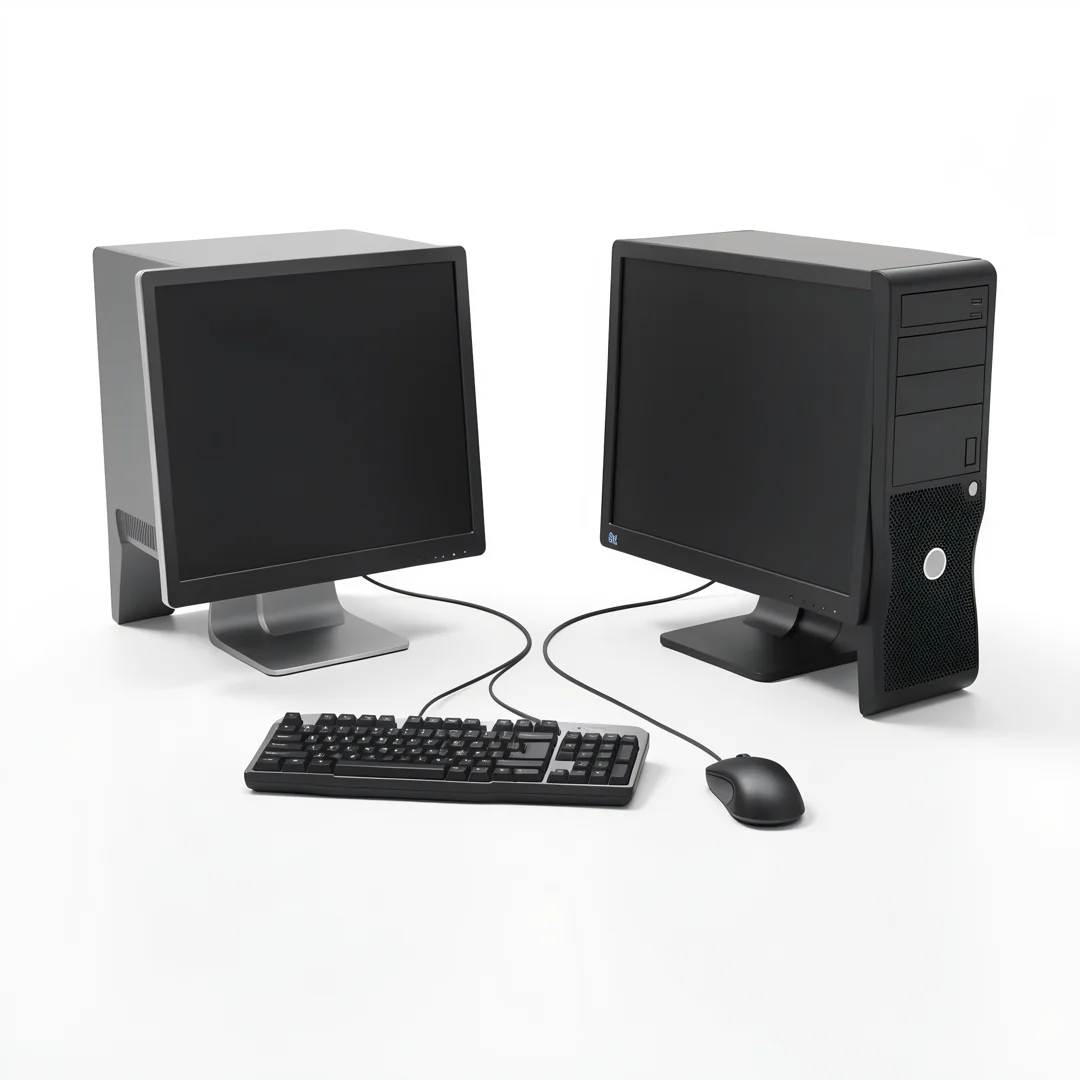
Step 1: Understand the fundamentals
Learn the core concepts behind How to Share One Keyboard and Mouse Between Two Computers before taking action.
Take time to research How to Share One Keyboard and Mouse Between Two Computers from reliable sources and note questions that need clarification.
Many people benefit from breaking this stage into smaller tasks and completing one before moving to the next.
Document what works and what does not so you can refine your approach to How to Share One Keyboard and Mouse Between Two Computers over time.
Work through understand the fundamentals at a comfortable pace and confirm you understand each part before continuing.
Keep notes on anything specific to your device or situation so you can reference them later.
If something is unclear, pause and re-read the instructions rather than rushing ahead.
Many people find it helpful to complete this stage in one sitting to avoid losing context.
Expected result: You complete understand the fundamentals with a clear record of outcomes.
Tip: Review this step's results before proceeding to the next stage.

Step 2: Assess your starting point
Evaluate where you currently stand regarding How to Share One Keyboard and Mouse Between Two Computers.
Take time to research How to Share One Keyboard and Mouse Between Two Computers from reliable sources and note questions that need clarification.
Many people benefit from breaking this stage into smaller tasks and completing one before moving to the next.
Document what works and what does not so you can refine your approach to How to Share One Keyboard and Mouse Between Two Computers over time.
Work through assess your starting point at a comfortable pace and confirm you understand each part before continuing.
Keep notes on anything specific to your device or situation so you can reference them later.
If something is unclear, pause and re-read the instructions rather than rushing ahead.
Many people find it helpful to complete this stage in one sitting to avoid losing context.
Expected result: You complete assess your starting point with a clear record of outcomes.
Tip: Review this step's results before proceeding to the next stage.
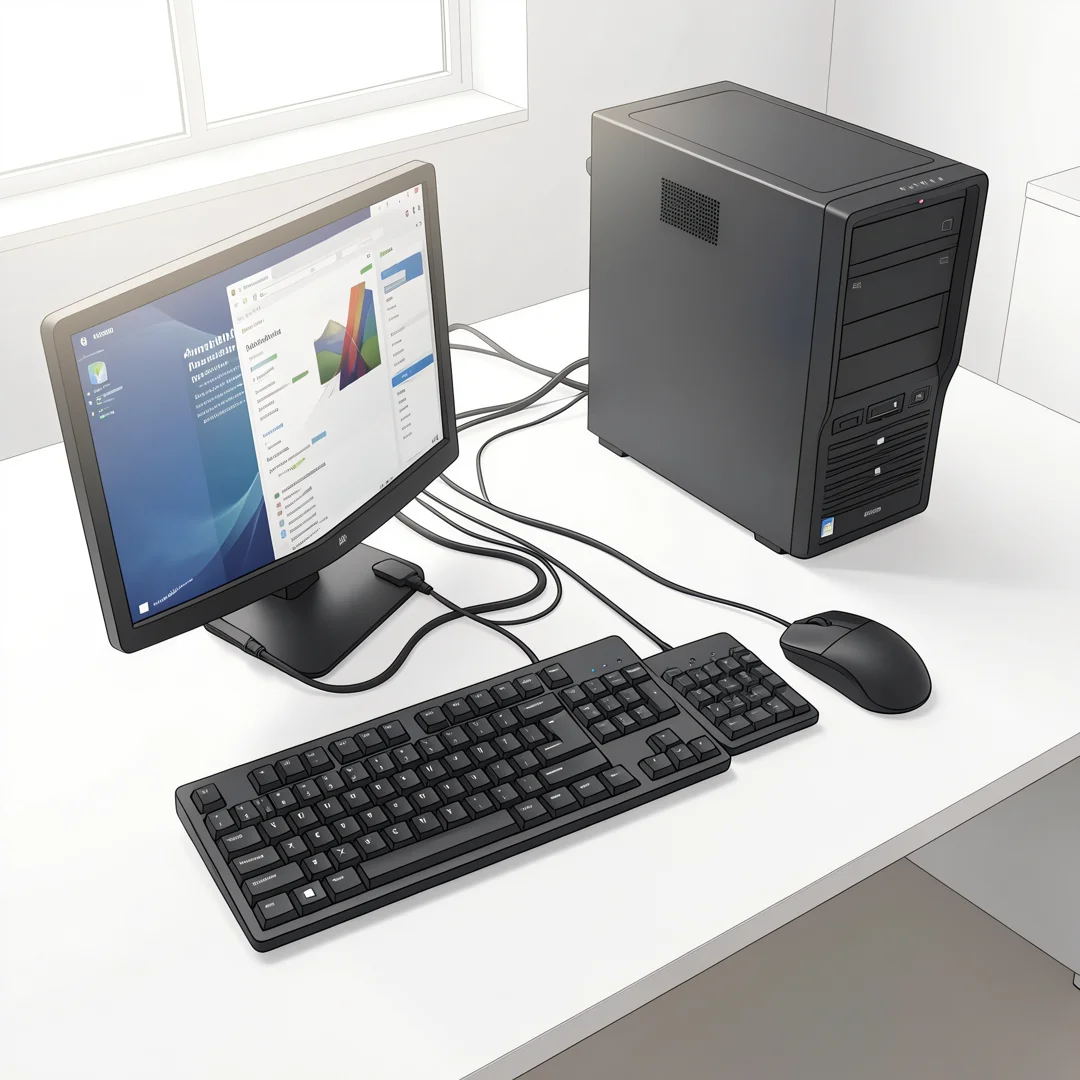
Step 3: Set clear goals
Define specific, measurable outcomes you want from How to Share One Keyboard and Mouse Between Two Computers.
Take time to research How to Share One Keyboard and Mouse Between Two Computers from reliable sources and note questions that need clarification.
Many people benefit from breaking this stage into smaller tasks and completing one before moving to the next.
Document what works and what does not so you can refine your approach to How to Share One Keyboard and Mouse Between Two Computers over time.
Work through set clear goals at a comfortable pace and confirm you understand each part before continuing.
Keep notes on anything specific to your device or situation so you can reference them later.
If something is unclear, pause and re-read the instructions rather than rushing ahead.
Many people find it helpful to complete this stage in one sitting to avoid losing context.
Expected result: You complete set clear goals with a clear record of outcomes.
Tip: Review this step's results before proceeding to the next stage.
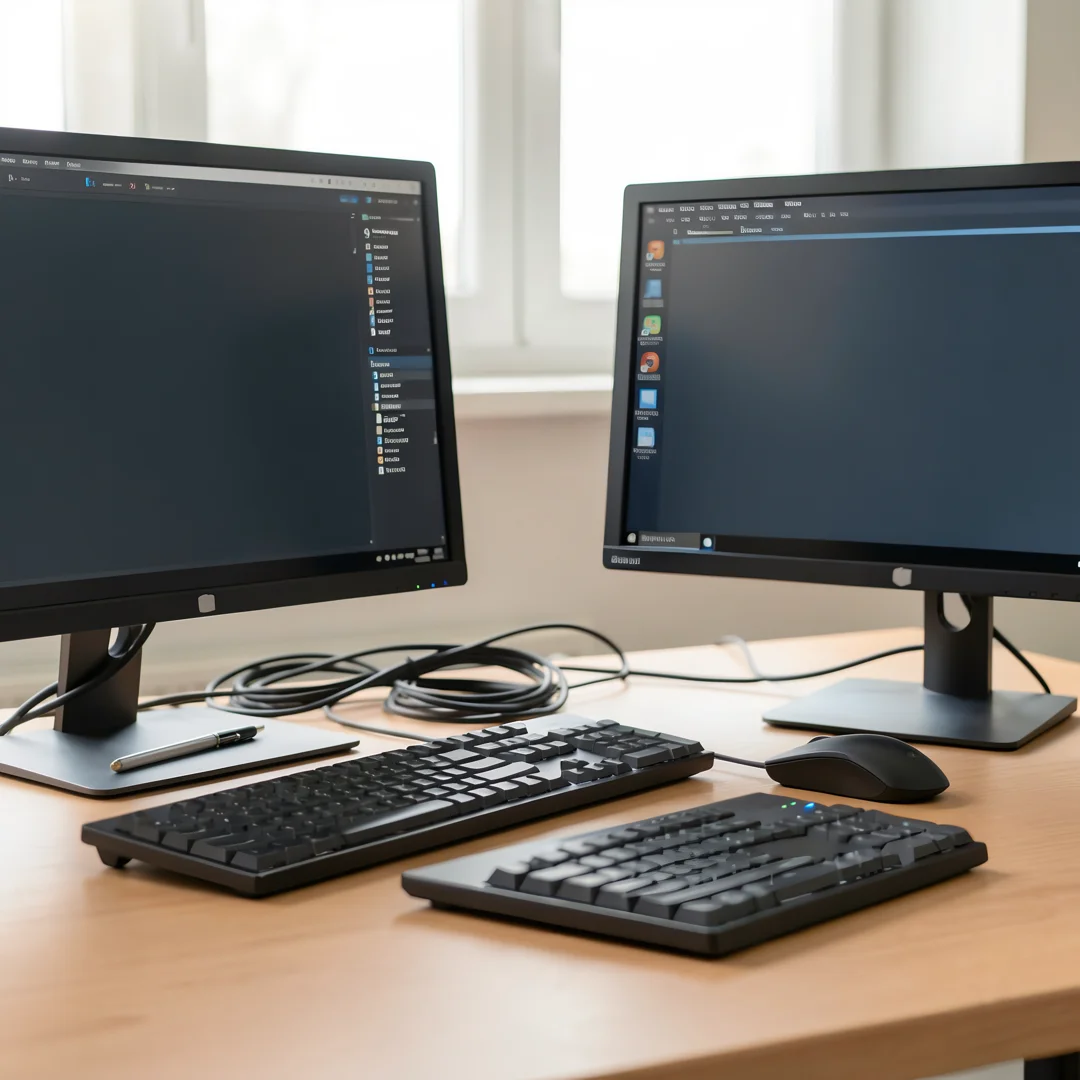
Step 4: Gather necessary resources
Collect tools, information, and support needed for How to Share One Keyboard and Mouse Between Two Computers.
Take time to research How to Share One Keyboard and Mouse Between Two Computers from reliable sources and note questions that need clarification.
Many people benefit from breaking this stage into smaller tasks and completing one before moving to the next.
Document what works and what does not so you can refine your approach to How to Share One Keyboard and Mouse Between Two Computers over time.
Work through gather necessary resources at a comfortable pace and confirm you understand each part before continuing.
Keep notes on anything specific to your device or situation so you can reference them later.
If something is unclear, pause and re-read the instructions rather than rushing ahead.
Many people find it helpful to complete this stage in one sitting to avoid losing context.
Expected result: You complete gather necessary resources with a clear record of outcomes.
Tip: Review this step's results before proceeding to the next stage.
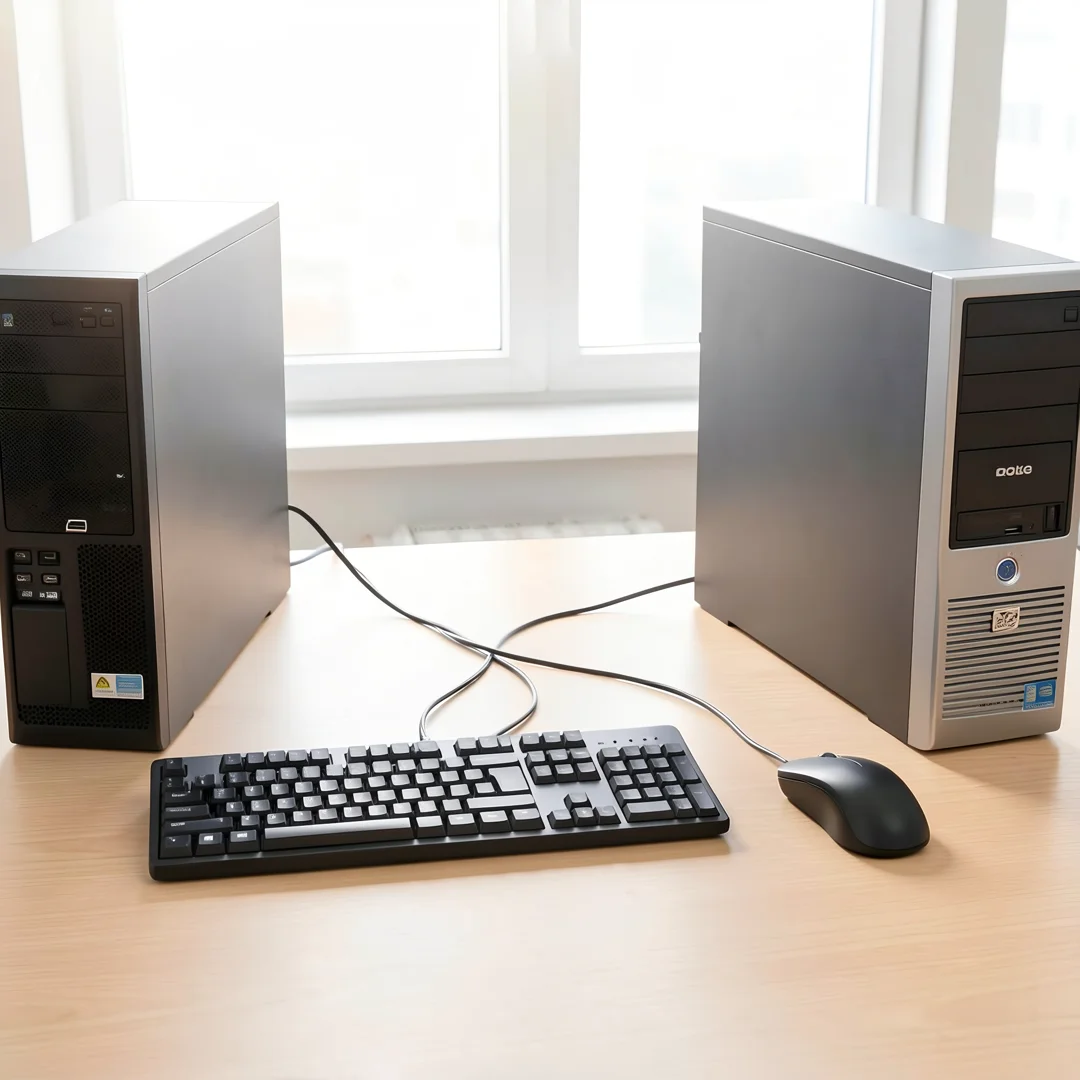
Step 5: Apply the core methods
Put the primary techniques for How to Share One Keyboard and Mouse Between Two Computers into practice systematically.
Take time to research How to Share One Keyboard and Mouse Between Two Computers from reliable sources and note questions that need clarification.
Many people benefit from breaking this stage into smaller tasks and completing one before moving to the next.
Document what works and what does not so you can refine your approach to How to Share One Keyboard and Mouse Between Two Computers over time.
Work through apply the core methods at a comfortable pace and confirm you understand each part before continuing.
Keep notes on anything specific to your device or situation so you can reference them later.
If something is unclear, pause and re-read the instructions rather than rushing ahead.
Many people find it helpful to complete this stage in one sitting to avoid losing context.
Expected result: You complete apply the core methods with a clear record of outcomes.
Tip: Review this step's results before proceeding to the next stage.
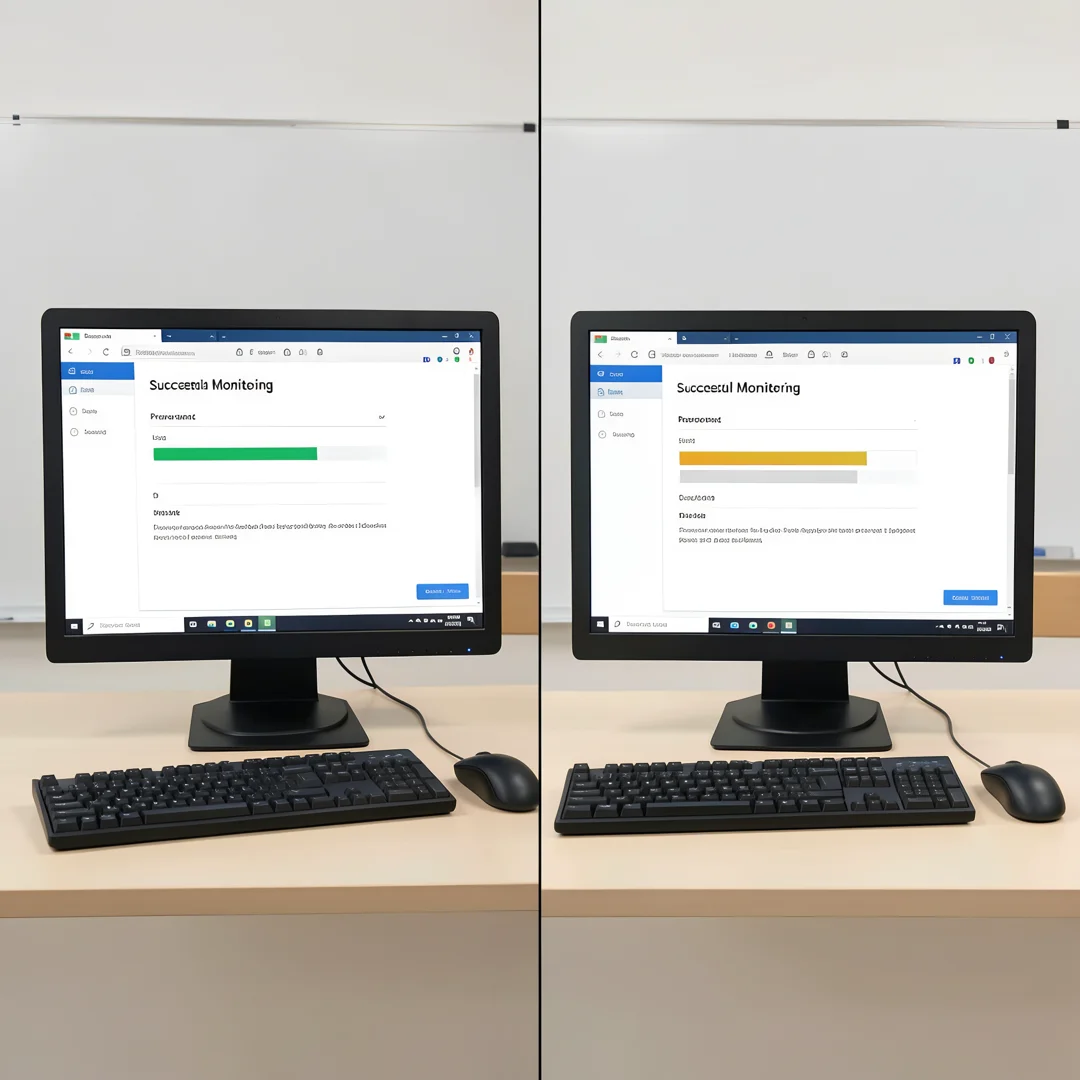
Step 6: Monitor your progress
Track results and adjust your approach to How to Share One Keyboard and Mouse Between Two Computers as needed.
Take time to research How to Share One Keyboard and Mouse Between Two Computers from reliable sources and note questions that need clarification.
Many people benefit from breaking this stage into smaller tasks and completing one before moving to the next.
Document what works and what does not so you can refine your approach to How to Share One Keyboard and Mouse Between Two Computers over time.
Work through monitor your progress at a comfortable pace and confirm you understand each part before continuing.
Keep notes on anything specific to your device or situation so you can reference them later.
If something is unclear, pause and re-read the instructions rather than rushing ahead.
Many people find it helpful to complete this stage in one sitting to avoid losing context.
Expected result: You complete monitor your progress with a clear record of outcomes.
Tip: Review this step's results before proceeding to the next stage.
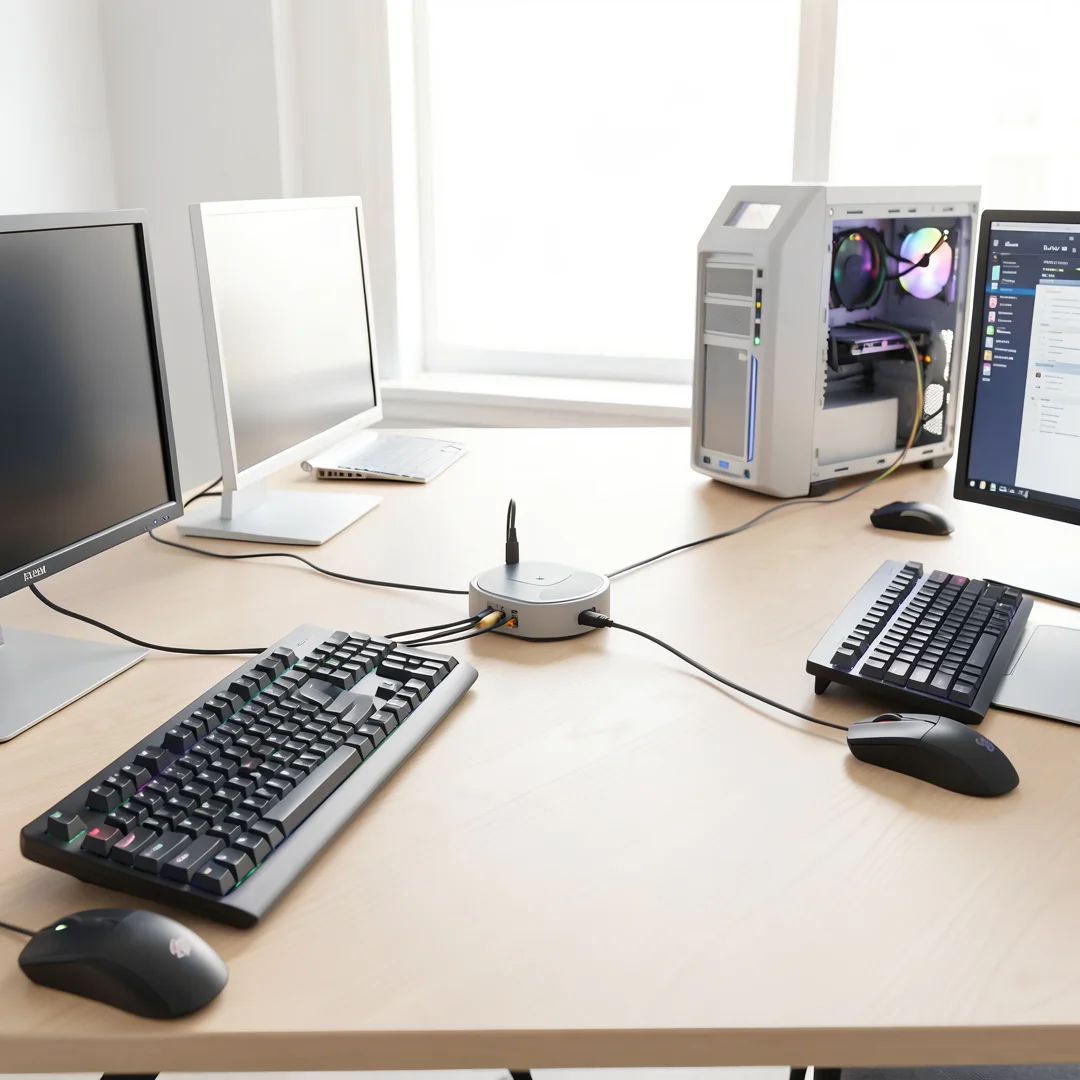
Step 7: Address common challenges
Identify obstacles related to How to Share One Keyboard and Mouse Between Two Computers and plan solutions.
Take time to research How to Share One Keyboard and Mouse Between Two Computers from reliable sources and note questions that need clarification.
Many people benefit from breaking this stage into smaller tasks and completing one before moving to the next.
Document what works and what does not so you can refine your approach to How to Share One Keyboard and Mouse Between Two Computers over time.
Work through address common challenges at a comfortable pace and confirm you understand each part before continuing.
Keep notes on anything specific to your device or situation so you can reference them later.
If something is unclear, pause and re-read the instructions rather than rushing ahead.
Many people find it helpful to complete this stage in one sitting to avoid losing context.
Expected result: You complete address common challenges with a clear record of outcomes.
Tip: Review this step's results before proceeding to the next stage.
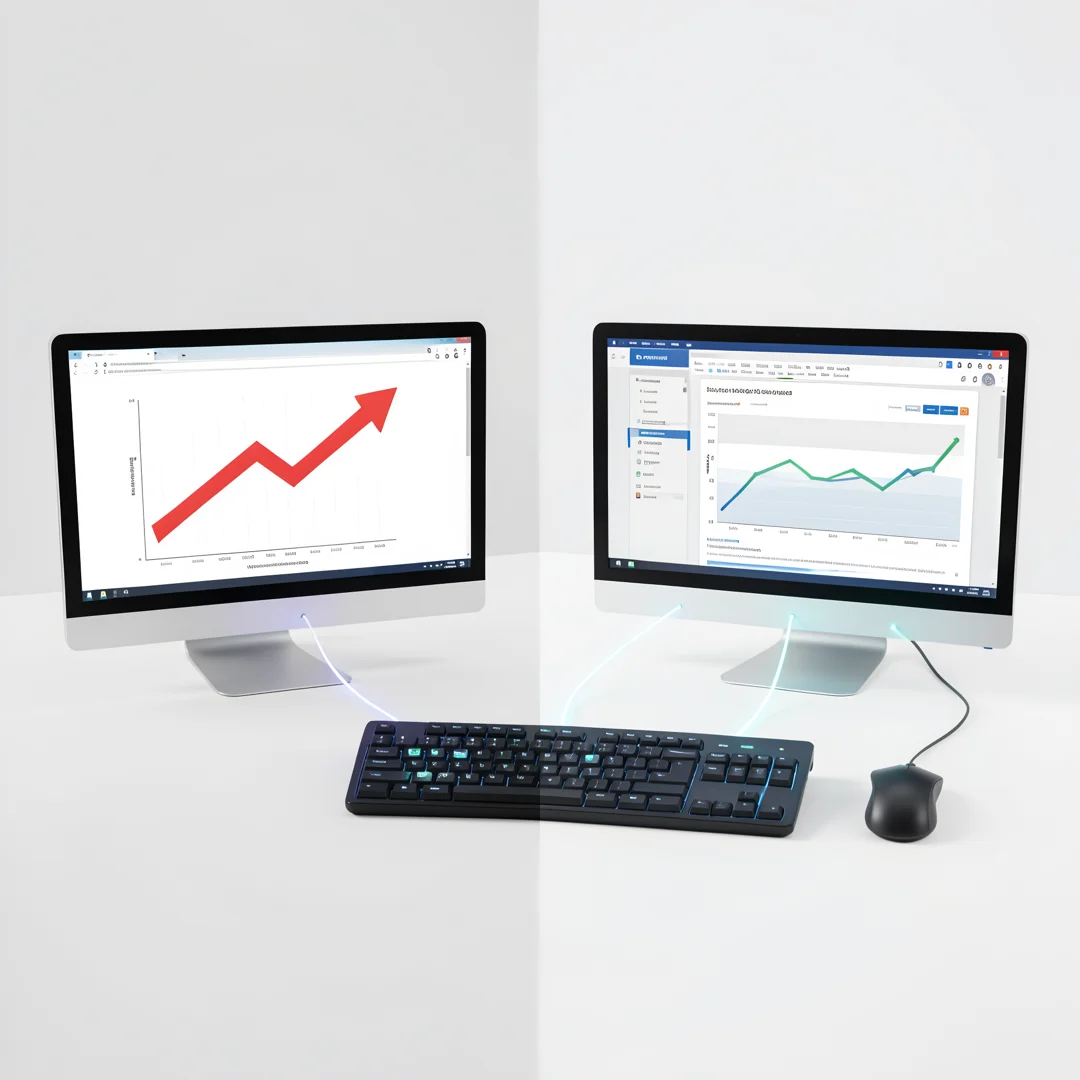
Step 8: Maintain long-term success
Build sustainable habits around How to Share One Keyboard and Mouse Between Two Computers for lasting results.
Take time to research How to Share One Keyboard and Mouse Between Two Computers from reliable sources and note questions that need clarification.
Many people benefit from breaking this stage into smaller tasks and completing one before moving to the next.
Document what works and what does not so you can refine your approach to How to Share One Keyboard and Mouse Between Two Computers over time.
Work through maintain long-term success at a comfortable pace and confirm you understand each part before continuing.
Keep notes on anything specific to your device or situation so you can reference them later.
If something is unclear, pause and re-read the instructions rather than rushing ahead.
Many people find it helpful to complete this stage in one sitting to avoid losing context.
Expected result: You complete maintain long-term success with a clear record of outcomes.
Tip: Review this step's results before proceeding to the next stage.
Best Practices
- Start with clear goals and track progress over time.
- Use trusted sources and verify important claims.
- Adjust recommendations to your personal situation and consult experts when needed.
Expert Insights
Readers searching for 'How to Share One Keyboard and Mouse Between Two Computers' want actionable advice without unnecessary jargon.
Structured sections with summaries improve readability and engagement.
Current Trends
- Increased demand for clear, trustworthy online guides
- Mobile-first reading habits
Key Statistics
- Consistent habits — Small daily improvements compound into meaningful results over time.
Frequently Asked Questions
What should I know about How to Share One Keyboard and Mouse Between Two Computers?
This guide covers the essentials of How to Share One Keyboard and Mouse Between Two Computers with practical steps you can apply right away.
Who is this guide for?
Anyone looking for a clear, structured overview without unnecessary complexity.
You now have a solid foundation for How to Share One Keyboard and Mouse Between Two Computers. Apply the best practices above and revisit this guide as your needs evolve.
