
In today’s digital age, ensuring the security of your home network is more important than ever. With a multitude of devices connecting to your WiFi network, from smartphones and laptops to smart home gadgets, it’s crucial to know exactly what is connected at any given time. Understanding how to find devices connected to your WiFi network not only helps in managing bandwidth but also plays a significant role in safeguarding your personal information from potential intruders.
This comprehensive guide will walk you through the steps to identify all devices linked to your WiFi network. Whether you’re a tech-savvy individual or a beginner, our actionable tips will empower you to take control of your network. By the end of this article, you’ll have the knowledge needed to monitor your connections effectively and enhance your network’s security, ensuring a safer online experience for you and your family.
Introduction
In today’s digital age, understanding how to find devices connected to your WiFi network is essential for maintaining security and optimizing performance. This article explores how to find devices connected to your WiFi network with clear, practical guidance. Whether you suspect unauthorized access or simply want to manage your network better, knowing how to identify connected devices can empower you to make informed decisions.
Key Concepts
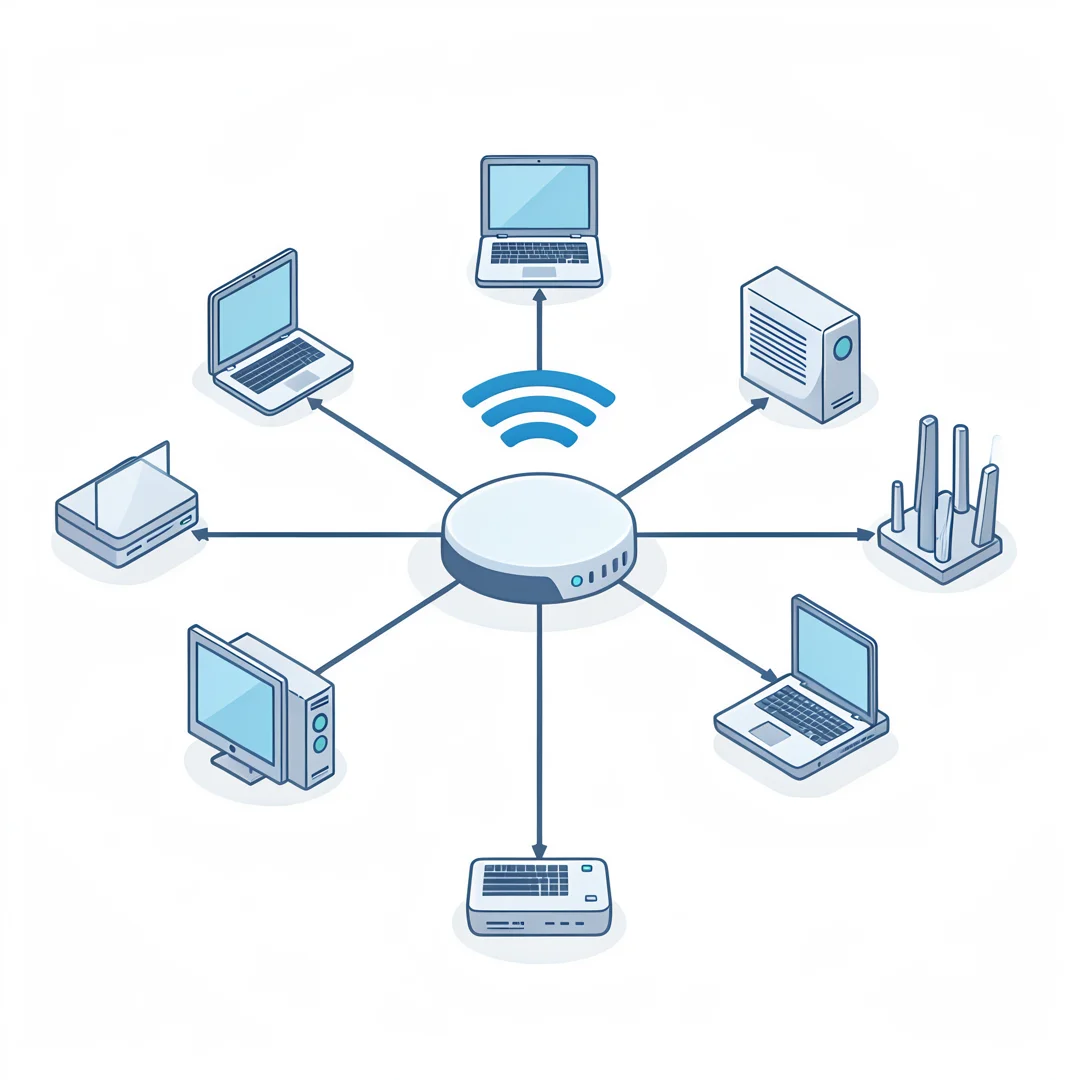
Before diving into the methods of discovering connected devices, it’s crucial to grasp some fundamental concepts related to WiFi networks.
- IP Address: Each device on your network is assigned a unique IP address, which allows it to communicate with other devices.
- MAC Address: This is a hardware identifier assigned to network interfaces for communications at the data link layer of a network segment.
- Router Interface: Your router’s interface is where you can manage all connected devices, view their IP and MAC addresses, and adjust settings.
Understanding these fundamentals helps you navigate your network more effectively and leads to better long-term outcomes in managing your home or office WiFi.
Deep Dive
Now that you have a grasp of the key concepts, let’s explore the various methods for finding devices connected to your WiFi network.
Method 1: Using Your Router’s Web Interface
Most routers come with a web interface that allows you to view connected devices. Here’s how to access it:
- Open a web browser on a device connected to your network.
- Type in your router’s IP address (commonly 192.168.1.1 or 192.168.0.1) into the address bar and press Enter.
- Log in with your admin credentials. If you haven’t changed them, the default username and password can usually be found on the router or in its manual.
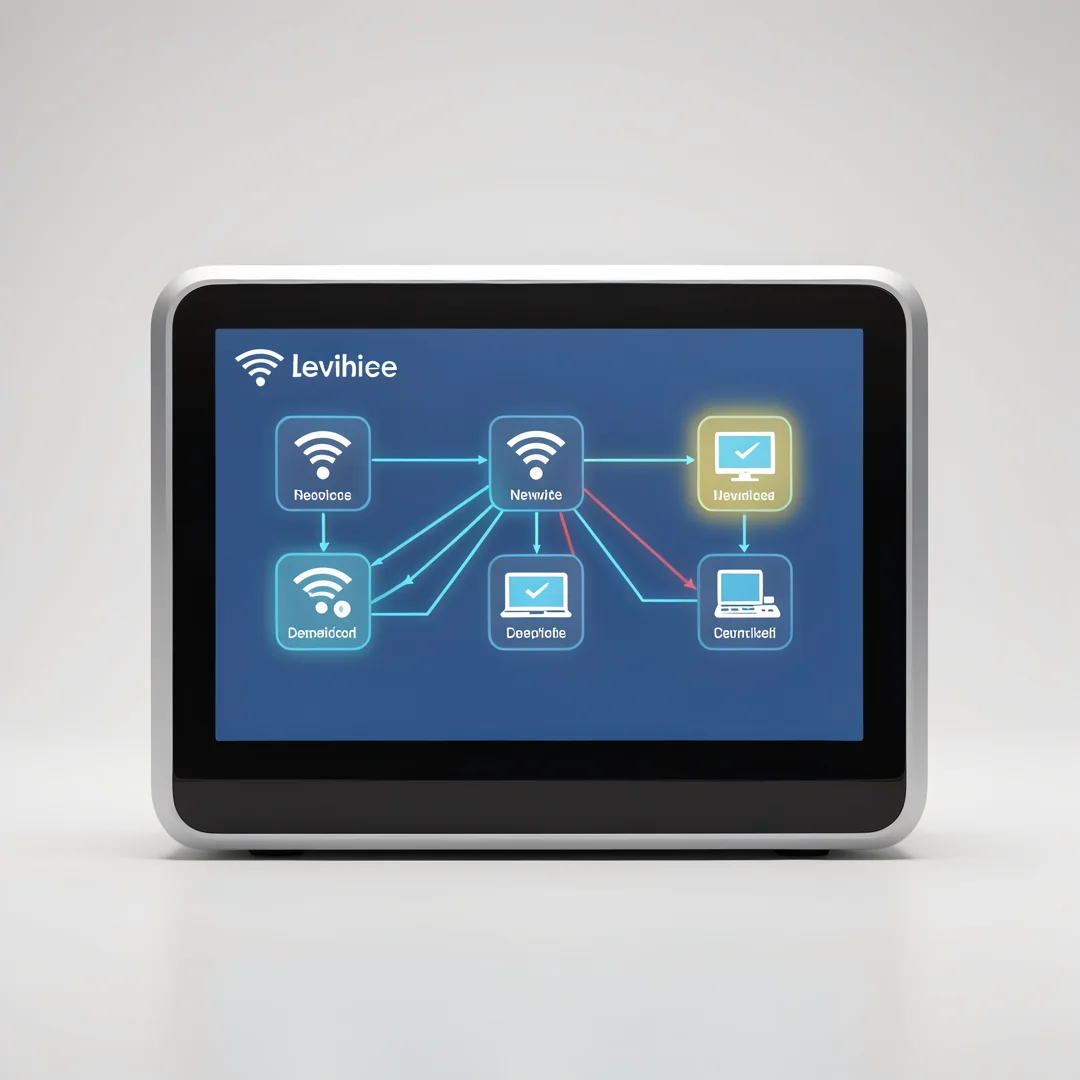
- Once logged in, look for a section labeled “Connected Devices,” “Device List,” or “DHCP Client List.”
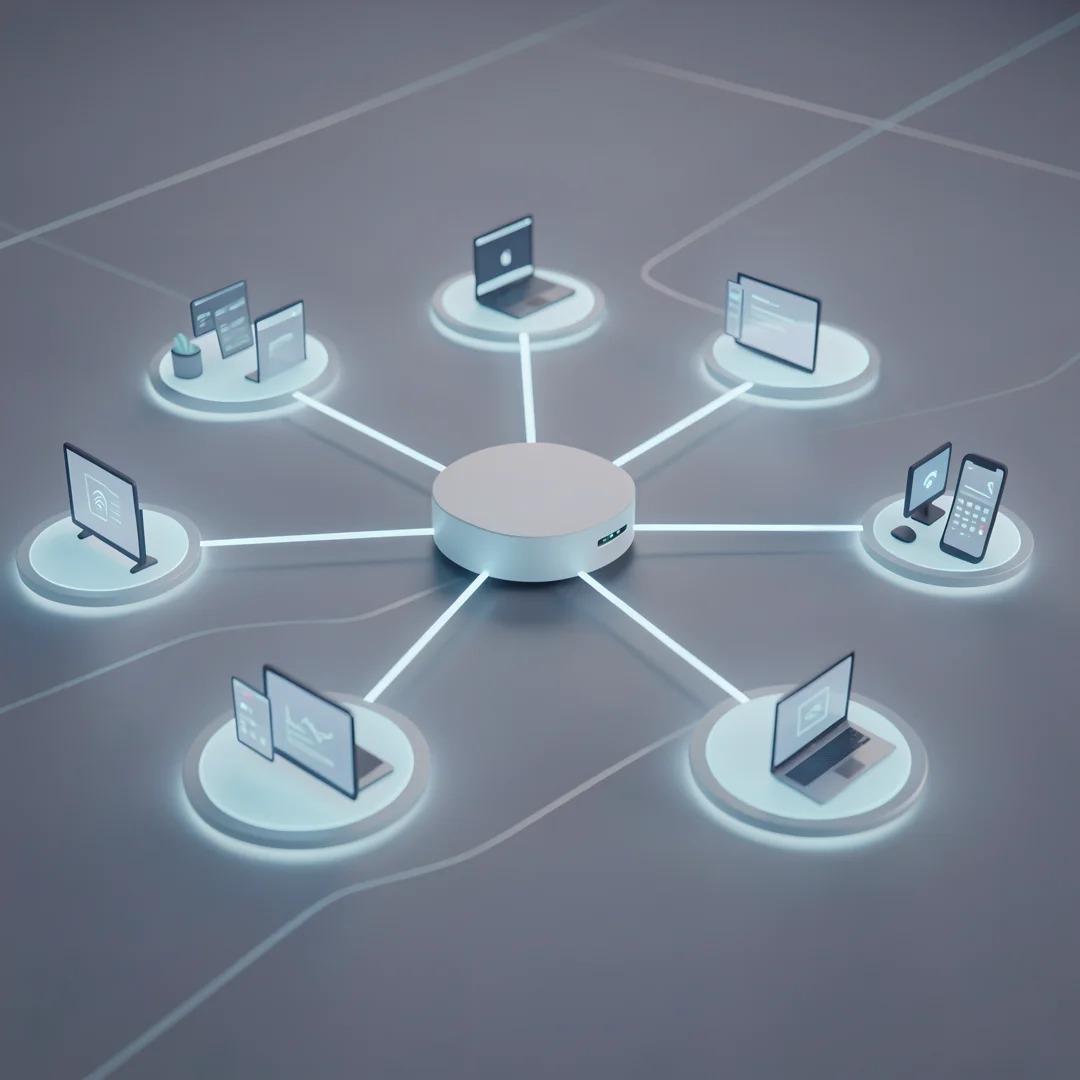
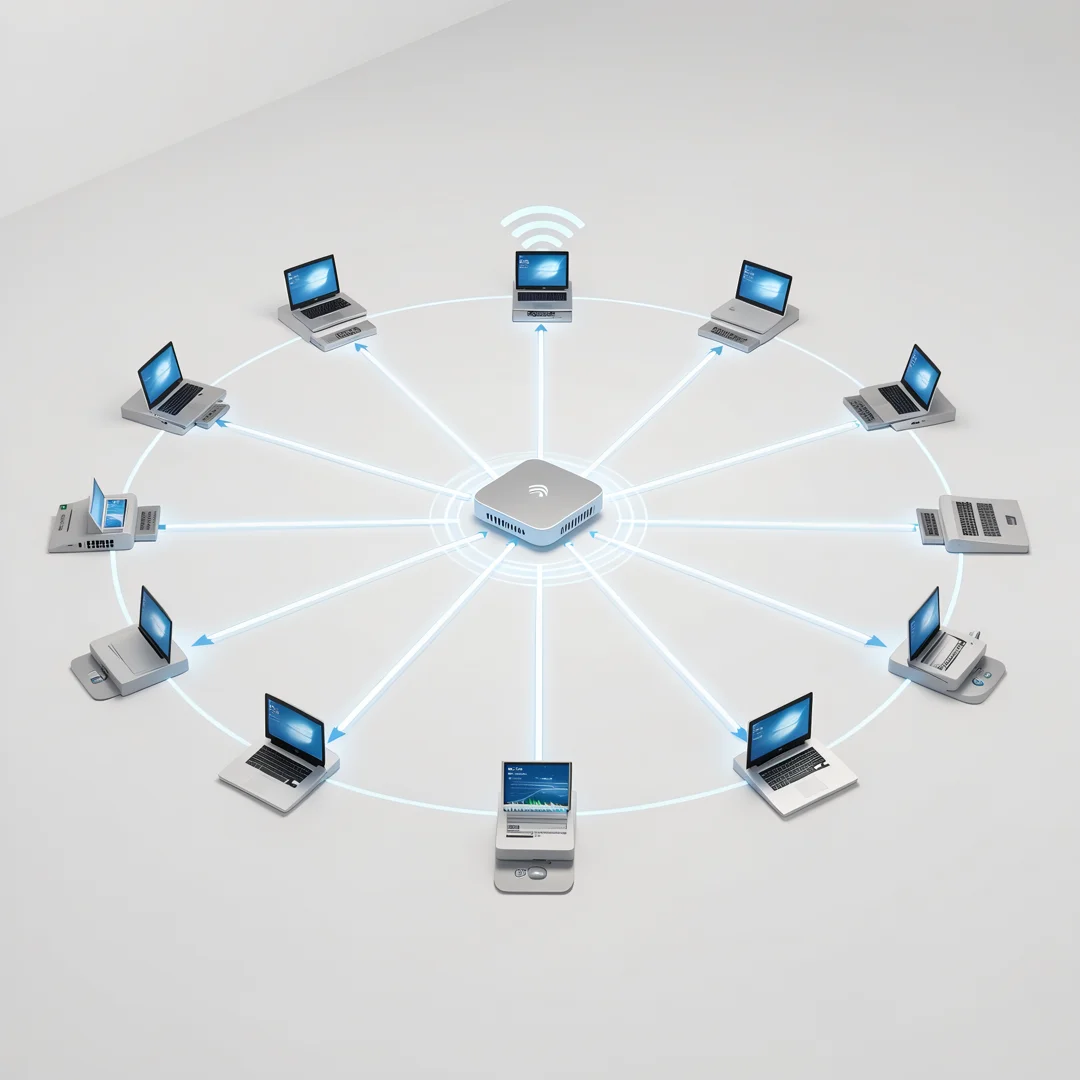
- Here, you will see all devices currently connected to your network, along with their IP and MAC addresses.
Method 2: Using Mobile Apps
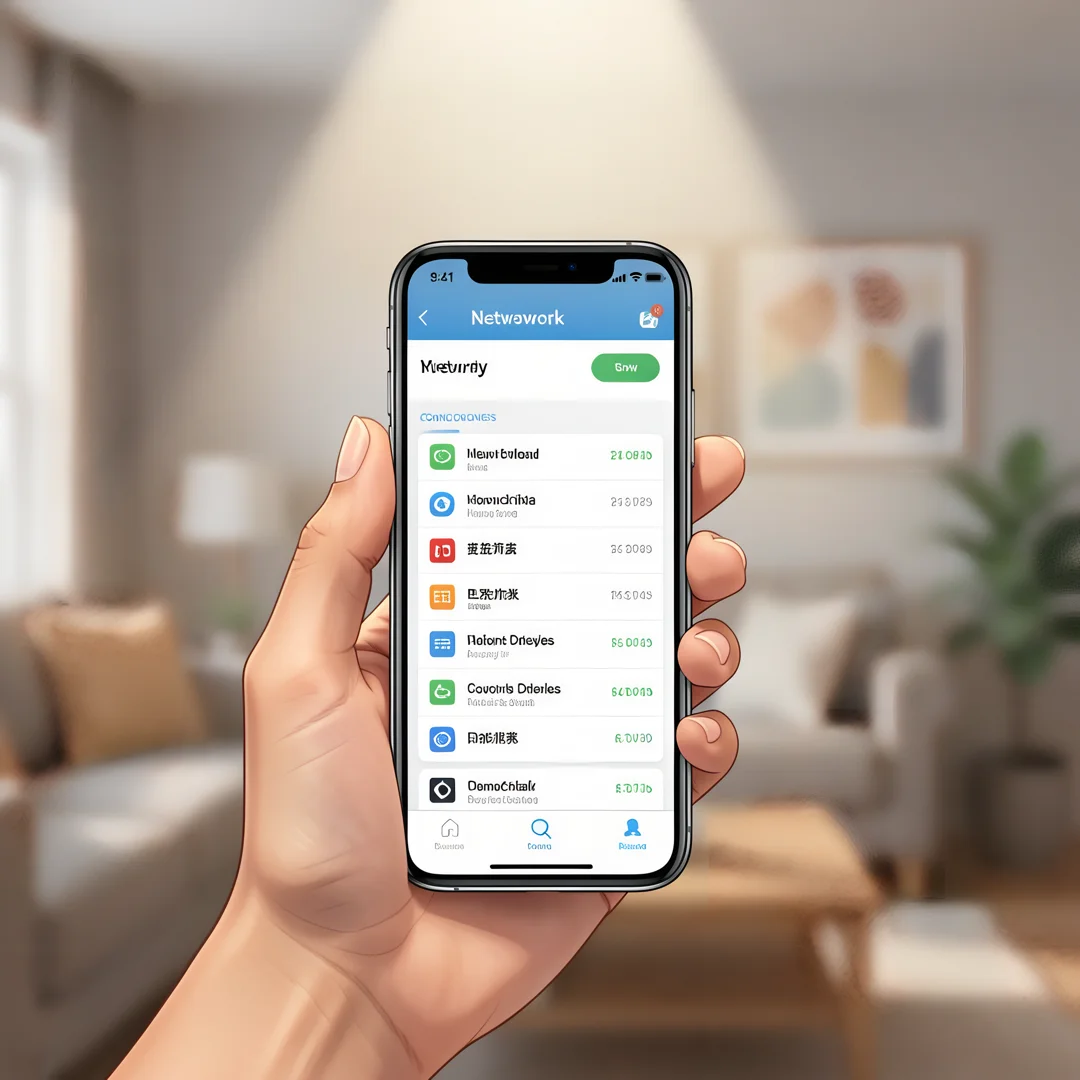
Many modern routers offer mobile apps that simplify the process of managing your network. Follow these steps:
- Download the app associated with your router brand (e.g., Linksys, Netgear, TP-Link).
- Log in using your router credentials.
- Navigate to the section that displays connected devices.
These apps often provide additional features, such as parental controls and guest network management, making it easier to maintain your network.
Method 3: Using Command Prompt (Windows)
If you prefer a more technical approach, you can use the Command Prompt in Windows:
- Press Windows + R to open the Run dialog.
- Type cmd and hit Enter to open the Command Prompt.
- Type arp -a and press Enter.
This command will display a list of all devices connected to your network along with their IP and MAC addresses.
Method 4: Using Terminal (Mac)
For Mac users, the Terminal provides a similar function:
- Open the Terminal application.
- Type arp -a and press Enter.
This will show you a list of devices connected to your network, including their IP and MAC addresses.
Best Practices
Once you’ve identified the devices on your network, consider implementing these best practices to enhance your WiFi security:
- Change Default Credentials: Always change the default username and password for your router to prevent unauthorized access.
- Enable WPA3 Encryption: Use the latest security protocol to protect your network from intruders.
- Regularly Monitor Connected Devices: Make it a habit to check the list of connected devices periodically to spot any unfamiliar devices.
- Update Router Firmware: Keeping your router’s firmware up to date ensures you have the latest security patches.
- Set Up a Guest Network: If you have visitors, create a separate guest network to keep your main network secure.
FAQ
What should I know about How to Find Devices Connected to Your WiFi Network?
Understanding how to find devices connected to your WiFi network is crucial for maintaining security and performance. It allows you to identify unauthorized users, manage bandwidth, and ensure that your network remains efficient. Familiarizing yourself with your router’s interface and utilizing tools and apps can significantly enhance your ability to monitor your network.
Who is this guide for?
This guide is designed for anyone who uses a WiFi network, whether at home or in a small office. It is particularly useful for individuals concerned about network security, parents wanting to monitor their children’s internet usage, and anyone looking to optimize their network performance.
Conclusion
Finding devices connected to your WiFi network is a vital skill in today’s interconnected world. By understanding the key concepts and employing the methods outlined in this article, you can effectively manage your network and enhance its security. Reliable information and consistent habits lead to better long-term outcomes, ensuring that your WiFi remains safe and efficient for all users. Take the time to familiarize yourself with your network, and you’ll be better equipped to handle any issues that arise.
Step-by-Step Guide
Follow these 8 steps in order. Each step includes detailed instructions and an image to guide you through How to Find Devices Connected to Your WiFi Network.
Step 1: Understand the fundamentals
Learn the core concepts behind How to Find Devices Connected to Your WiFi Network before taking action.
Take time to research How to Find Devices Connected to Your WiFi Network from reliable sources and note questions that need clarification.
Many people benefit from breaking this stage into smaller tasks and completing one before moving to the next.
Document what works and what does not so you can refine your approach to How to Find Devices Connected to Your WiFi Network over time.
Work through understand the fundamentals at a comfortable pace and confirm you understand each part before continuing.
Keep notes on anything specific to your device or situation so you can reference them later.
If something is unclear, pause and re-read the instructions rather than rushing ahead.
Many people find it helpful to complete this stage in one sitting to avoid losing context.
Expected result: You complete understand the fundamentals with a clear record of outcomes.
Tip: Review this step's results before proceeding to the next stage.

Step 2: Assess your starting point
Evaluate where you currently stand regarding How to Find Devices Connected to Your WiFi Network.
Take time to research How to Find Devices Connected to Your WiFi Network from reliable sources and note questions that need clarification.
Many people benefit from breaking this stage into smaller tasks and completing one before moving to the next.
Document what works and what does not so you can refine your approach to How to Find Devices Connected to Your WiFi Network over time.
Work through assess your starting point at a comfortable pace and confirm you understand each part before continuing.
Keep notes on anything specific to your device or situation so you can reference them later.
If something is unclear, pause and re-read the instructions rather than rushing ahead.
Many people find it helpful to complete this stage in one sitting to avoid losing context.
Expected result: You complete assess your starting point with a clear record of outcomes.
Tip: Review this step's results before proceeding to the next stage.
Step 3: Set clear goals
Define specific, measurable outcomes you want from How to Find Devices Connected to Your WiFi Network.
Take time to research How to Find Devices Connected to Your WiFi Network from reliable sources and note questions that need clarification.
Many people benefit from breaking this stage into smaller tasks and completing one before moving to the next.
Document what works and what does not so you can refine your approach to How to Find Devices Connected to Your WiFi Network over time.
Work through set clear goals at a comfortable pace and confirm you understand each part before continuing.
Keep notes on anything specific to your device or situation so you can reference them later.
If something is unclear, pause and re-read the instructions rather than rushing ahead.
Many people find it helpful to complete this stage in one sitting to avoid losing context.
Expected result: You complete set clear goals with a clear record of outcomes.
Tip: Review this step's results before proceeding to the next stage.
Step 4: Gather necessary resources
Collect tools, information, and support needed for How to Find Devices Connected to Your WiFi Network.
Take time to research How to Find Devices Connected to Your WiFi Network from reliable sources and note questions that need clarification.
Many people benefit from breaking this stage into smaller tasks and completing one before moving to the next.
Document what works and what does not so you can refine your approach to How to Find Devices Connected to Your WiFi Network over time.
Work through gather necessary resources at a comfortable pace and confirm you understand each part before continuing.
Keep notes on anything specific to your device or situation so you can reference them later.
If something is unclear, pause and re-read the instructions rather than rushing ahead.
Many people find it helpful to complete this stage in one sitting to avoid losing context.
Expected result: You complete gather necessary resources with a clear record of outcomes.
Tip: Review this step's results before proceeding to the next stage.
Step 5: Apply the core methods
Put the primary techniques for How to Find Devices Connected to Your WiFi Network into practice systematically.
Take time to research How to Find Devices Connected to Your WiFi Network from reliable sources and note questions that need clarification.
Many people benefit from breaking this stage into smaller tasks and completing one before moving to the next.
Document what works and what does not so you can refine your approach to How to Find Devices Connected to Your WiFi Network over time.
Work through apply the core methods at a comfortable pace and confirm you understand each part before continuing.
Keep notes on anything specific to your device or situation so you can reference them later.
If something is unclear, pause and re-read the instructions rather than rushing ahead.
Many people find it helpful to complete this stage in one sitting to avoid losing context.
Expected result: You complete apply the core methods with a clear record of outcomes.
Tip: Review this step's results before proceeding to the next stage.
Step 6: Monitor your progress
Track results and adjust your approach to How to Find Devices Connected to Your WiFi Network as needed.
Take time to research How to Find Devices Connected to Your WiFi Network from reliable sources and note questions that need clarification.
Many people benefit from breaking this stage into smaller tasks and completing one before moving to the next.
Document what works and what does not so you can refine your approach to How to Find Devices Connected to Your WiFi Network over time.
Work through monitor your progress at a comfortable pace and confirm you understand each part before continuing.
Keep notes on anything specific to your device or situation so you can reference them later.
If something is unclear, pause and re-read the instructions rather than rushing ahead.
Many people find it helpful to complete this stage in one sitting to avoid losing context.
Expected result: You complete monitor your progress with a clear record of outcomes.
Tip: Review this step's results before proceeding to the next stage.
Step 7: Address common challenges
Identify obstacles related to How to Find Devices Connected to Your WiFi Network and plan solutions.
Take time to research How to Find Devices Connected to Your WiFi Network from reliable sources and note questions that need clarification.
Many people benefit from breaking this stage into smaller tasks and completing one before moving to the next.
Document what works and what does not so you can refine your approach to How to Find Devices Connected to Your WiFi Network over time.
Work through address common challenges at a comfortable pace and confirm you understand each part before continuing.
Keep notes on anything specific to your device or situation so you can reference them later.
If something is unclear, pause and re-read the instructions rather than rushing ahead.
Many people find it helpful to complete this stage in one sitting to avoid losing context.
Expected result: You complete address common challenges with a clear record of outcomes.
Tip: Review this step's results before proceeding to the next stage.
Step 8: Maintain long-term success
Build sustainable habits around How to Find Devices Connected to Your WiFi Network for lasting results.
Take time to research How to Find Devices Connected to Your WiFi Network from reliable sources and note questions that need clarification.
Many people benefit from breaking this stage into smaller tasks and completing one before moving to the next.
Document what works and what does not so you can refine your approach to How to Find Devices Connected to Your WiFi Network over time.
Work through maintain long-term success at a comfortable pace and confirm you understand each part before continuing.
Keep notes on anything specific to your device or situation so you can reference them later.
If something is unclear, pause and re-read the instructions rather than rushing ahead.
Many people find it helpful to complete this stage in one sitting to avoid losing context.
Expected result: You complete maintain long-term success with a clear record of outcomes.
Tip: Review this step's results before proceeding to the next stage.
Best Practices
- Start with clear goals and track progress over time.
- Use trusted sources and verify important claims.
- Adjust recommendations to your personal situation and consult experts when needed.
Expert Insights
Readers searching for 'How to Find Devices Connected to Your WiFi Network' want actionable advice without unnecessary jargon.
Structured sections with summaries improve readability and engagement.
Current Trends
- Increased demand for clear, trustworthy online guides
- Mobile-first reading habits
Key Statistics
- Consistent habits — Small daily improvements compound into meaningful results over time.
Frequently Asked Questions
What should I know about How to Find Devices Connected to Your WiFi Network?
This guide covers the essentials of How to Find Devices Connected to Your WiFi Network with practical steps you can apply right away.
Who is this guide for?
Anyone looking for a clear, structured overview without unnecessary complexity.
You now have a solid foundation for How to Find Devices Connected to Your WiFi Network. Apply the best practices above and revisit this guide as your needs evolve.
