
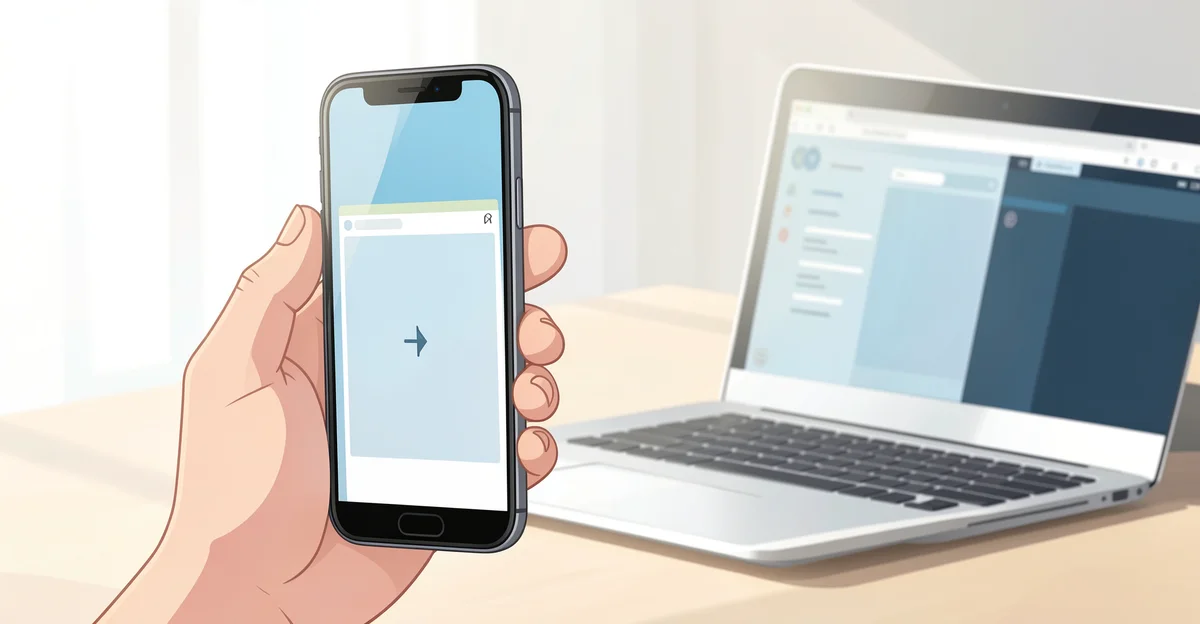
In today’s fast-paced digital world, the ability to control your PC from an Android phone remotely has become increasingly valuable. Whether you’re working from home, traveling, or simply away from your desk, having the power to access your computer at your fingertips can enhance productivity and convenience. This guide will walk you through the essential steps and tools needed to seamlessly connect your Android device to your PC, allowing you to manage files, run applications, and even troubleshoot issues from anywhere.
With various applications and methods available, controlling your PC from an Android phone is not only achievable but also straightforward. In this article, we will explore the best remote desktop solutions, provide step-by-step instructions, and offer tips to ensure a secure and efficient connection. By the end, you’ll be equipped with the knowledge to take full advantage of remote access, making your workflow more flexible and efficient than ever before.
Introduction
In today’s fast-paced digital world, the ability to control your PC from an Android phone remotely has become increasingly valuable. Whether you need to access files, run applications, or troubleshoot issues while on the go, having this capability can significantly enhance your productivity. This article explores how to control your PC from an Android phone remotely with clear, practical guidance, ensuring you can make the most of this technology.
Key Concepts
Understanding the fundamentals of how to control your PC from an Android phone remotely helps you make informed decisions. Here are some key concepts to consider:
- Remote Desktop Software: This is the primary tool that enables remote access. Popular options include TeamViewer, AnyDesk, and Chrome Remote Desktop.
- Network Connectivity: A stable internet connection is essential for seamless remote access. Both your PC and Android device must be connected to the internet.
- Security Measures: Protecting your data is crucial. Ensure that you use strong passwords and enable two-factor authentication where possible.
- Compatibility: Check that the remote desktop software you choose is compatible with your PC’s operating system and your Android device.
Deep Dive
Now that we’ve covered the basics, let’s dive deeper into the steps required to control your PC from your Android phone remotely.
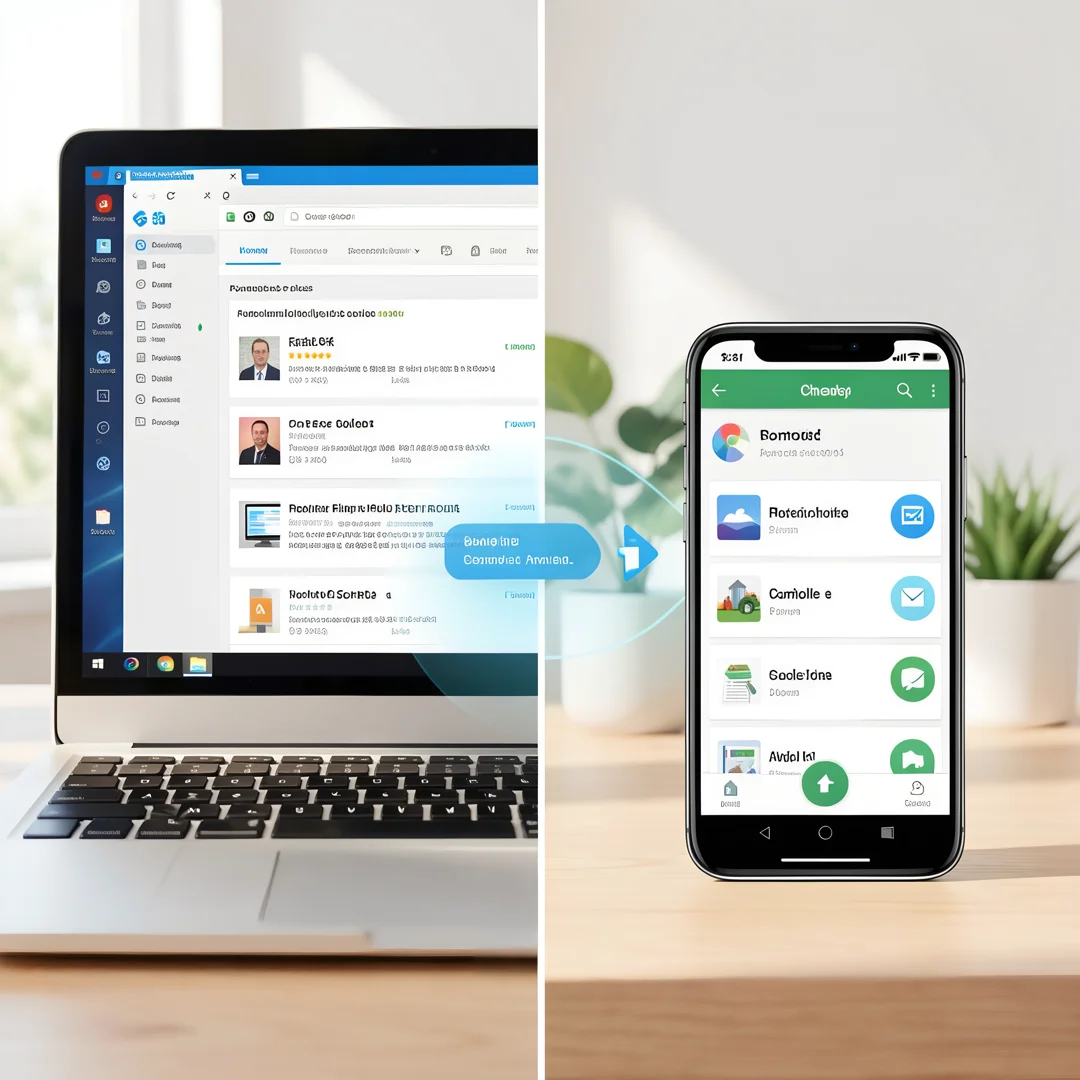
Step 1: Choose the Right Remote Desktop Software
There are several remote desktop applications available, each with its own set of features. Here are a few popular choices:
- TeamViewer: Offers a user-friendly interface and is free for personal use. It supports file transfer and remote printing.
- AnyDesk: Known for its high performance and low latency, making it ideal for tasks that require real-time interaction.
- Chrome Remote Desktop: A browser-based solution that is easy to set up and allows access from any device with Chrome installed.
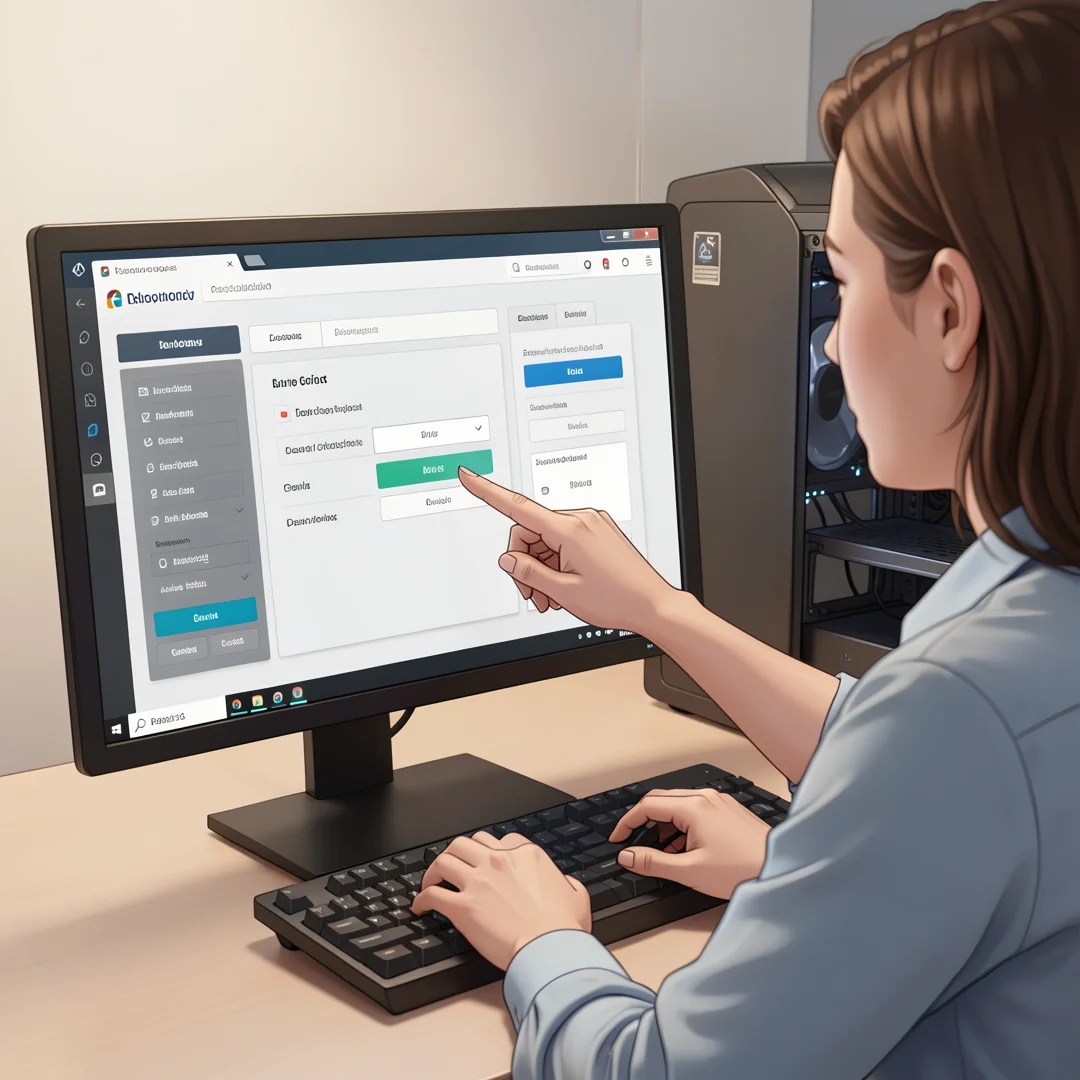
Step 2: Install the Software on Your PC
Once you have chosen your remote desktop software, download and install it on your PC. Follow the installation prompts, and make sure to configure any necessary settings, such as enabling remote access.
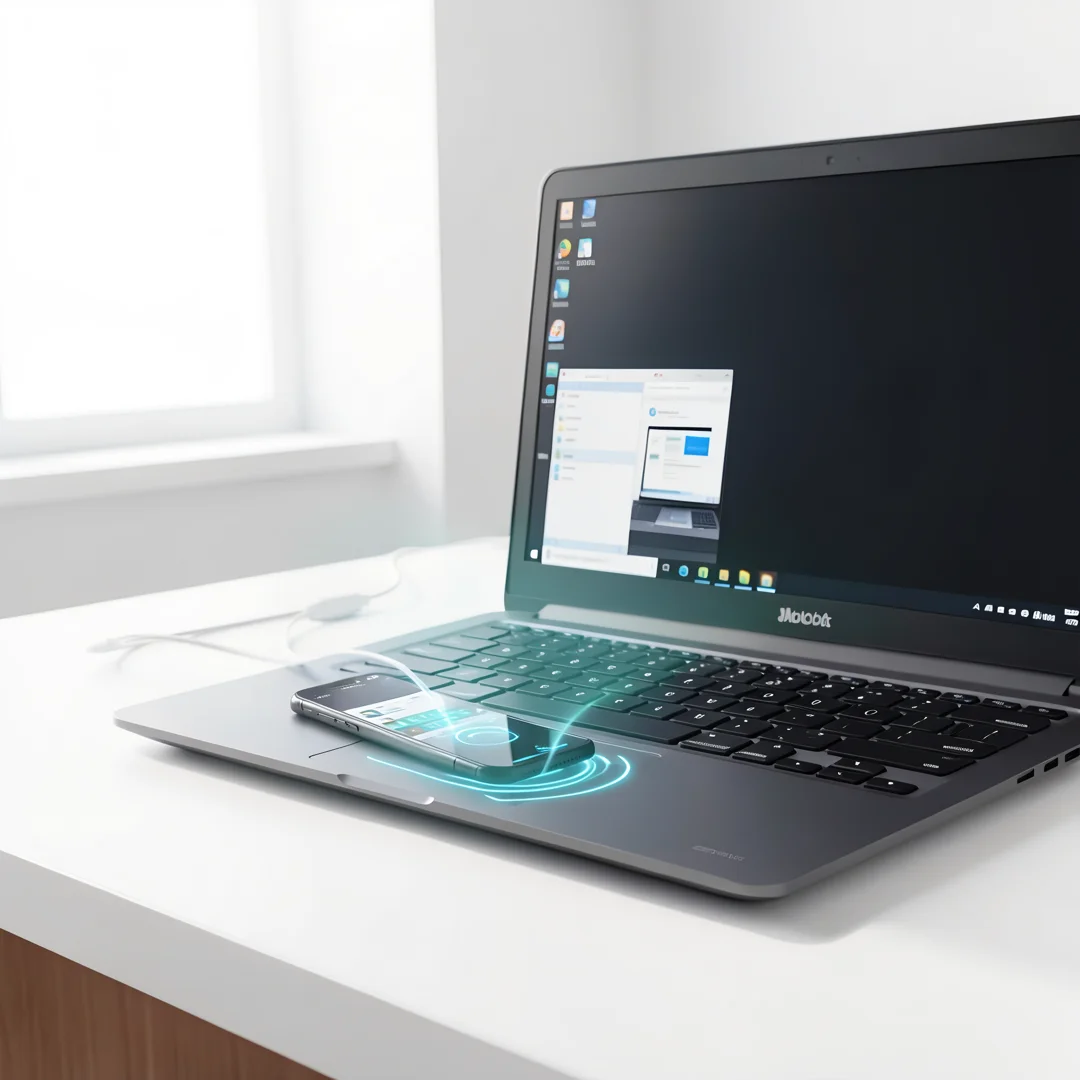
Step 3: Set Up the Android App
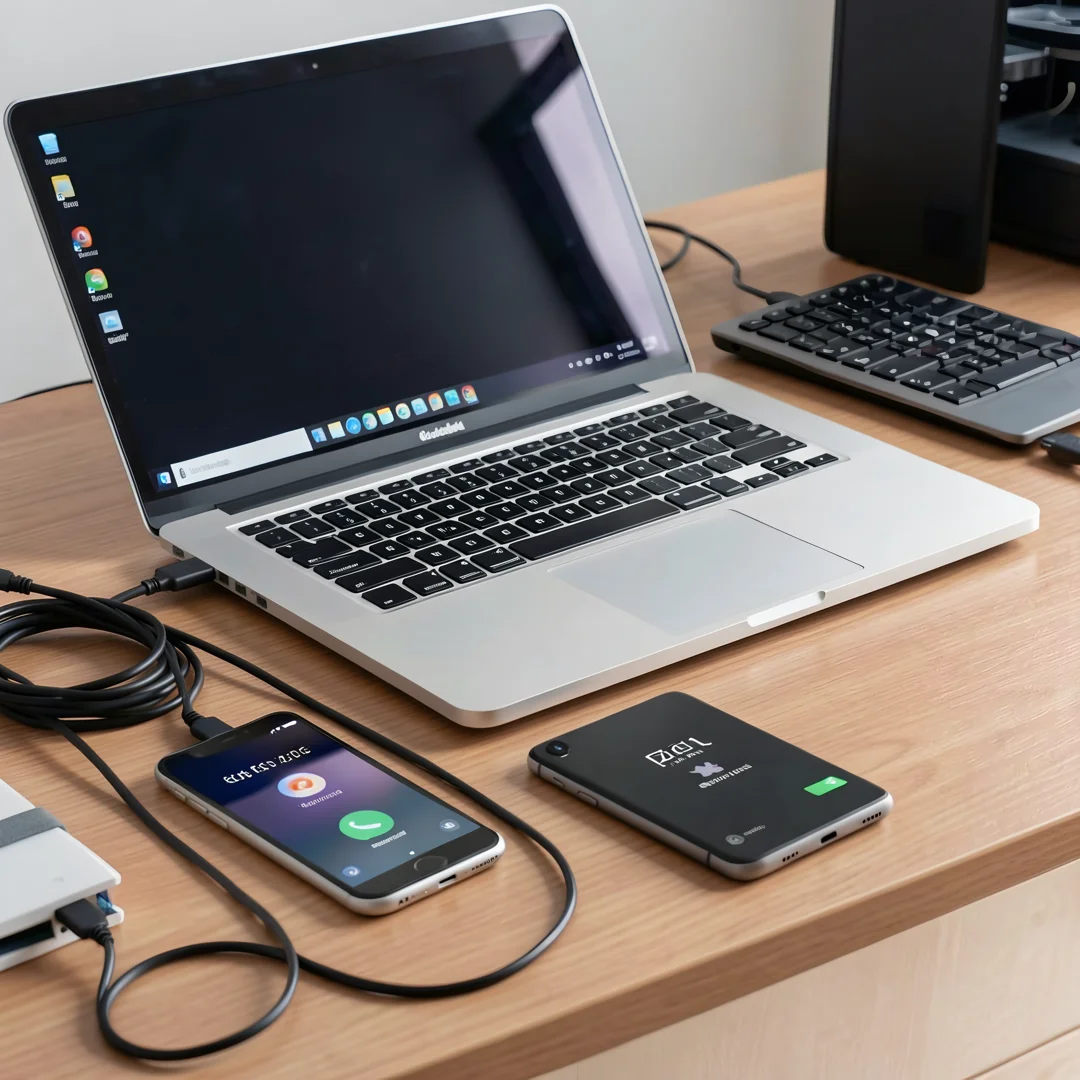
Next, download the corresponding app on your Android phone from the Google Play Store. After installation, open the app and sign in with the same account you used on your PC. This ensures a secure connection between the two devices.
Step 4: Establish a Connection
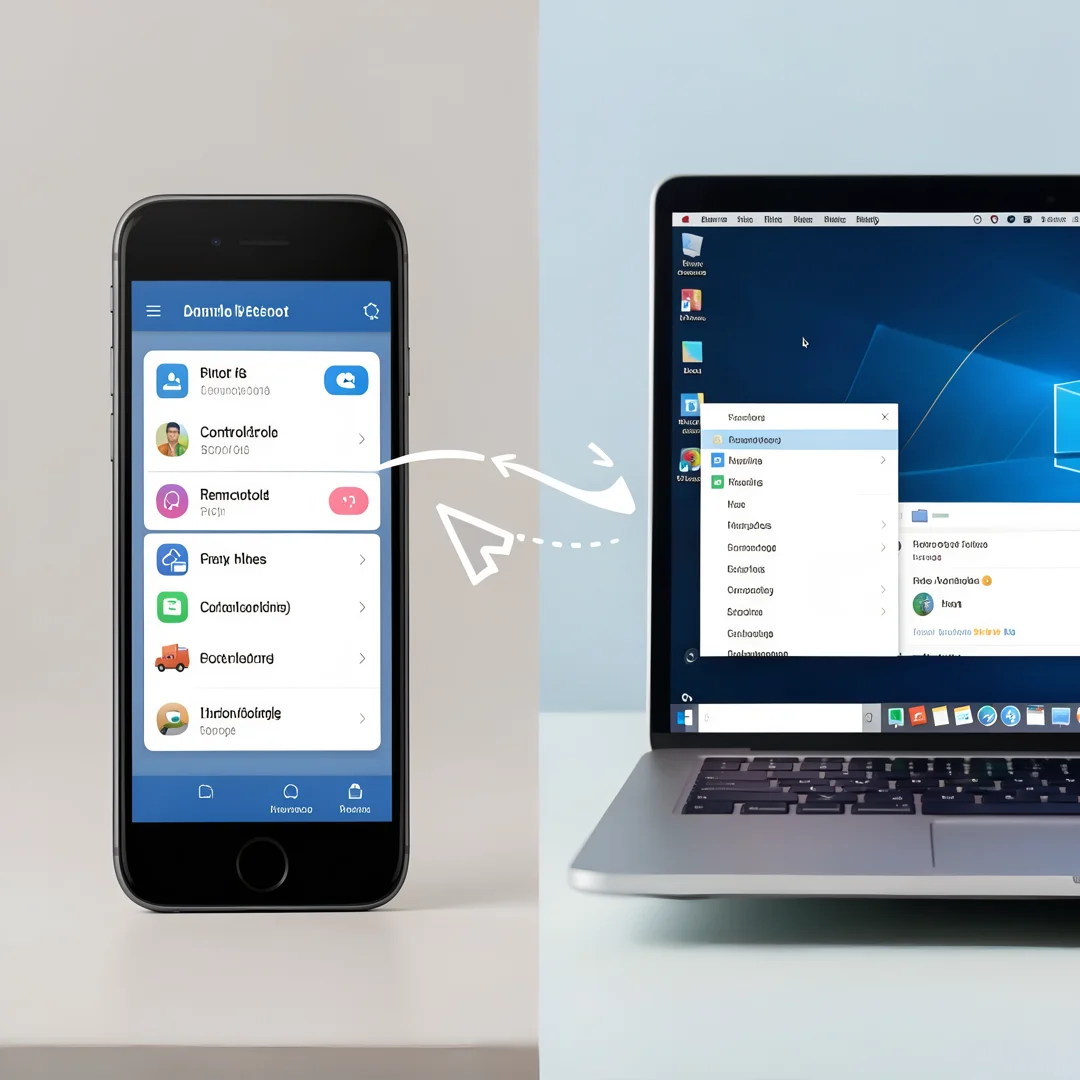
With both devices set up, you can now establish a connection. Open the app on your Android phone, select your PC from the list of available devices, and enter any required credentials. Once connected, you will see your PC’s desktop on your phone screen.
Step 5: Control Your PC Remotely
Now that you are connected, you can control your PC as if you were sitting right in front of it. You can open applications, access files, and perform any tasks you need to complete. The touch controls on your Android device may take some getting used to, but with practice, you will find it intuitive.
Best Practices
To ensure a smooth and secure remote access experience, consider the following best practices:
- Keep Software Updated: Regularly update both your remote desktop software and your Android app to benefit from the latest features and security enhancements.
- Use Strong Passwords: Protect your remote access with strong, unique passwords to prevent unauthorized access.
- Enable Two-Factor Authentication: Whenever possible, enable two-factor authentication for an added layer of security.
- Limit Access: Only allow remote access when necessary and disable it when not in use to reduce security risks.
FAQ
What should I know about how to control my PC from an Android phone remotely?
Before getting started, it’s essential to understand the requirements, such as the need for reliable internet connectivity and the importance of choosing the right remote desktop software. Familiarize yourself with the features of the software you select, as this will enhance your remote access experience.
Who is this guide for?
This guide is designed for anyone looking to enhance their productivity by accessing their PC remotely using an Android phone. Whether you are a student needing to access study materials, a professional working from different locations, or someone who simply wants to manage their home computer while away, this guide provides the necessary steps and tips to achieve that.
Conclusion
Controlling your PC from an Android phone remotely is a powerful tool that can significantly improve your efficiency and flexibility. By understanding the key concepts, following the detailed steps, and adhering to best practices, you can ensure a secure and effective remote access experience. Reliable information and consistent habits lead to better long-term outcomes, so take the time to set everything up correctly and enjoy the benefits of remote control.
Step-by-Step Guide
Follow these 8 steps in order. Each step includes detailed instructions and an image to guide you through How to Control Your PC From an Android Phone Remotely.
Step 1: Understand the fundamentals
Learn the core concepts behind How to Control Your PC From an Android Phone Remotely before taking action.
Take time to research How to Control Your PC From an Android Phone Remotely from reliable sources and note questions that need clarification.
Many people benefit from breaking this stage into smaller tasks and completing one before moving to the next.
Document what works and what does not so you can refine your approach to How to Control Your PC From an Android Phone Remotely over time.
Work through understand the fundamentals at a comfortable pace and confirm you understand each part before continuing.
Keep notes on anything specific to your device or situation so you can reference them later.
If something is unclear, pause and re-read the instructions rather than rushing ahead.
Many people find it helpful to complete this stage in one sitting to avoid losing context.
Expected result: You complete understand the fundamentals with a clear record of outcomes.
Tip: Review this step's results before proceeding to the next stage.
Step 2: Assess your starting point
Evaluate where you currently stand regarding How to Control Your PC From an Android Phone Remotely.
Take time to research How to Control Your PC From an Android Phone Remotely from reliable sources and note questions that need clarification.
Many people benefit from breaking this stage into smaller tasks and completing one before moving to the next.
Document what works and what does not so you can refine your approach to How to Control Your PC From an Android Phone Remotely over time.
Work through assess your starting point at a comfortable pace and confirm you understand each part before continuing.
Keep notes on anything specific to your device or situation so you can reference them later.
If something is unclear, pause and re-read the instructions rather than rushing ahead.
Many people find it helpful to complete this stage in one sitting to avoid losing context.
Expected result: You complete assess your starting point with a clear record of outcomes.
Tip: Review this step's results before proceeding to the next stage.
Step 3: Set clear goals
Define specific, measurable outcomes you want from How to Control Your PC From an Android Phone Remotely.
Take time to research How to Control Your PC From an Android Phone Remotely from reliable sources and note questions that need clarification.
Many people benefit from breaking this stage into smaller tasks and completing one before moving to the next.
Document what works and what does not so you can refine your approach to How to Control Your PC From an Android Phone Remotely over time.
Work through set clear goals at a comfortable pace and confirm you understand each part before continuing.
Keep notes on anything specific to your device or situation so you can reference them later.
If something is unclear, pause and re-read the instructions rather than rushing ahead.
Many people find it helpful to complete this stage in one sitting to avoid losing context.
Expected result: You complete set clear goals with a clear record of outcomes.
Tip: Review this step's results before proceeding to the next stage.
Step 4: Gather necessary resources
Collect tools, information, and support needed for How to Control Your PC From an Android Phone Remotely.
Take time to research How to Control Your PC From an Android Phone Remotely from reliable sources and note questions that need clarification.
Many people benefit from breaking this stage into smaller tasks and completing one before moving to the next.
Document what works and what does not so you can refine your approach to How to Control Your PC From an Android Phone Remotely over time.
Work through gather necessary resources at a comfortable pace and confirm you understand each part before continuing.
Keep notes on anything specific to your device or situation so you can reference them later.
If something is unclear, pause and re-read the instructions rather than rushing ahead.
Many people find it helpful to complete this stage in one sitting to avoid losing context.
Expected result: You complete gather necessary resources with a clear record of outcomes.
Tip: Review this step's results before proceeding to the next stage.
Step 5: Apply the core methods
Put the primary techniques for How to Control Your PC From an Android Phone Remotely into practice systematically.
Take time to research How to Control Your PC From an Android Phone Remotely from reliable sources and note questions that need clarification.
Many people benefit from breaking this stage into smaller tasks and completing one before moving to the next.
Document what works and what does not so you can refine your approach to How to Control Your PC From an Android Phone Remotely over time.
Work through apply the core methods at a comfortable pace and confirm you understand each part before continuing.
Keep notes on anything specific to your device or situation so you can reference them later.
If something is unclear, pause and re-read the instructions rather than rushing ahead.
Many people find it helpful to complete this stage in one sitting to avoid losing context.
Expected result: You complete apply the core methods with a clear record of outcomes.
Tip: Review this step's results before proceeding to the next stage.
Step 6: Monitor your progress
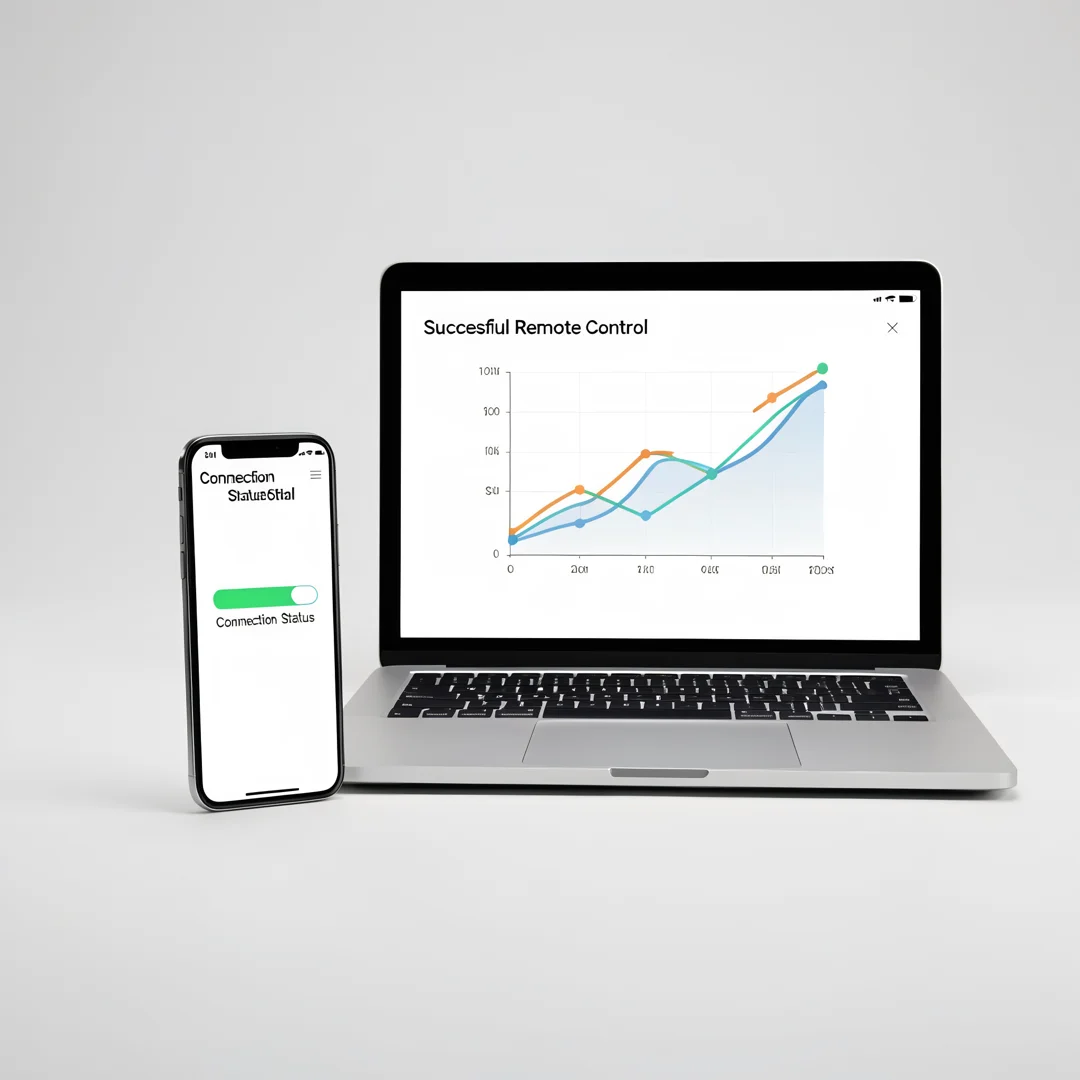
Track results and adjust your approach to How to Control Your PC From an Android Phone Remotely as needed.
Take time to research How to Control Your PC From an Android Phone Remotely from reliable sources and note questions that need clarification.
Many people benefit from breaking this stage into smaller tasks and completing one before moving to the next.
Document what works and what does not so you can refine your approach to How to Control Your PC From an Android Phone Remotely over time.
Work through monitor your progress at a comfortable pace and confirm you understand each part before continuing.
Keep notes on anything specific to your device or situation so you can reference them later.
If something is unclear, pause and re-read the instructions rather than rushing ahead.
Many people find it helpful to complete this stage in one sitting to avoid losing context.
Expected result: You complete monitor your progress with a clear record of outcomes.
Tip: Review this step's results before proceeding to the next stage.
Step 7: Address common challenges
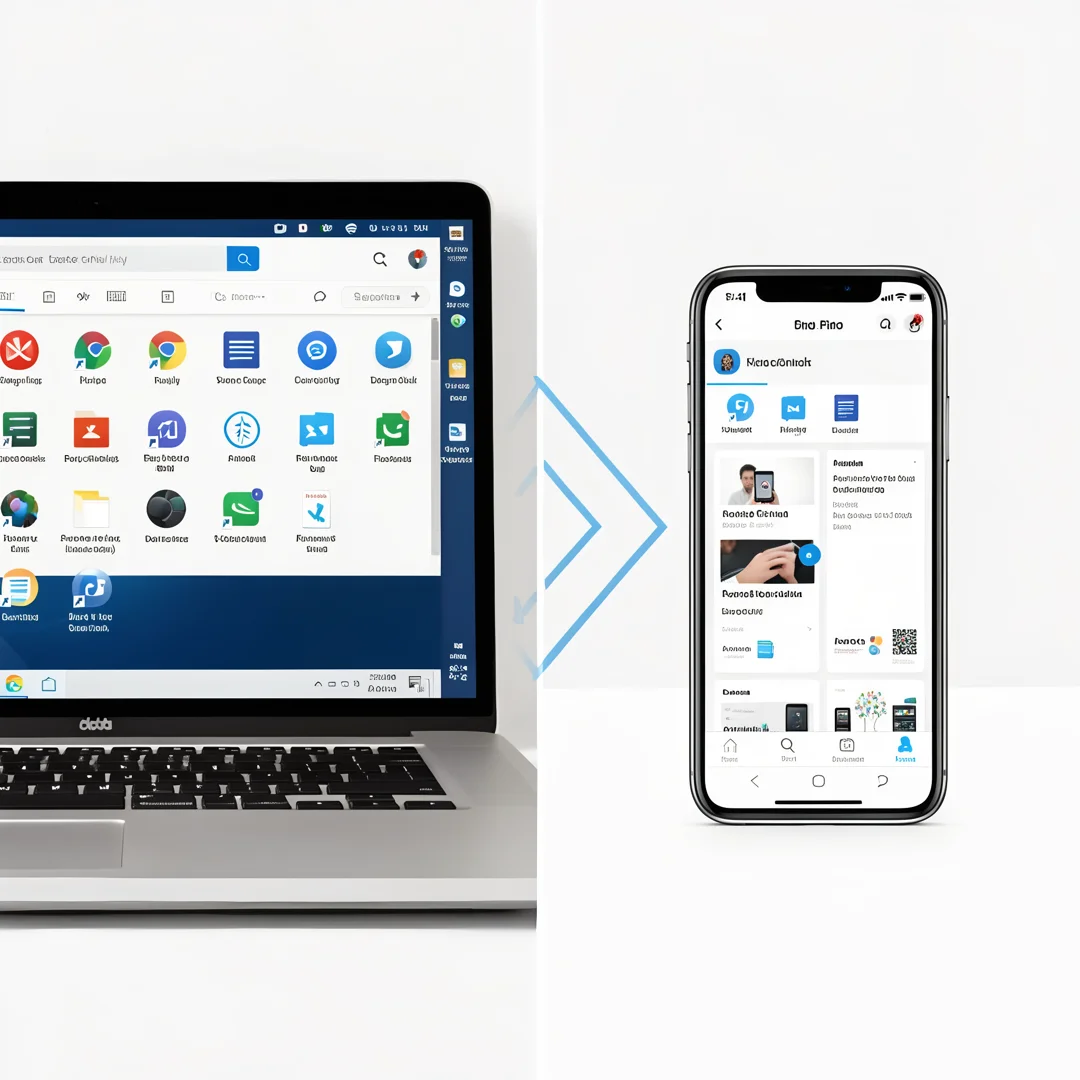
Identify obstacles related to How to Control Your PC From an Android Phone Remotely and plan solutions.
Take time to research How to Control Your PC From an Android Phone Remotely from reliable sources and note questions that need clarification.
Many people benefit from breaking this stage into smaller tasks and completing one before moving to the next.
Document what works and what does not so you can refine your approach to How to Control Your PC From an Android Phone Remotely over time.
Work through address common challenges at a comfortable pace and confirm you understand each part before continuing.
Keep notes on anything specific to your device or situation so you can reference them later.
If something is unclear, pause and re-read the instructions rather than rushing ahead.
Many people find it helpful to complete this stage in one sitting to avoid losing context.
Expected result: You complete address common challenges with a clear record of outcomes.
Tip: Review this step's results before proceeding to the next stage.
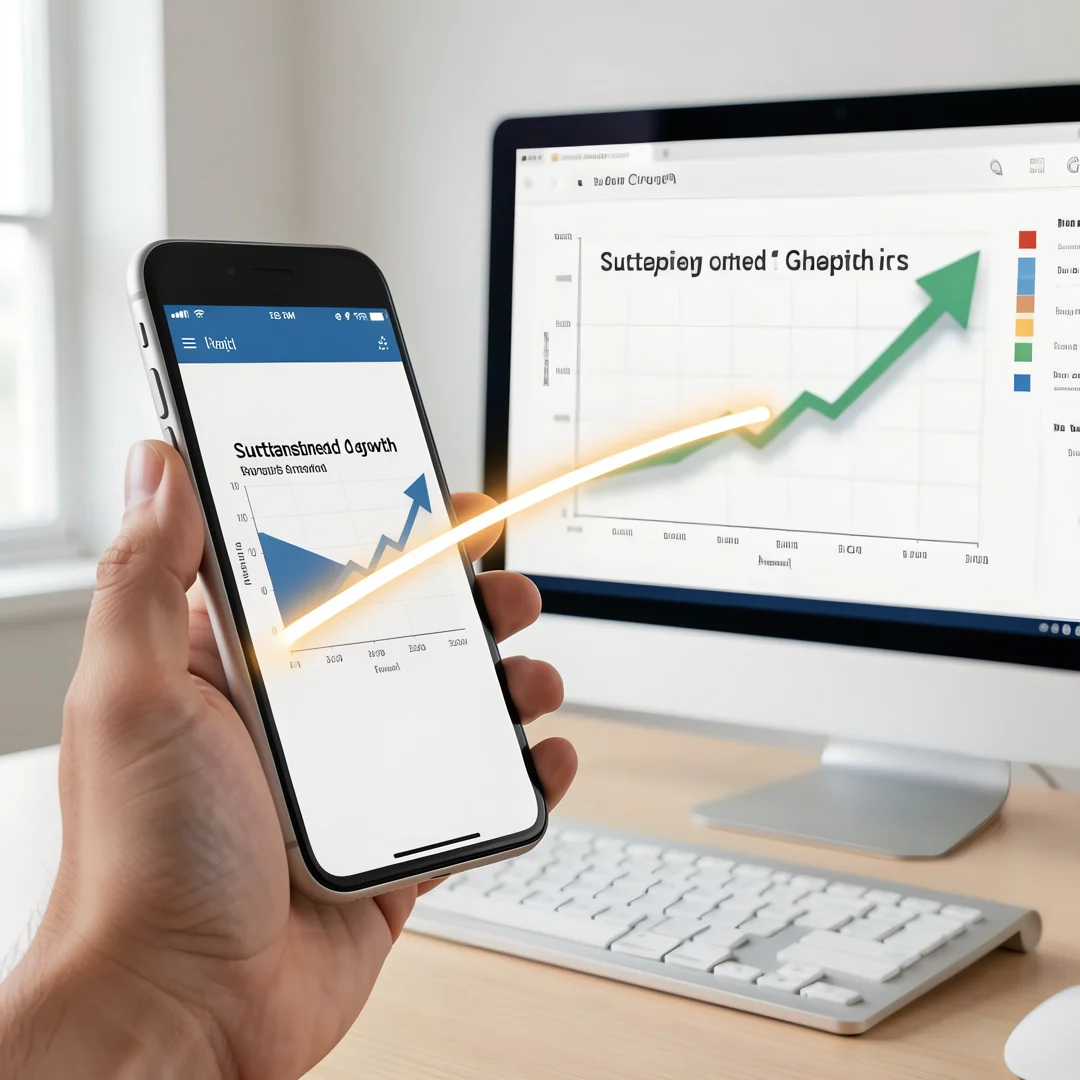
Step 8: Maintain long-term success
Build sustainable habits around How to Control Your PC From an Android Phone Remotely for lasting results.
Take time to research How to Control Your PC From an Android Phone Remotely from reliable sources and note questions that need clarification.
Many people benefit from breaking this stage into smaller tasks and completing one before moving to the next.
Document what works and what does not so you can refine your approach to How to Control Your PC From an Android Phone Remotely over time.
Work through maintain long-term success at a comfortable pace and confirm you understand each part before continuing.
Keep notes on anything specific to your device or situation so you can reference them later.
If something is unclear, pause and re-read the instructions rather than rushing ahead.
Many people find it helpful to complete this stage in one sitting to avoid losing context.
Expected result: You complete maintain long-term success with a clear record of outcomes.
Tip: Review this step's results before proceeding to the next stage.
Best Practices
- Start with clear goals and track progress over time.
- Use trusted sources and verify important claims.
- Adjust recommendations to your personal situation and consult experts when needed.
Expert Insights
Readers searching for 'How to Control Your PC From an Android Phone Remotely' want actionable advice without unnecessary jargon.
Structured sections with summaries improve readability and engagement.
Current Trends
- Increased demand for clear, trustworthy online guides
- Mobile-first reading habits
Key Statistics
- Consistent habits — Small daily improvements compound into meaningful results over time.
Frequently Asked Questions
What should I know about How to Control Your PC From an Android Phone Remotely?
This guide covers the essentials of How to Control Your PC From an Android Phone Remotely with practical steps you can apply right away.
Who is this guide for?
Anyone looking for a clear, structured overview without unnecessary complexity.
You now have a solid foundation for How to Control Your PC From an Android Phone Remotely. Apply the best practices above and revisit this guide as your needs evolve.
