
17 min read • 3,632 words
In today’s fast-paced digital world, maximizing productivity is essential, and one innovative way to achieve this is by learning how to turn your Android phone into a second monitor for your PC. This technique not only enhances your workspace but also allows for seamless multitasking, making it easier to manage multiple applications simultaneously. With the right apps, such as Duet Display or Splashtop, you can effortlessly extend your desktop experience, providing you with more screen real estate without the need for an additional physical monitor.
In today’s fast-paced digital world, maximizing productivity is essential, and one innovative way to achieve this is by learning how to turn your Android phone into a second monitor for your PC. This technique not only enhances your workspace but also allows for seamless multitasking, making it easier to manage multiple applications simultaneously. With the right apps, such as Duet Display or Splashtop, you can effortlessly extend your desktop experience, providing you with more screen real estate without the need for an additional physical monitor.
Understanding how to effectively utilize your Android device as a second monitor can significantly improve your workflow. This guide will walk you through the necessary steps, from selecting the best applications to establishing a reliable connection between your phone and PC. While most apps perform best with a USB connection, we’ll also explore options that support Wi-Fi, ensuring you can choose the method that suits your setup. By ensuring your devices are on the same network, you can enjoy a smooth and responsive second display.
Throughout this article, you will learn how to adjust display settings on your PC to optimize the resolution of your newly created second monitor. This knowledge is crucial for ensuring that your Android phone displays content clearly and effectively. By the end of this guide, you will not only have transformed your Android device into a functional second monitor but also gained insights into enhancing your productivity through better multitasking and efficient screen management.
Introduction
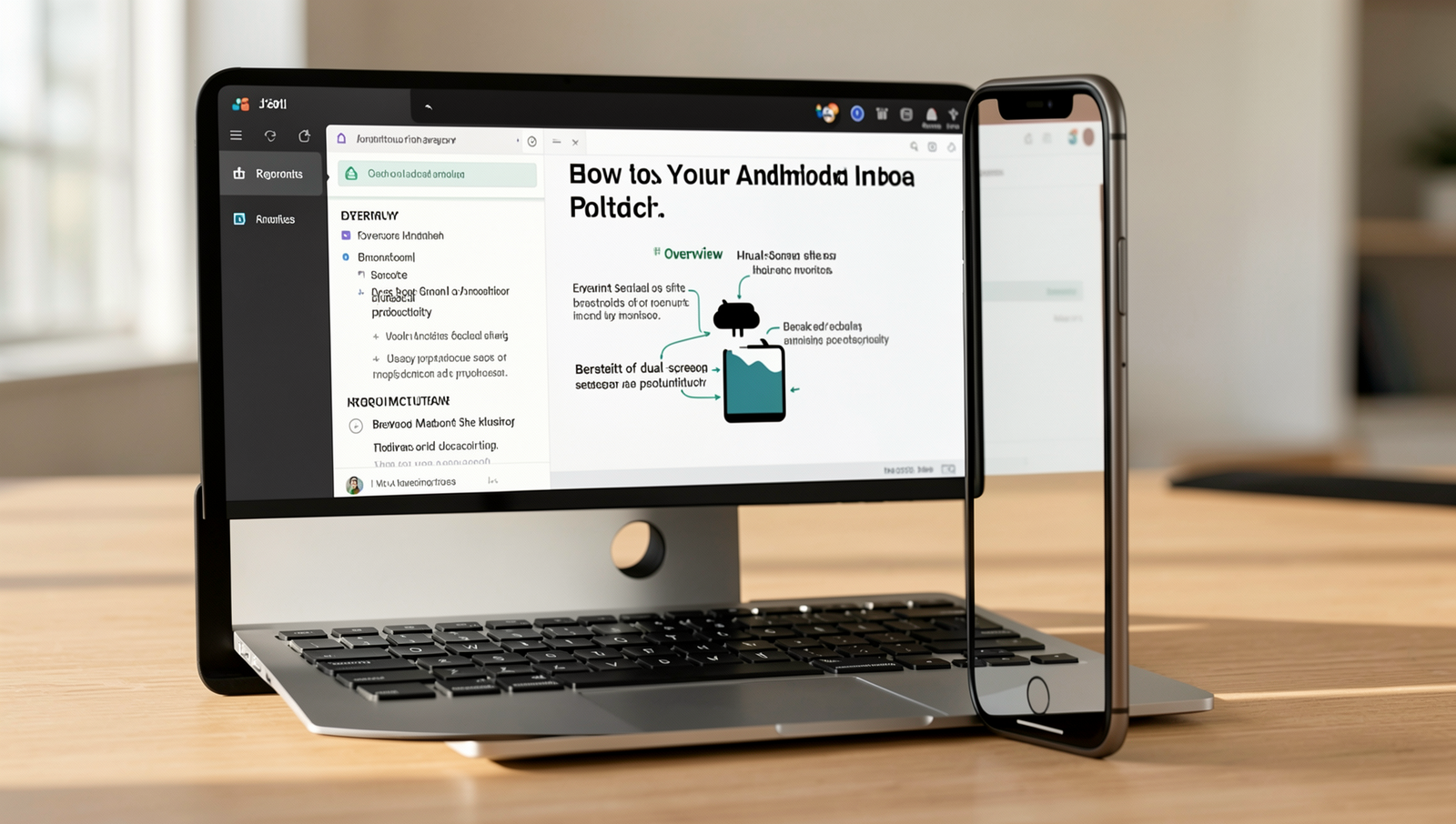
In today’s fast-paced digital world, maximizing productivity is essential. One effective way to enhance your workflow is to turn your Android phone into a second monitor for your PC. This setup allows you to extend your desktop space, making it easier to multitask and manage various applications simultaneously.
Using a dual-screen setup offers numerous benefits, including:
- Increased screen real estate for better organization of tasks.
- Improved focus by separating workspaces for different applications.
- Enhanced collaboration by sharing screens easily during meetings.
Before diving into the tutorial, ensure you have the following requirements:
- An Android smartphone with a stable internet connection.
- A Windows, Mac, or Linux PC.
- Compatible software installed on both devices.
There are several software options available to facilitate this process, including:
- Spacedesk: A popular choice for Windows users, allowing seamless connectivity.
- Duet Display: A paid app that offers high performance and low latency.
- iDisplay: A versatile option that works on both Windows and Mac.
Introduction
In today’s fast-paced digital world, maximizing productivity is essential. One effective way to enhance your workflow is by turning your Android phone into a second monitor for your PC. This setup allows you to extend your desktop, manage multiple applications simultaneously, and streamline your tasks. Whether you’re a student, a professional, or a creative, this guide will walk you through the process step-by-step.
Best Practices & Common Mistakes
To ensure a smooth experience, keep your phone charged and connected to a stable Wi-Fi network. Avoid using too many applications simultaneously to prevent lag. A common mistake is neglecting to adjust display settings for optimal resolution. Always check compatibility with your PC and consider using dedicated apps for better performance.
Preparing Your Devices
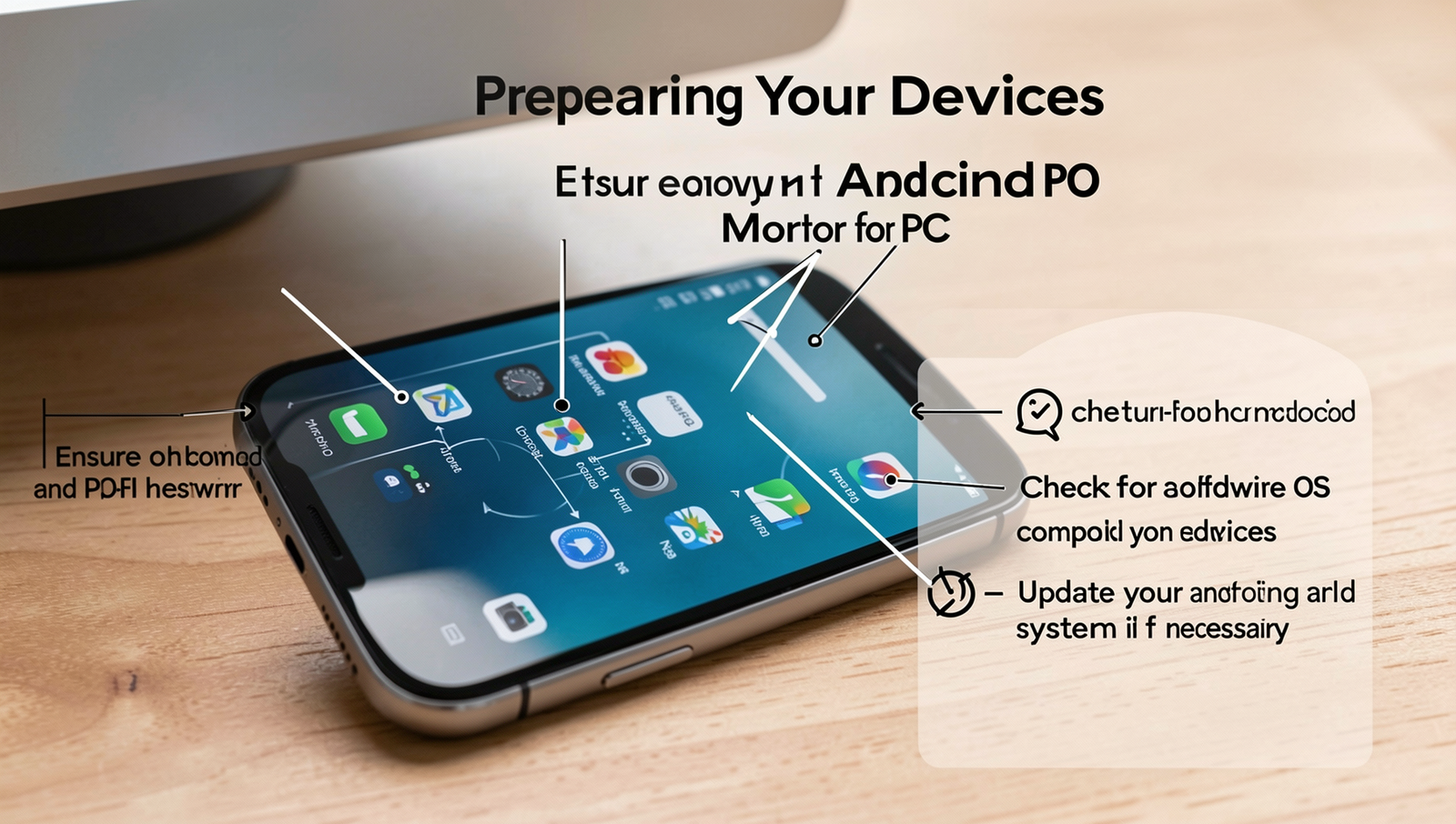
To successfully turn your Android phone into a second monitor for your PC, you need to ensure that both devices are properly set up. Here are some essential steps to follow:
- Ensure your Android phone and PC are on the same Wi-Fi network: This is crucial for wireless connections. Check your Wi-Fi settings on both devices to confirm they are connected to the same network.
- Check for software compatibility: Before proceeding, make sure that the applications you plan to use for screen mirroring are compatible with both your Android phone and PC. Popular apps include Duet Display and Splashtop.
- Update your operating systems: Keeping your devices updated can prevent compatibility issues. Check for updates on your Android phone and PC by navigating to:
Settings > System > System UpdateSettings > Update & Security > Windows Update- Gather necessary cables if opting for a wired connection: If you prefer a wired setup, ensure you have the appropriate USB cable. For many Android devices, a USB-C or Micro USB cable will suffice.
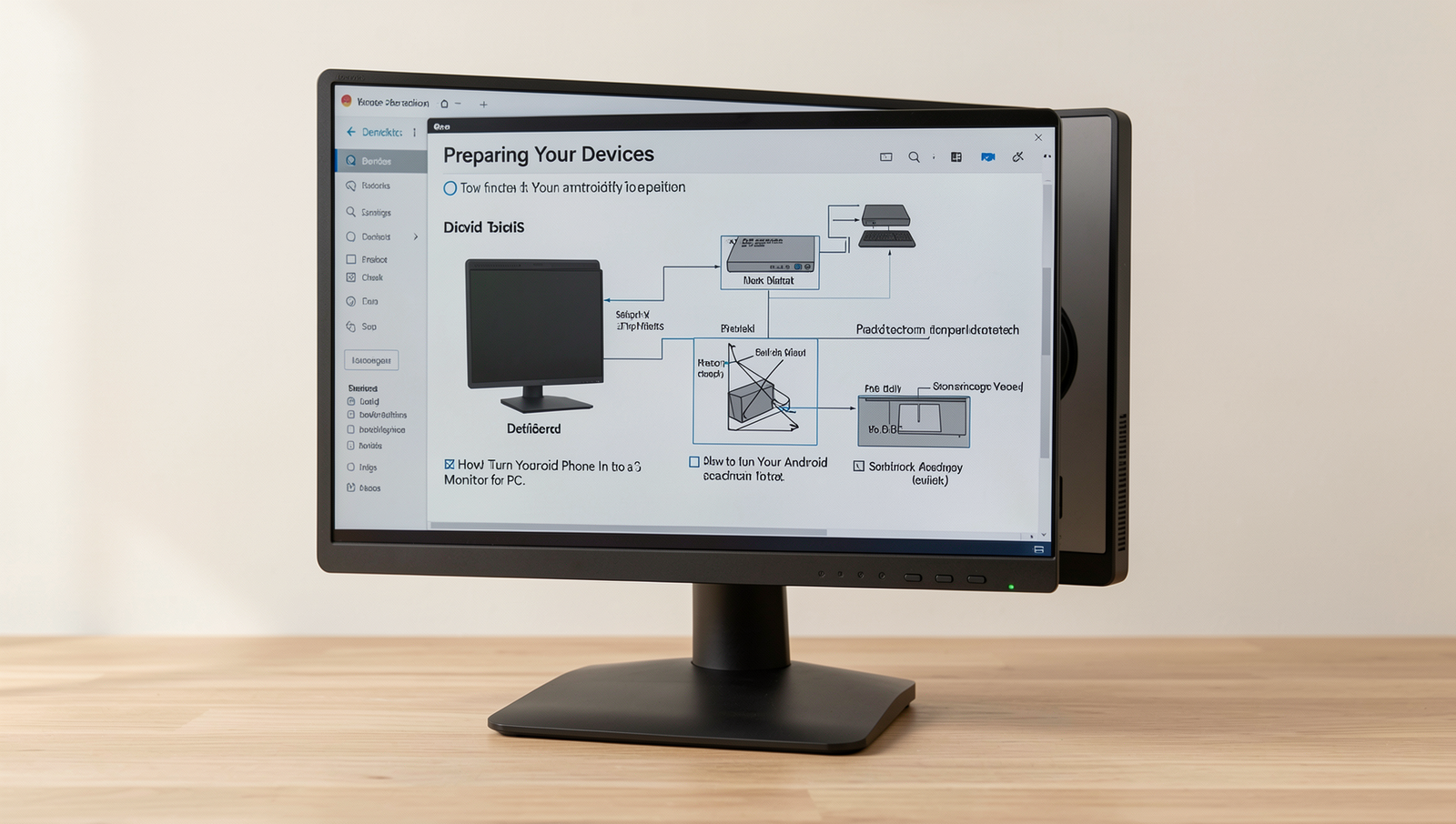
By following these steps, you will be well on your way to turning your Android phone into a second monitor, enhancing your productivity and multitasking capabilities.
Best Practices & Common Mistakes
To ensure a smooth experience, always use a stable Wi-Fi connection and keep your devices updated. Avoid running too many applications simultaneously on your Android device to prevent lag. A common mistake is neglecting to adjust display settings, which can lead to poor resolution. Regularly check for app updates for optimal performance.
Choosing the Right Software
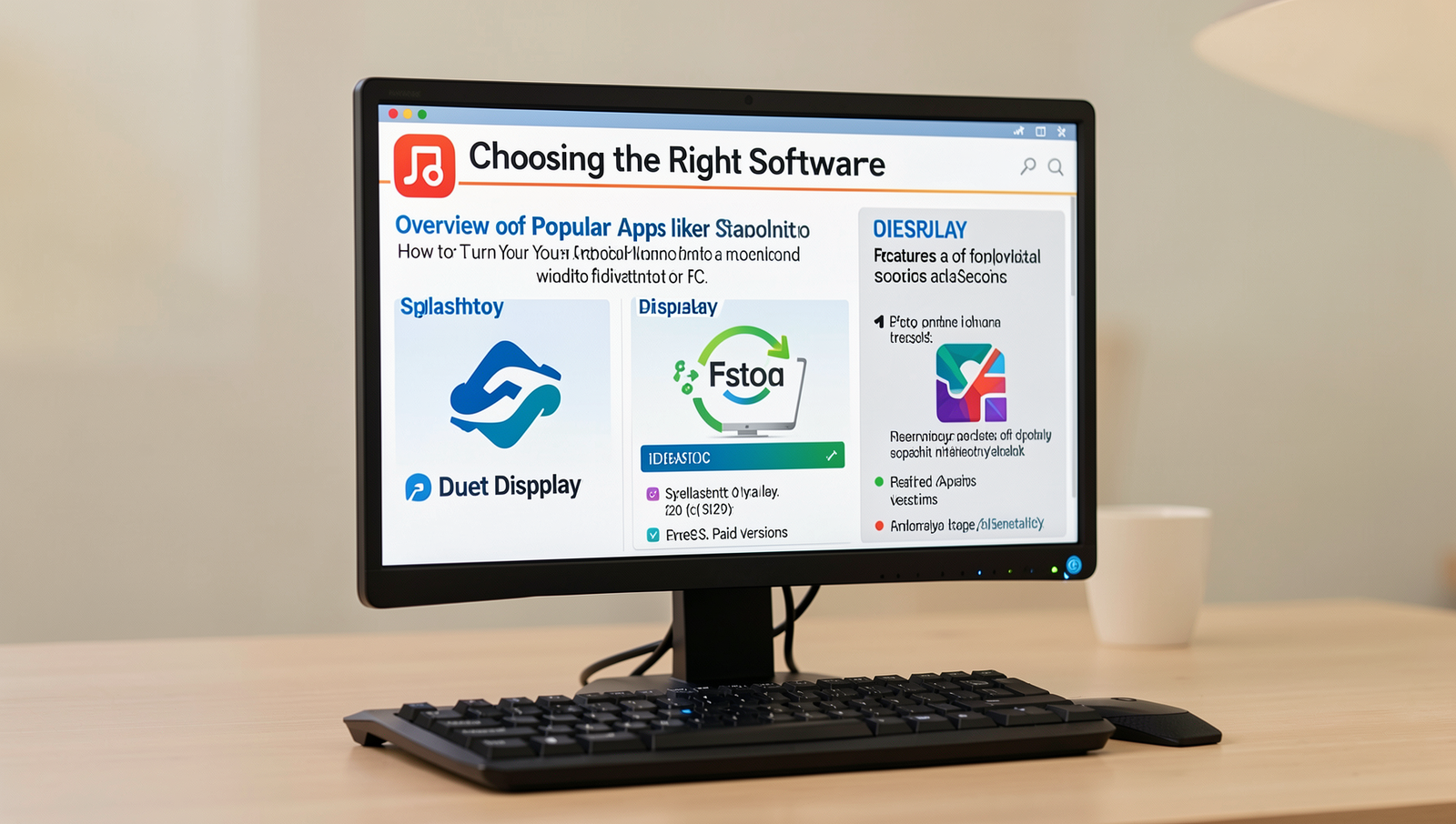
When looking to turn your Android phone into a second monitor for your PC, selecting the right software is crucial. Several popular applications offer various features and performance levels. Here are some of the top contenders:
- Splashtop: Known for its high performance and low latency, Splashtop allows you to stream your desktop to your Android device seamlessly.
- Duet Display: Originally designed for iOS, Duet Display has made its way to Android, offering a smooth experience with touch support.
- iDisplay: This app supports both Android and iOS devices, providing a flexible solution for users with multiple platforms.
When comparing these applications, consider their features such as resolution support, connection stability, and ease of setup. For instance, Splashtop excels in performance, while Duet Display offers a more user-friendly interface.
Another important factor is the difference between free and paid versions. Free versions may come with limitations like lower resolution or ads, while paid versions typically offer enhanced features and better performance. User reviews often highlight these distinctions:
- Splashtop users praise its reliability but note that the free version has limited functionality.
- Duet Display is recommended for its ease of use, although some users feel the price is a bit steep.
- iDisplay receives mixed reviews, with some users enjoying its flexibility, while others report connectivity issues.
Ultimately, the best choice will depend on your specific needs and preferences. Testing out the free versions can help you determine which software works best for your setup.
Choosing the Right Software
To effectively turn your Android phone into a second monitor for your PC, selecting the right software is crucial. Look for applications that offer seamless connectivity, low latency, and high-resolution support. Popular options include Duet Display, Splashtop Wired XDisplay, and iDisplay. Ensure compatibility with your operating system and check user reviews for performance insights.
Best Practices & Common Mistakes
When using your Android phone as a second monitor, prioritize a stable Wi-Fi connection to avoid lag. Avoid using multiple applications simultaneously, as this can hinder performance. Always check for software updates to ensure compatibility and improved features. Remember that screen resolution settings can impact display quality, so adjust accordingly for the best experience.
Installing the Software on Your PC
To turn your Android phone into a second monitor for your PC, you need to install compatible software on your computer. Here’s a step-by-step guide to help you through the installation process.
- Download the Software: Visit the official website of the software you have chosen, such as
SpaceDeskorDuet Display, and download the installer for your operating system. - Run the Installer: Locate the downloaded file in your downloads folder and double-click to run the installer. Follow the on-screen instructions to complete the installation.
- Configure Settings: After installation, open the software and navigate to the settings menu. Adjust the resolution and display settings to optimize performance based on your PC and Android device capabilities.
If you encounter any issues during installation, consider the following troubleshooting tips:
- Check Firewall Settings: Ensure that your firewall is not blocking the software. You may need to allow the application through your firewall settings.
- Reinstall the Software: If the installation fails, try uninstalling and reinstalling the software. Use the following command to uninstall:
sudo apt-get remove software-nameFinally, make sure that your PC and Android device are connected to the same Wi-Fi network for seamless connectivity. With these steps, you can successfully turn your Android phone into a second monitor.
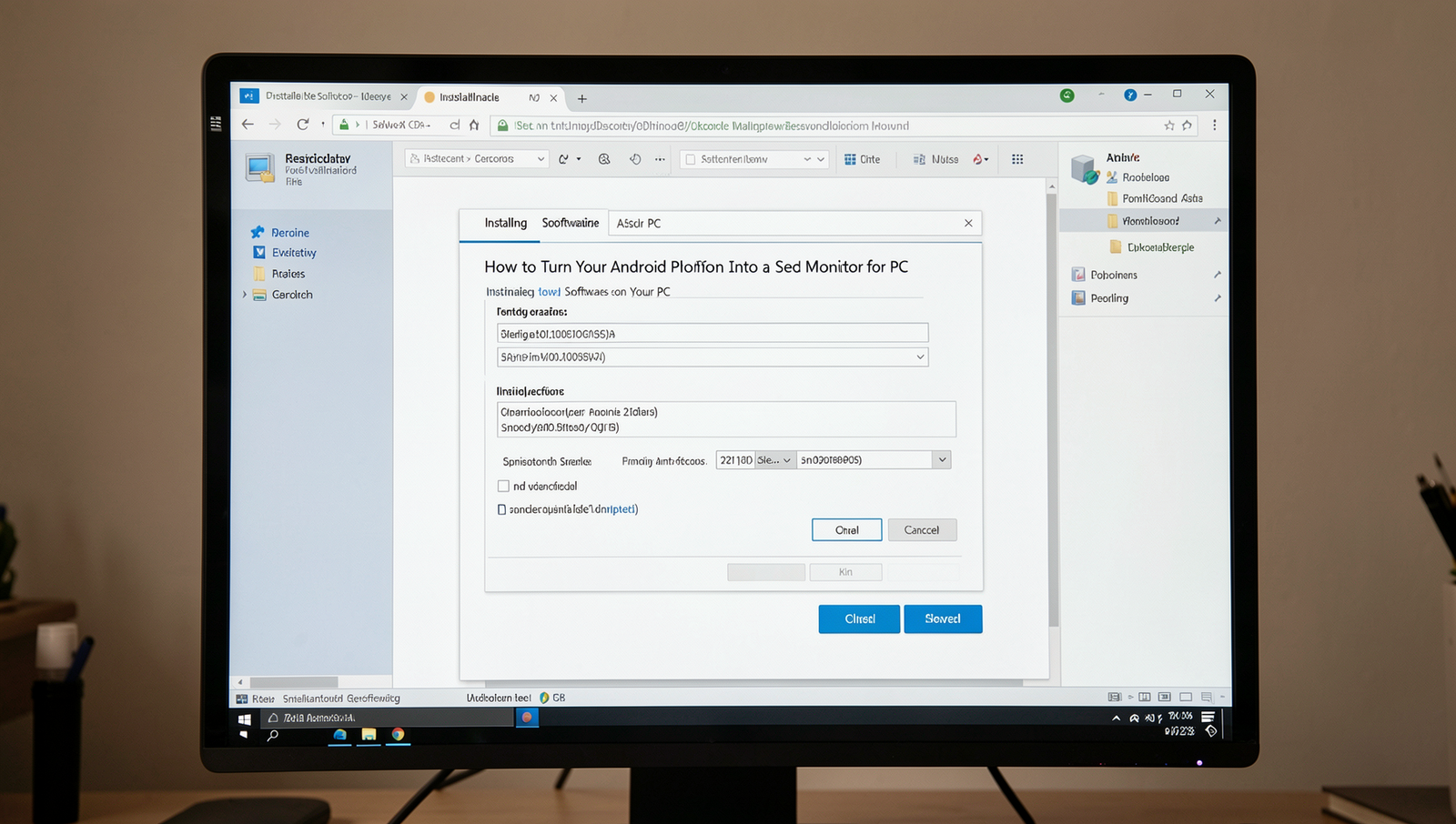
Installing the Software on Your PC
To turn your Android phone into a second monitor for your PC, you need to install the appropriate software on your computer. Follow these steps:
- Visit the official website of the software you have chosen (e.g., SpaceDesk, Duet Display).
- Download the Windows version of the software.
- Run the installer and follow the on-screen instructions to complete the installation.
- Once installed, launch the application on your PC.
- Ensure your PC and Android device are connected to the same Wi-Fi network.
Best Practices & Common Mistakes
To ensure a smooth experience, keep your software updated and check compatibility with your Android version. Avoid using public Wi-Fi for better performance and security. A common mistake is neglecting to adjust display settings on your PC, which can lead to resolution issues. Always refer to the user manual for troubleshooting tips.
Setting Up the Android App
To turn your Android phone into a second monitor for your PC, the first step is to download and install the appropriate app from the Google Play Store. Popular options include Splashtop Wired XDisplay and Duet Display. Simply search for the app in the Play Store, tap on the install button, and wait for the download to complete.
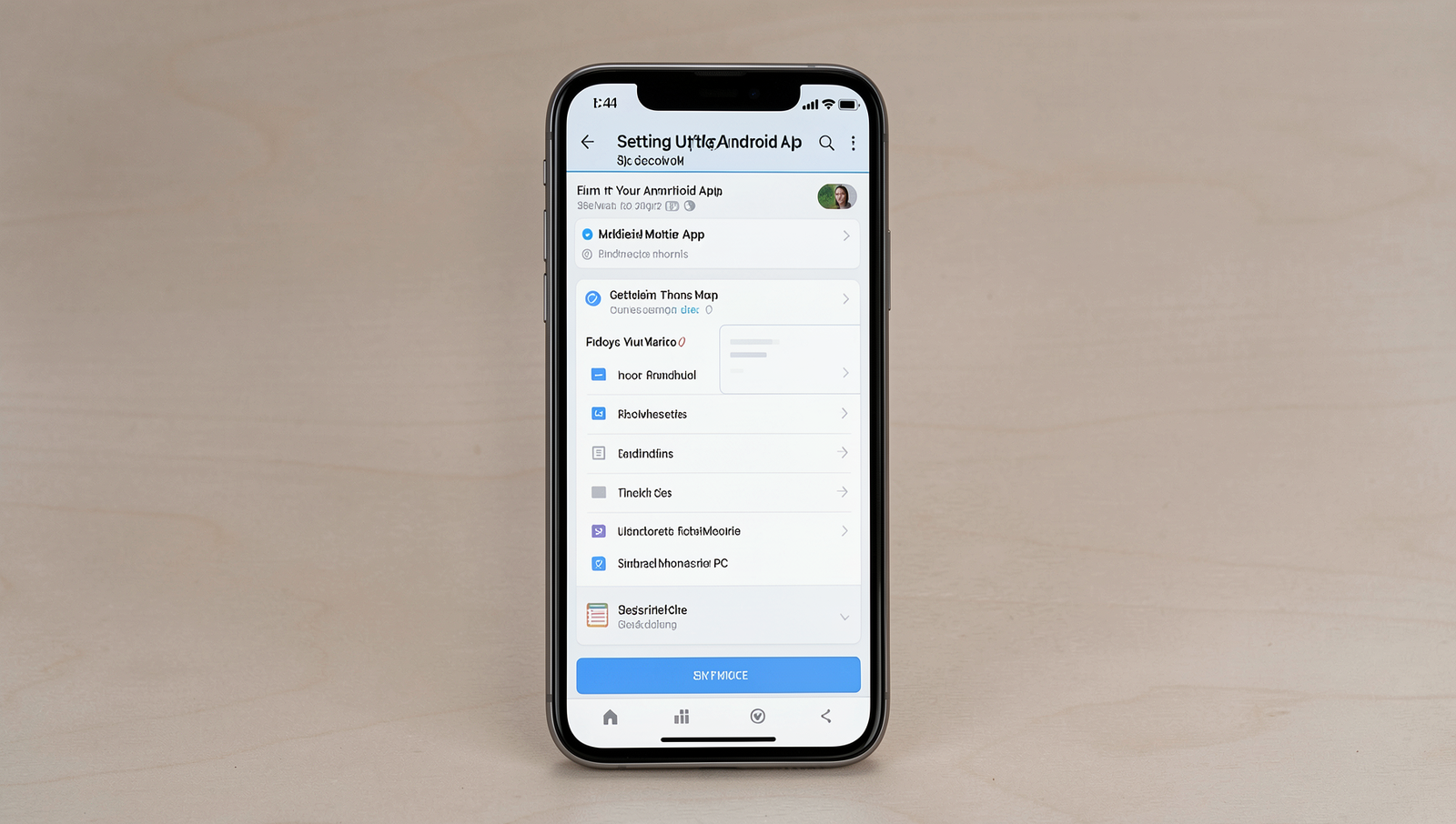
Once the app is installed, you need to connect it to the software running on your PC. This usually involves downloading a companion application on your computer. For example, if you are using Splashtop Wired XDisplay, you can download the PC client from their official website. After installation, launch the app on both your PC and Android device.
- Open the app on your Android phone.
- Ensure both devices are connected to the same Wi-Fi network or use a USB connection.
- Follow the on-screen instructions to establish a connection.
After connecting, you may want to configure the display settings on the Android app for optimal performance. This can include adjusting the resolution and orientation. Most apps will allow you to select the resolution that best fits your needs. For example, you can set the resolution by navigating to:
Settings > Display > ResolutionAdditionally, you can adjust the orientation to either landscape or portrait mode depending on your preference. This can usually be done in the app settings as well. Experiment with different settings to find what works best for you, ensuring a seamless experience as you turn your Android phone into a second monitor.
Best Practices & Common Mistakes
To ensure a smooth experience, keep your Android device and PC on the same Wi-Fi network. Avoid using a public network for better security and performance. Regularly update both devices to the latest software versions. A common mistake is neglecting to adjust display settings, which can lead to resolution issues.
Optimizing Your Dual-Screen Experience
To effectively turn your Android phone into a second monitor, it’s essential to optimize your dual-screen setup. Here are some tips to enhance your experience:
- Arranging Windows: Utilize your PC’s display settings to extend your desktop. You can drag windows from your main monitor to your Android screen for better multitasking.
- Touch Gestures: Take advantage of touch gestures on your Android device. For instance, swipe to switch between applications or pinch to zoom in on content.
- Adjusting Display Settings: Ensure that the resolution and scaling on your Android device match your PC for better visibility. You can usually find these settings in the display options of your Android app.
- Managing Performance: For gaming or graphic-intensive tasks, close unnecessary applications on both devices. This helps in maintaining a smooth experience. You can also adjust the performance settings in your gaming software.
For instance, if you’re using a specific application on your PC that requires more screen space, simply drag it to your Android screen. This allows you to keep your primary focus on your main monitor while having supplementary information readily available on your phone.
By following these tips, you can maximize the benefits of using your Android phone as a second monitor, enhancing productivity and enjoyment in your tasks.
Optimizing Your Dual-Screen Experience
To make the most of your dual-screen setup, consider adjusting your display settings for optimal resolution and scaling. Ensure that your Android device is positioned ergonomically to reduce strain. Utilize keyboard shortcuts to switch between screens efficiently, and customize your app layouts for better multitasking.
Best Practices & Common Mistakes
Always check for app compatibility before installation. Avoid cluttering your screens with too many open applications. Pro advice: use a wired connection for better performance and lower latency. Regularly update your apps to benefit from improvements and fixes. Lastly, ensure your phone’s battery is charged to prevent interruptions during use.
Troubleshooting Common Issues
When you try to turn your Android phone into a second monitor for your PC, you may encounter several common issues. Here are some troubleshooting tips to help you resolve these problems effectively.
Identifying Connectivity Problems
If your devices are not connecting, start by checking the following:
- Ensure both devices are on the same Wi-Fi network.
- Restart both your PC and Android phone.
- Check for any app updates on your Android device.
Resolving Lag or Performance Issues
Lag can be frustrating when using your Android as a second monitor. To improve performance, consider these steps:
- Close unnecessary applications on both devices.
- Reduce the display resolution on your Android phone.
- Use a wired connection if possible, as it can provide a more stable experience.
Fixing Display Resolution Mismatches
If the display resolution does not match, you can adjust it by:
- Accessing the display settings on your Android device.
- Using the app settings to set the correct resolution.
- Adjusting the scaling options on your PC.
Tips for Maintaining a Stable Connection
To ensure a stable connection while using your Android phone as a second monitor, follow these tips:
- Keep both devices close to the router.
- Minimize interference from other electronic devices.
- Regularly check for software updates on both devices.
By following these troubleshooting steps, you can enjoy a seamless experience when you turn your Android phone into a second monitor for your PC.
Troubleshooting Common Issues
Best Practices & Common Mistakes
To ensure a smooth experience, always keep your apps updated and check for compatibility with your Android version. Avoid using multiple display apps simultaneously, as this can cause conflicts. For optimal performance, connect your devices to the same Wi-Fi network and ensure your phone is charged to prevent disconnections.
Step-by-Step Tutorial
Step 1: Download and Install a Second Monitor App
- Search for a Reliable App: Open the Google Play Store on your Android device and search for apps that allow your phone to act as a second monitor. Popular options include ‘Splashtop Wired XDisplay’ and ‘Duet Display’.
- Check User Reviews: Before downloading, read user reviews and ratings to determine which app is the most reliable and suits your needs. Look for comments about performance and ease of use.
- Download the App: Once you have selected an app, tap on the ‘Install’ button to download it to your Android device.
- Install the Companion Software on Your PC: Visit the official website of the app you chose and download the corresponding software for your PC. Follow the installation instructions provided on the website.
- Ensure a Stable Internet Connection: If you are using a wireless option, make sure your devices are connected to the same Wi-Fi network for optimal performance.
- Check System Requirements: Before finalizing the installation, ensure that your PC meets the app’s system requirements to avoid compatibility issues.
Step 1: Download and Install a Second Monitor App
To turn your Android phone into a second monitor for your PC, you first need to download and install a suitable second monitor app from the Google Play Store. Popular options include Duet Display, Splashtop, and iDisplay.
Troubleshooting & Verification
Verify the app is installed correctly and check for any error messages. If issues arise, restart both devices. Use
ping to test connectivity between your PC and phone.
Step 2: Connect Your Devices
In this step, you will connect your Android phone to your PC, either through a wired or wireless method. Follow the instructions below based on your preferred connection type:
-
Wired Connection:
- Take a high-speed USB cable and connect one end to your Android phone and the other end to a USB port on your PC.
- Ensure that your phone is unlocked and that you have allowed USB debugging in the developer options.
- Open the app you are using to extend your display on both your PC and Android device.
- Wait for the app interface to show a successful connection.
-
Wireless Connection:
- Make sure both your Android phone and PC are connected to the same Wi-Fi network.
- Open the app on both devices.
- Follow the on-screen instructions to establish a connection. This may involve selecting your PC from a list on your phone.
- Confirm the connection on both devices when prompted.
Tips: Use a high-speed USB cable for better performance. If the connection fails, try restarting both devices.
Warnings: Using a poor quality USB cable may result in connection issues. Ensure both devices are on the same network for wireless connections.
Step 3: Configure Display Settings
Once your Android phone is connected to your PC, it’s time to configure the display settings to ensure that your phone is recognized as a second monitor. Follow these detailed instructions:
-
Right-click on your desktop and select Display settings from the context menu.
-
In the Display settings window, you will see your primary monitor and your Android phone listed as a second display. If your phone is not recognized, ensure that the connection is secure and try reconnecting.
-
To arrange the displays, click and drag the display icons to position them according to your physical setup. This will help you move your mouse seamlessly between screens.
-
Use the Identify button to see which display corresponds to your PC and your Android phone. This will help you confirm the arrangement.
-
Adjust the resolution settings for your Android phone if necessary. Make sure to select a resolution that is supported by your phone to avoid any display issues.
-
Click Apply to save your changes. You may need to confirm the new settings before they take effect.
Tips: Experiment with different display arrangements to find what works best for you. Be cautious with resolution settings, as incorrect configurations may lead to display issues.
Frequently Asked Questions
Can I use my Android phone as a second monitor for my PC?
Yes, you can use your Android phone as a second monitor for your PC. This is a popular solution for those who need extra screen space without investing in a dedicated monitor. Various applications allow you to extend your desktop onto your phone, effectively turning it into a secondary display. The setup typically involves connecting both devices to the same Wi-Fi network or using a USB cable, depending on the app you choose. This flexibility makes it a convenient option for multitasking or enhancing productivity.
What apps are recommended for this purpose?
Several apps are available that can help you turn your Android phone into a second monitor. Popular choices include Duet Display, Splashtop Wired XDisplay, and iDisplay. Each of these applications has its unique features and benefits, such as support for touch gestures or high-definition display quality. Duet Display is particularly favored for its smooth performance and ease of use, while Splashtop offers both wired and wireless options. It’s advisable to explore these apps and choose one that best fits your needs and preferences.
Do I need a specific cable to connect my phone?
Whether you need a specific cable to connect your Android phone to your PC depends on the app you choose to use. Some applications allow for wireless connections, meaning you won’t need any cables at all, as long as both devices are on the same Wi-Fi network. However, if you opt for a wired connection, a standard USB cable (USB-C or Micro USB, depending on your phone) will typically suffice. Always check the app’s requirements to ensure compatibility and optimal performance.
Is there any lag when using my phone as a second monitor?
Lag can occur when using your Android phone as a second monitor, but it largely depends on the app you use and the method of connection. Wired connections generally offer lower latency compared to wireless setups, which may experience some delay due to network speed and congestion. High-quality apps like Duet Display are designed to minimize lag, providing a smoother experience. To reduce latency, ensure both devices are connected to a strong Wi-Fi network or use a USB connection for the best performance.
