
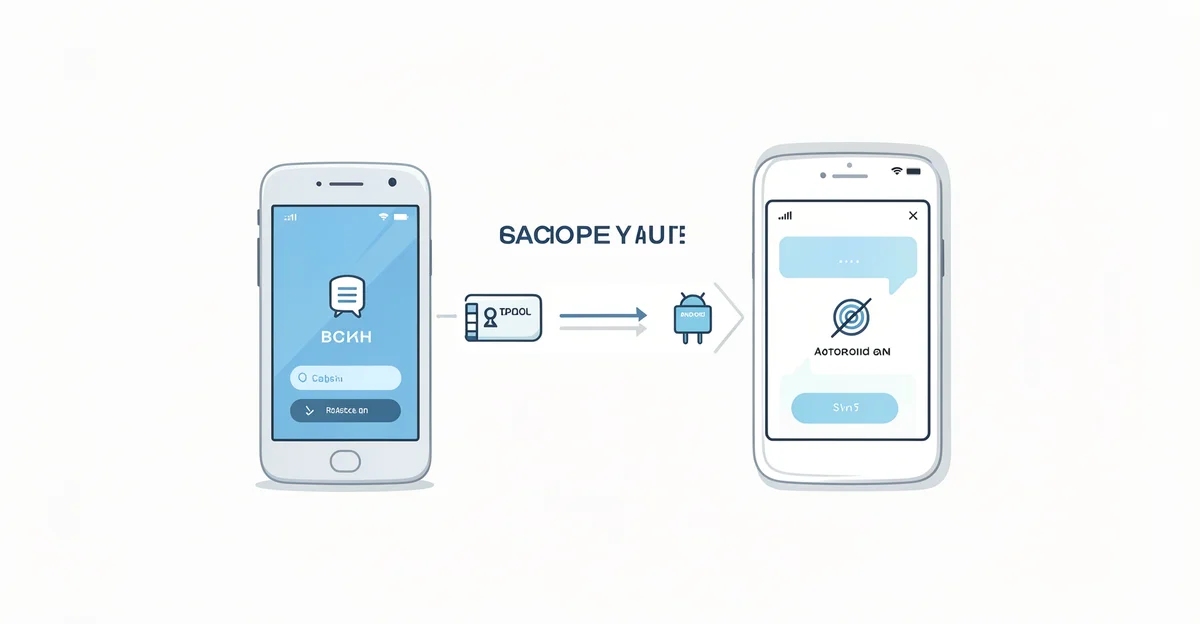
In today’s digital age, ensuring the safety of your personal data is more important than ever. With the increasing amount of valuable information stored on our Android devices, knowing how to automatically back up your Android phone to your PC can save you from potential data loss. Whether it’s cherished photos, important documents, or essential app data, having a reliable backup system in place is crucial for peace of mind.
This guide will walk you through the steps to seamlessly back up your Android phone to your PC, making the process straightforward and efficient. By automating your backups, you can focus on what truly matters without the constant worry of losing your data. Let’s dive into the methods and tools that will help you protect your information effortlessly.
Introduction
In today’s digital age, our smartphones hold a wealth of personal information, from cherished photos to important documents. For Android users, ensuring that this data is securely backed up is crucial. This article explores how to automatically back up your Android phone to your PC with clear, practical guidance. By understanding the fundamentals of this process, you can make informed decisions that will protect your valuable data.
Key Concepts
Before diving into the specifics of backing up your Android phone to your PC, it’s essential to grasp some key concepts:
- Backup: A backup is a copy of your data stored in a different location. In this case, it refers to the data from your Android device being copied to your PC.
- Automatic Backup: This feature allows your device to back up data without manual intervention, ensuring that your information is consistently protected.
- Data Types: Common data types to back up include contacts, photos, videos, app data, and settings.
Understanding these concepts will help you appreciate the importance of regular backups and the methods available to achieve them.
Deep Dive
Now that you have a foundational understanding, let’s explore the steps to automatically back up your Android phone to your PC.
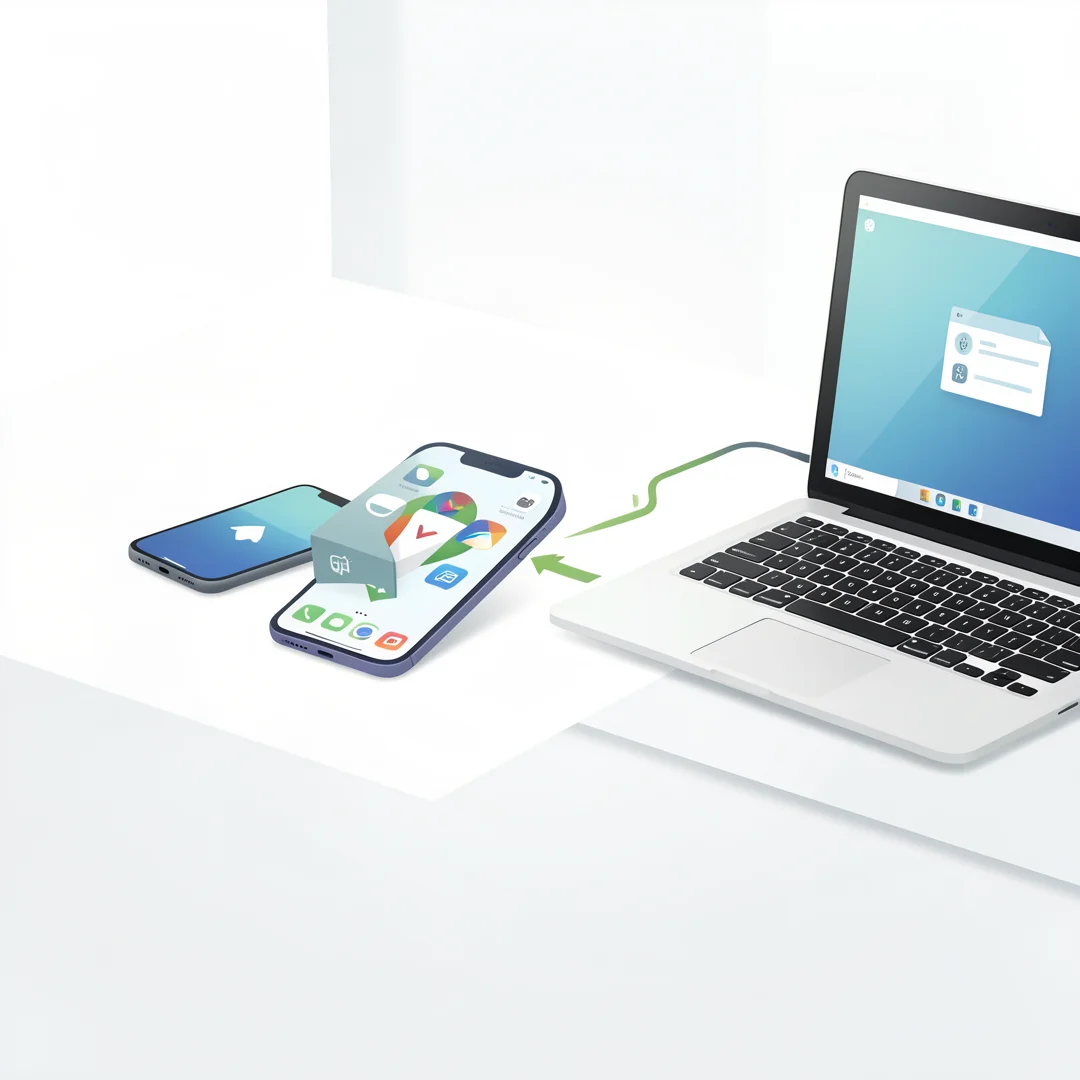
Step 1: Prepare Your PC
Before connecting your Android device, ensure your PC is ready:
- Install the necessary software. Depending on your Android device, you may need to download specific applications such as Samsung Smart Switch, HTC Sync Manager, or Android File Transfer.
- Ensure your PC has enough storage space to accommodate the backup files.
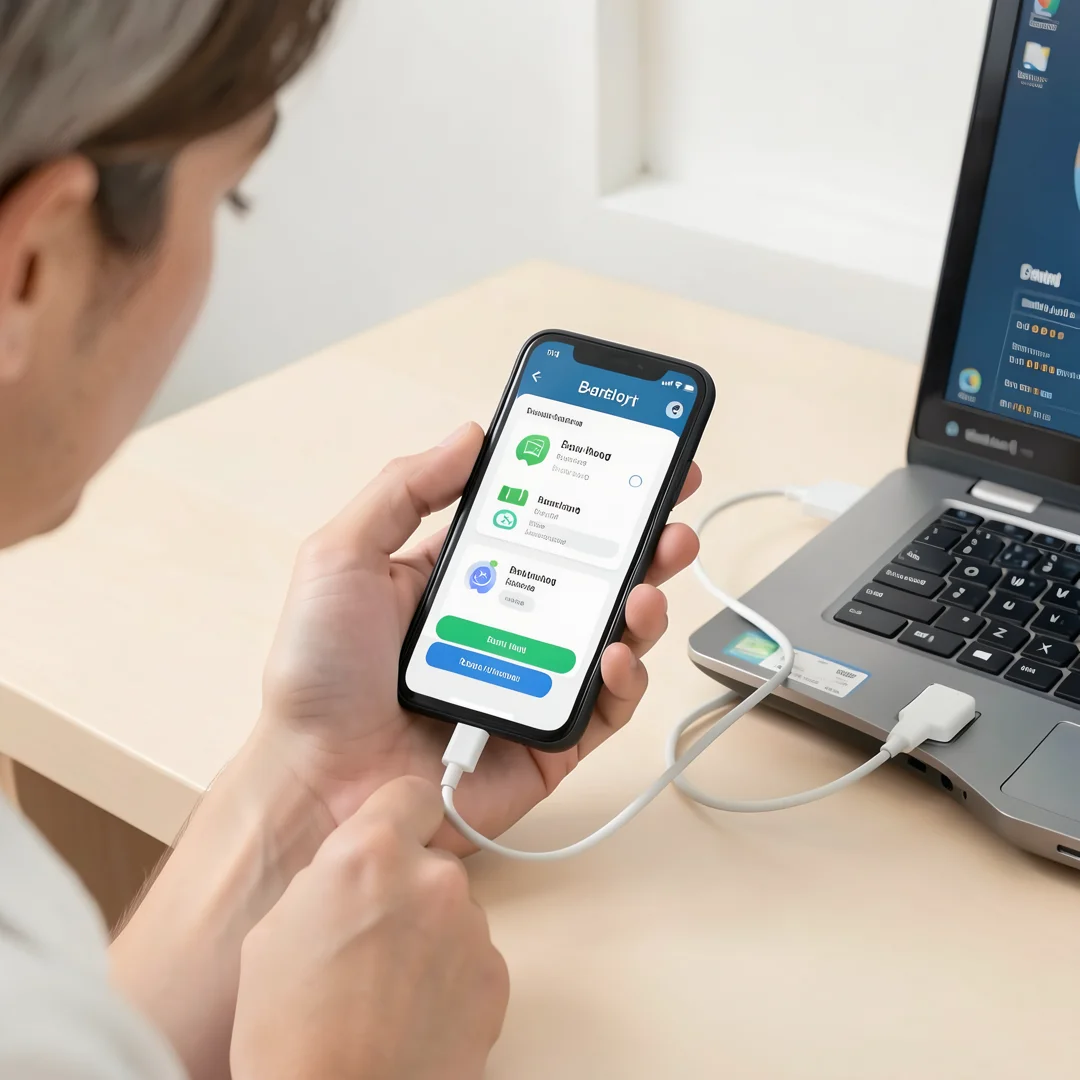
Step 2: Connect Your Android Phone to Your PC
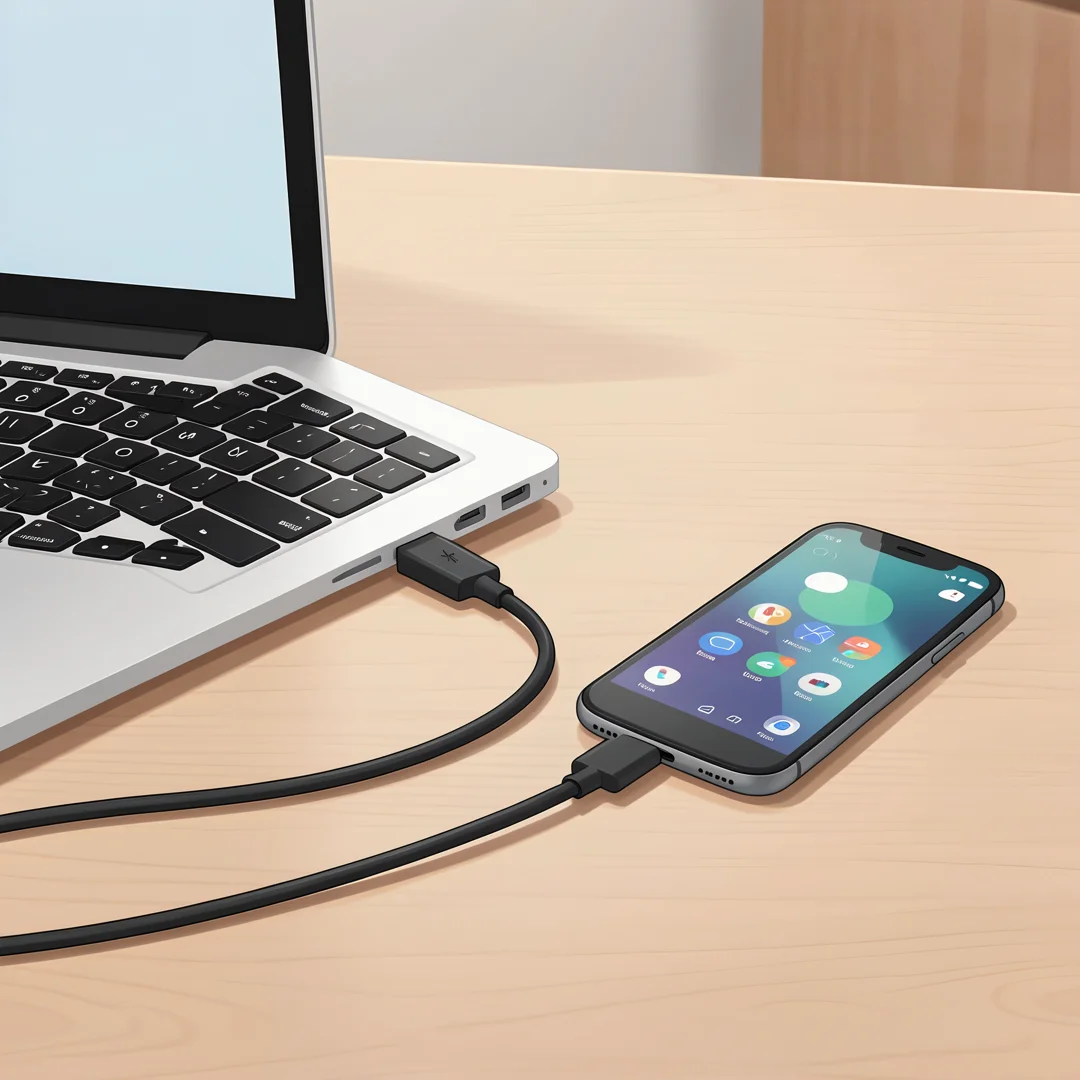
Use a USB cable to connect your Android phone to your PC. Once connected, you may need to select the type of connection:
- Select “File Transfer” or “MTP” mode on your Android device. This allows your PC to access the files on your phone.
- On your PC, you should see a notification indicating that a device is connected.
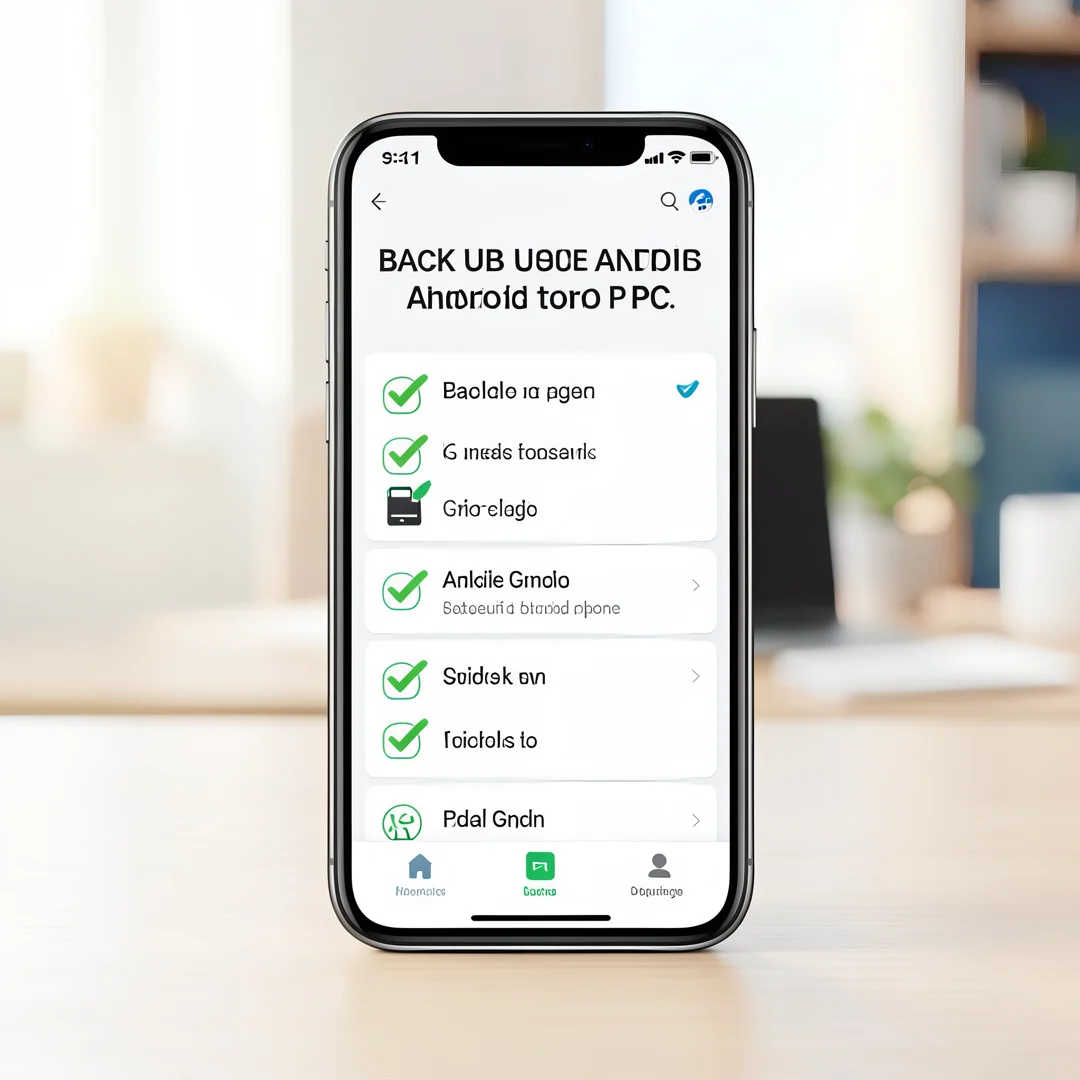
Step 3: Set Up Automatic Backup
To automate the backup process, follow these steps:
- Open the backup software you installed earlier.
- Follow the prompts to set up a new backup job. This typically involves selecting the data types you want to back up, such as photos, videos, and app data.
- Choose the destination folder on your PC where the backup files will be stored.
- Set a schedule for automatic backups. Most software allows you to choose daily, weekly, or monthly backups.
Step 4: Monitor Your Backups
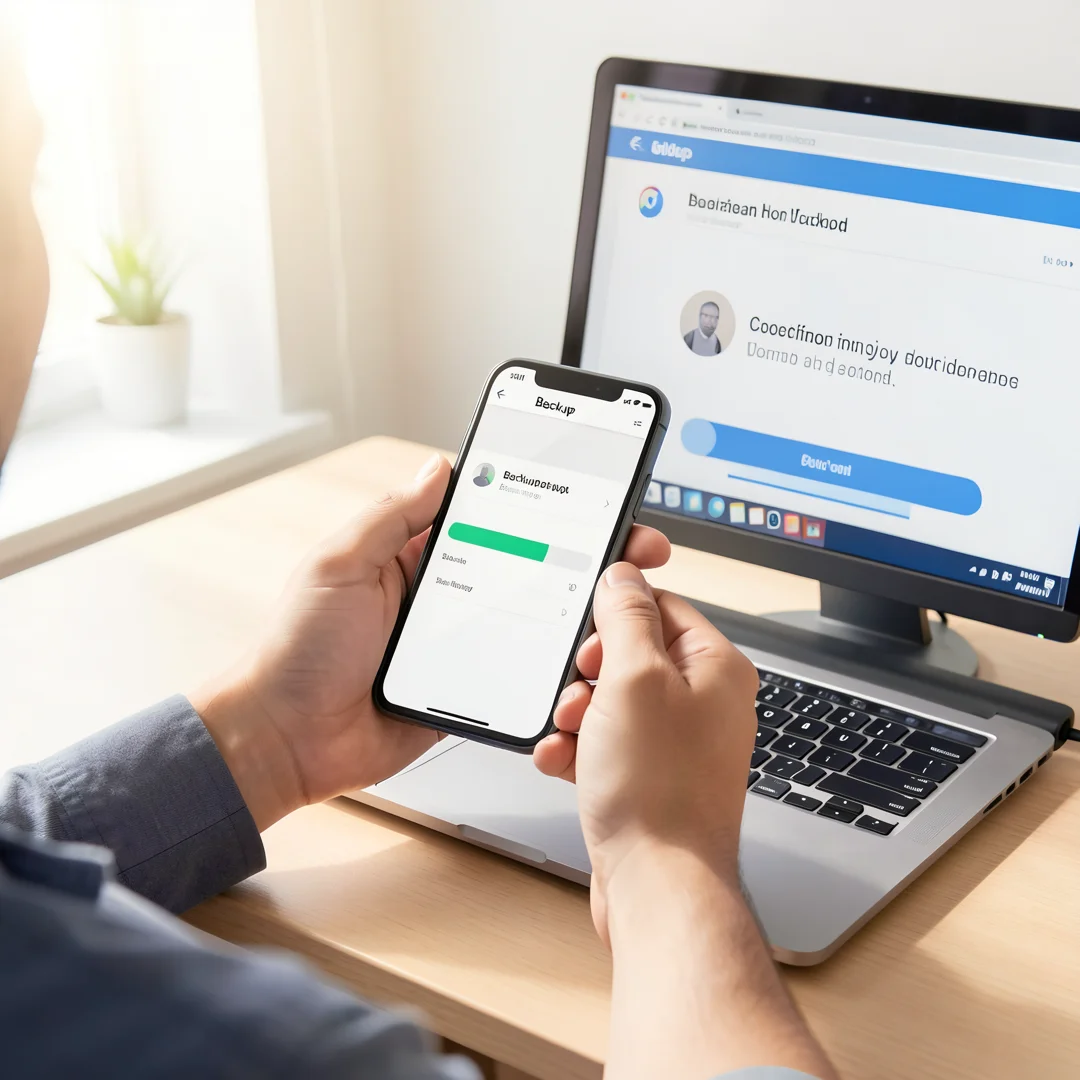
Once your automatic backup is set up, it’s important to regularly check that the backups are occurring as scheduled. You can do this by:
- Reviewing the backup logs provided by the software.
- Occasionally checking the destination folder on your PC to ensure new files are being added.
Best Practices
To ensure the effectiveness of your backup strategy, consider the following best practices:
- Regularly Update Your Software: Keep your backup software and Android operating system updated to benefit from the latest features and security improvements.
- Use Multiple Backup Locations: While backing up to your PC is essential, consider using cloud storage as an additional backup option for extra security.
- Test Your Backups: Periodically restore files from your backup to ensure that the process works correctly and that your data is intact.
- Educate Yourself: Stay informed about new backup solutions and techniques to enhance your data protection strategy.
FAQ
What should I know about How to Automatically Back Up Your Android Phone to Your PC?
When backing up your Android phone to your PC, it’s crucial to understand the types of data you want to back up, the software options available, and the importance of setting up an automatic schedule. Regular backups ensure that you have the latest data saved and reduce the risk of losing important information.
Who is this guide for?
This guide is designed for Android users who want a straightforward, effective method to protect their data by automatically backing it up to a PC. Whether you’re a tech-savvy individual or someone new to technology, the steps outlined here provide clear, actionable information for everyone.
Conclusion
In conclusion, automatically backing up your Android phone to your PC is a vital practice that protects your data from loss. By understanding the key concepts and following the detailed steps provided, you can establish a reliable backup routine. Remember, reliable information and consistent habits lead to better long-term outcomes. Take the time to set up your backup today, and enjoy peace of mind knowing your data is safe and secure.
Step-by-Step Guide
Follow these 8 steps in order. Each step includes detailed instructions and an image to guide you through How to Automatically Back Up Your Android Phone to Your PC.
Step 1: Understand the fundamentals
Learn the core concepts behind How to Automatically Back Up Your Android Phone to Your PC before taking action.
Take time to research How to Automatically Back Up Your Android Phone to Your PC from reliable sources and note questions that need clarification.
Many people benefit from breaking this stage into smaller tasks and completing one before moving to the next.
Document what works and what does not so you can refine your approach to How to Automatically Back Up Your Android Phone to Your PC over time.
Work through understand the fundamentals at a comfortable pace and confirm you understand each part before continuing.
Keep notes on anything specific to your device or situation so you can reference them later.
If something is unclear, pause and re-read the instructions rather than rushing ahead.
Many people find it helpful to complete this stage in one sitting to avoid losing context.
Expected result: You complete understand the fundamentals with a clear record of outcomes.
Tip: Review this step's results before proceeding to the next stage.
Step 2: Assess your starting point
Evaluate where you currently stand regarding How to Automatically Back Up Your Android Phone to Your PC.
Take time to research How to Automatically Back Up Your Android Phone to Your PC from reliable sources and note questions that need clarification.
Many people benefit from breaking this stage into smaller tasks and completing one before moving to the next.
Document what works and what does not so you can refine your approach to How to Automatically Back Up Your Android Phone to Your PC over time.
Work through assess your starting point at a comfortable pace and confirm you understand each part before continuing.
Keep notes on anything specific to your device or situation so you can reference them later.
If something is unclear, pause and re-read the instructions rather than rushing ahead.
Many people find it helpful to complete this stage in one sitting to avoid losing context.
Expected result: You complete assess your starting point with a clear record of outcomes.
Tip: Review this step's results before proceeding to the next stage.
Step 3: Set clear goals
Define specific, measurable outcomes you want from How to Automatically Back Up Your Android Phone to Your PC.
Take time to research How to Automatically Back Up Your Android Phone to Your PC from reliable sources and note questions that need clarification.
Many people benefit from breaking this stage into smaller tasks and completing one before moving to the next.
Document what works and what does not so you can refine your approach to How to Automatically Back Up Your Android Phone to Your PC over time.
Work through set clear goals at a comfortable pace and confirm you understand each part before continuing.
Keep notes on anything specific to your device or situation so you can reference them later.
If something is unclear, pause and re-read the instructions rather than rushing ahead.
Many people find it helpful to complete this stage in one sitting to avoid losing context.
Expected result: You complete set clear goals with a clear record of outcomes.
Tip: Review this step's results before proceeding to the next stage.
Step 4: Gather necessary resources
Collect tools, information, and support needed for How to Automatically Back Up Your Android Phone to Your PC.
Take time to research How to Automatically Back Up Your Android Phone to Your PC from reliable sources and note questions that need clarification.
Many people benefit from breaking this stage into smaller tasks and completing one before moving to the next.
Document what works and what does not so you can refine your approach to How to Automatically Back Up Your Android Phone to Your PC over time.
Work through gather necessary resources at a comfortable pace and confirm you understand each part before continuing.
Keep notes on anything specific to your device or situation so you can reference them later.
If something is unclear, pause and re-read the instructions rather than rushing ahead.
Many people find it helpful to complete this stage in one sitting to avoid losing context.
Expected result: You complete gather necessary resources with a clear record of outcomes.
Tip: Review this step's results before proceeding to the next stage.

Step 5: Apply the core methods
Put the primary techniques for How to Automatically Back Up Your Android Phone to Your PC into practice systematically.
Take time to research How to Automatically Back Up Your Android Phone to Your PC from reliable sources and note questions that need clarification.
Many people benefit from breaking this stage into smaller tasks and completing one before moving to the next.
Document what works and what does not so you can refine your approach to How to Automatically Back Up Your Android Phone to Your PC over time.
Work through apply the core methods at a comfortable pace and confirm you understand each part before continuing.
Keep notes on anything specific to your device or situation so you can reference them later.
If something is unclear, pause and re-read the instructions rather than rushing ahead.
Many people find it helpful to complete this stage in one sitting to avoid losing context.
Expected result: You complete apply the core methods with a clear record of outcomes.
Tip: Review this step's results before proceeding to the next stage.
Step 6: Monitor your progress
Track results and adjust your approach to How to Automatically Back Up Your Android Phone to Your PC as needed.
Take time to research How to Automatically Back Up Your Android Phone to Your PC from reliable sources and note questions that need clarification.
Many people benefit from breaking this stage into smaller tasks and completing one before moving to the next.
Document what works and what does not so you can refine your approach to How to Automatically Back Up Your Android Phone to Your PC over time.
Work through monitor your progress at a comfortable pace and confirm you understand each part before continuing.
Keep notes on anything specific to your device or situation so you can reference them later.
If something is unclear, pause and re-read the instructions rather than rushing ahead.
Many people find it helpful to complete this stage in one sitting to avoid losing context.
Expected result: You complete monitor your progress with a clear record of outcomes.
Tip: Review this step's results before proceeding to the next stage.
Step 7: Address common challenges
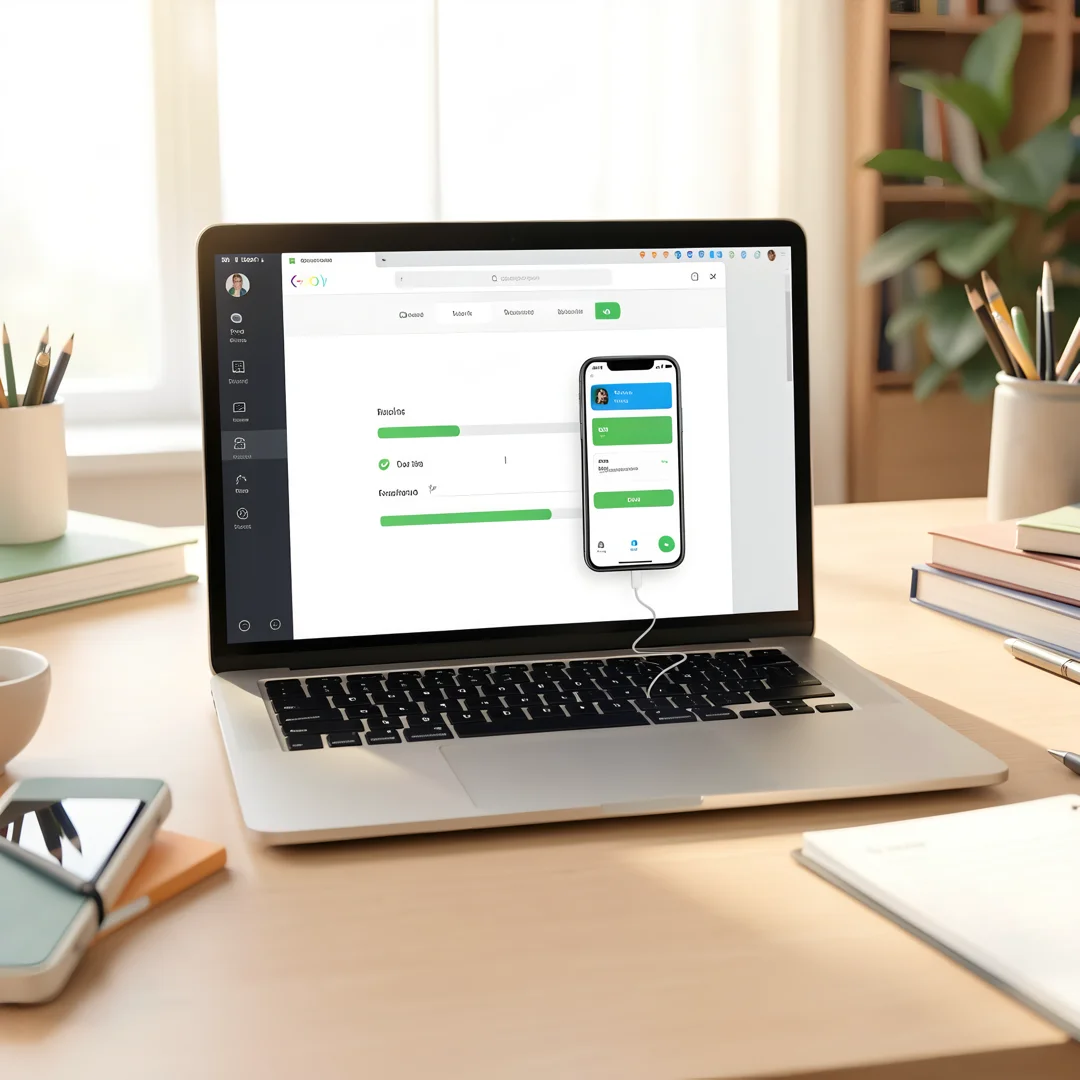
Identify obstacles related to How to Automatically Back Up Your Android Phone to Your PC and plan solutions.
Take time to research How to Automatically Back Up Your Android Phone to Your PC from reliable sources and note questions that need clarification.
Many people benefit from breaking this stage into smaller tasks and completing one before moving to the next.
Document what works and what does not so you can refine your approach to How to Automatically Back Up Your Android Phone to Your PC over time.
Work through address common challenges at a comfortable pace and confirm you understand each part before continuing.
Keep notes on anything specific to your device or situation so you can reference them later.
If something is unclear, pause and re-read the instructions rather than rushing ahead.
Many people find it helpful to complete this stage in one sitting to avoid losing context.
Expected result: You complete address common challenges with a clear record of outcomes.
Tip: Review this step's results before proceeding to the next stage.
Step 8: Maintain long-term success
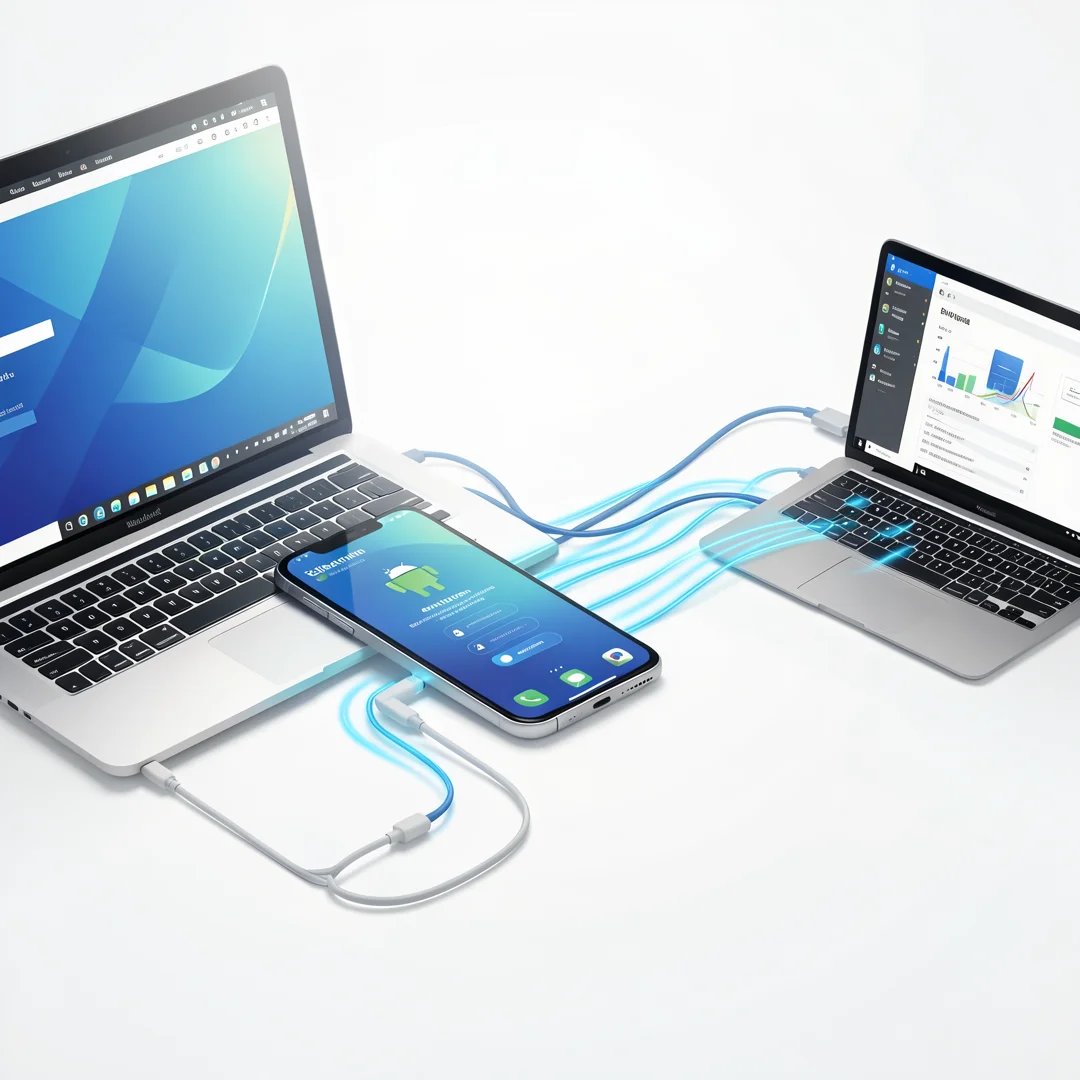
Build sustainable habits around How to Automatically Back Up Your Android Phone to Your PC for lasting results.
Take time to research How to Automatically Back Up Your Android Phone to Your PC from reliable sources and note questions that need clarification.
Many people benefit from breaking this stage into smaller tasks and completing one before moving to the next.
Document what works and what does not so you can refine your approach to How to Automatically Back Up Your Android Phone to Your PC over time.
Work through maintain long-term success at a comfortable pace and confirm you understand each part before continuing.
Keep notes on anything specific to your device or situation so you can reference them later.
If something is unclear, pause and re-read the instructions rather than rushing ahead.
Many people find it helpful to complete this stage in one sitting to avoid losing context.
Expected result: You complete maintain long-term success with a clear record of outcomes.
Tip: Review this step's results before proceeding to the next stage.
Best Practices
- Start with clear goals and track progress over time.
- Use trusted sources and verify important claims.
- Adjust recommendations to your personal situation and consult experts when needed.
Expert Insights
Readers searching for 'How to Automatically Back Up Your Android Phone to Your PC' want actionable advice without unnecessary jargon.
Structured sections with summaries improve readability and engagement.
Current Trends
- Increased demand for clear, trustworthy online guides
- Mobile-first reading habits
Key Statistics
- Consistent habits — Small daily improvements compound into meaningful results over time.
Frequently Asked Questions
What should I know about How to Automatically Back Up Your Android Phone to Your PC?
This guide covers the essentials of How to Automatically Back Up Your Android Phone to Your PC with practical steps you can apply right away.
Who is this guide for?
Anyone looking for a clear, structured overview without unnecessary complexity.
You now have a solid foundation for How to Automatically Back Up Your Android Phone to Your PC. Apply the best practices above and revisit this guide as your needs evolve.
